
Quick Ways To Improve Mobile Product Images (That Actually Boost Sales)
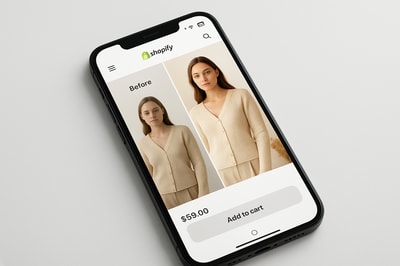
Mobile shoppers are ruthless. If your product photos look small, blurry, or cluttered on a phone screen, they’ll bounce in seconds.
In this guide, you’ll learn quick, practical ways to improve your mobile product images—and how to do most of the heavy lifting automatically with Supra AI Photo Studio.
Why Mobile Product Images Matter More Than Ever
- Mobile = majority of traffic: For most Shopify stores, 60–80% of visitors are on mobile.
- Tiny screen, big impact: On a phone, your images do almost all the selling. Text gets skimmed, but visuals decide trust.
- Bad images = lost trust: Inconsistent lighting, busy backgrounds, or awkward crops feel unprofessional and reduce conversions.
Improving mobile product images doesn’t have to mean hiring a studio. With a few tweaks—and the right AI tools—you can upgrade your visuals in minutes.
1. Start With Clean, Distraction-Free Photos
Clutter that might be “okay” on desktop becomes chaos on a phone.
Quick wins:
- Remove messy or busy backgrounds
- Eliminate random props that don’t support the product
- Make the product the clear focus in the frame
Do it in seconds with AI background removal
Instead of manually masking in Photoshop, use Supra AI Photo Studio inside your Shopify admin:
- Open the app and select your product.
- Use Background Remover / Isolate Product.
- Choose a clean, on-brand background (white, soft gradient, or simple texture).
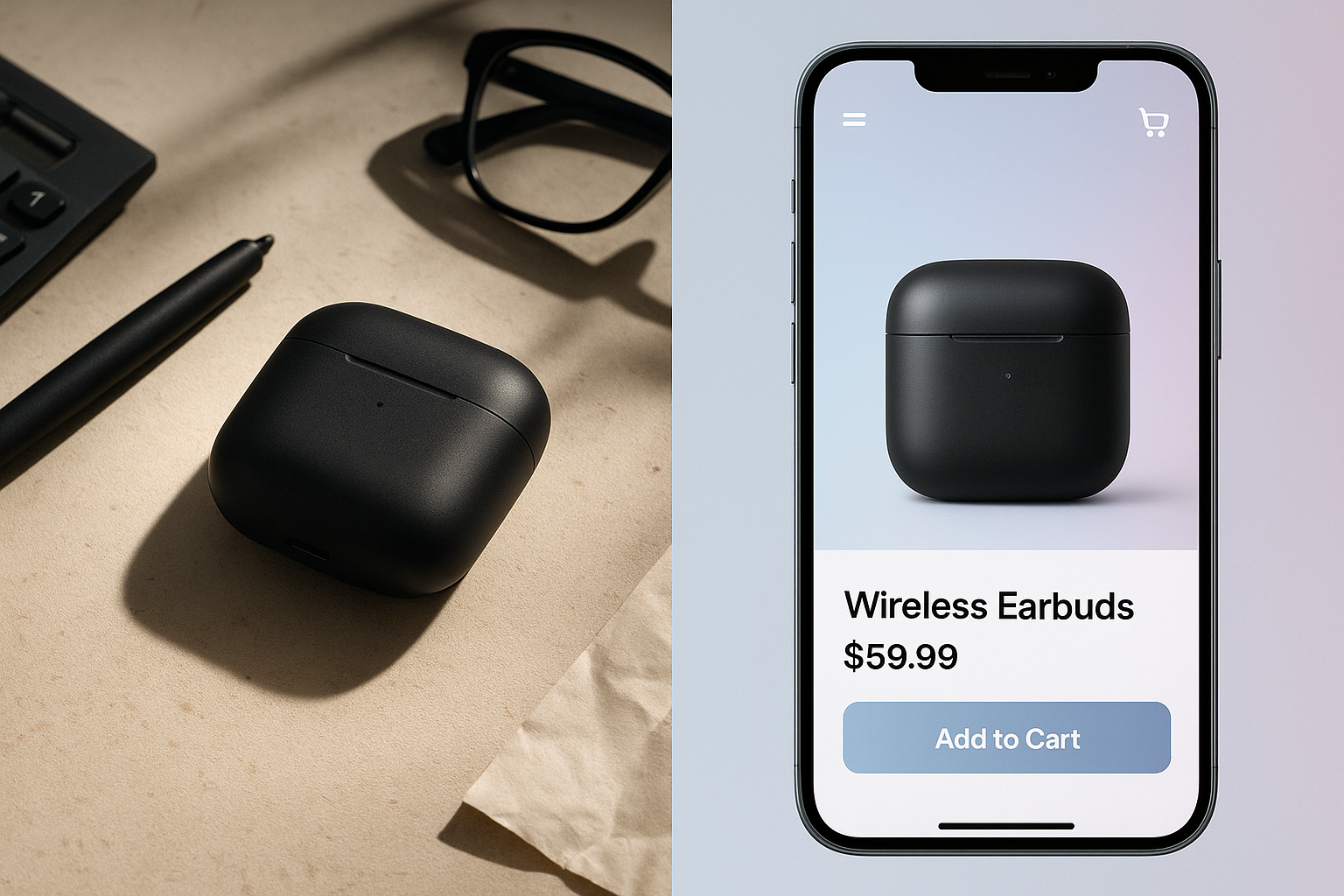
Clean isolation instantly makes your product pop on small screens and helps thumbnails look professional.
2. Optimize Cropping and Aspect Ratio for Mobile
Even great photos can look bad if they’re poorly cropped.
Mobile-optimized cropping tips:
- Center the product: Keep the main subject dead-center or on a strong focal point.
- Avoid tiny products: Zoom in enough so the product fills 60–80% of the frame.
- Use consistent ratios: Stick to 1:1 (square) or 4:5 (portrait) so your grid looks clean.
On Shopify, this helps your products look uniform in collections, search, and recommendations—especially on phones.
With Supra AI Photo Studio, you can quickly:
- Reframe images around the isolated product
- Generate new versions where the product is perfectly centered and scaled
3. Fix Lighting, Color, and Sharpness Automatically
Mobile screens are unforgiving. Dark, yellowish, or slightly blurry images look terrible when shrunk down.
What to fix:
- Lighting: Lift shadows, avoid overexposure.
- Color: Ensure whites are neutral; product colors look true-to-life.
- Sharpness: Textures and edges should be crisp, even when zoomed.
Use Auto Enhance to correct issues in one click
- Upload or pick your product image.
- Click Auto Enhance.
- Let the AI adjust exposure, contrast, colors, noise, and sharpness.
If your original photo was small or slightly blurry, use Upscaling to:
- Increase resolution for crisp zoom on mobile
- Reduce noise and artifacts from compressed images
This gives you studio-quality clarity even from basic phone photos.
4. Create Mobile-Friendly Lifestyle Shots (Fast)
On mobile, shoppers want to instantly understand how and where your product fits into their life.
Lifestyle images do that—if they’re clear and focused.
Good lifestyle image characteristics for mobile:
- Simple background with a strong sense of context (kitchen, office, outdoors)
- Product remains the visual hero
- Easy to understand in a split-second scroll
Generate lifestyle scenes with AI object placement
Instead of organizing a full photoshoot, use Object Placement in Supra AI Photo Studio:
- Isolate your product.
- Choose a setting (e.g. modern kitchen counter, cozy bedroom nightstand, minimalist office desk).
- Pick camera angle and lighting style.
- Let AI generate realistic lifestyle scenes around your product.
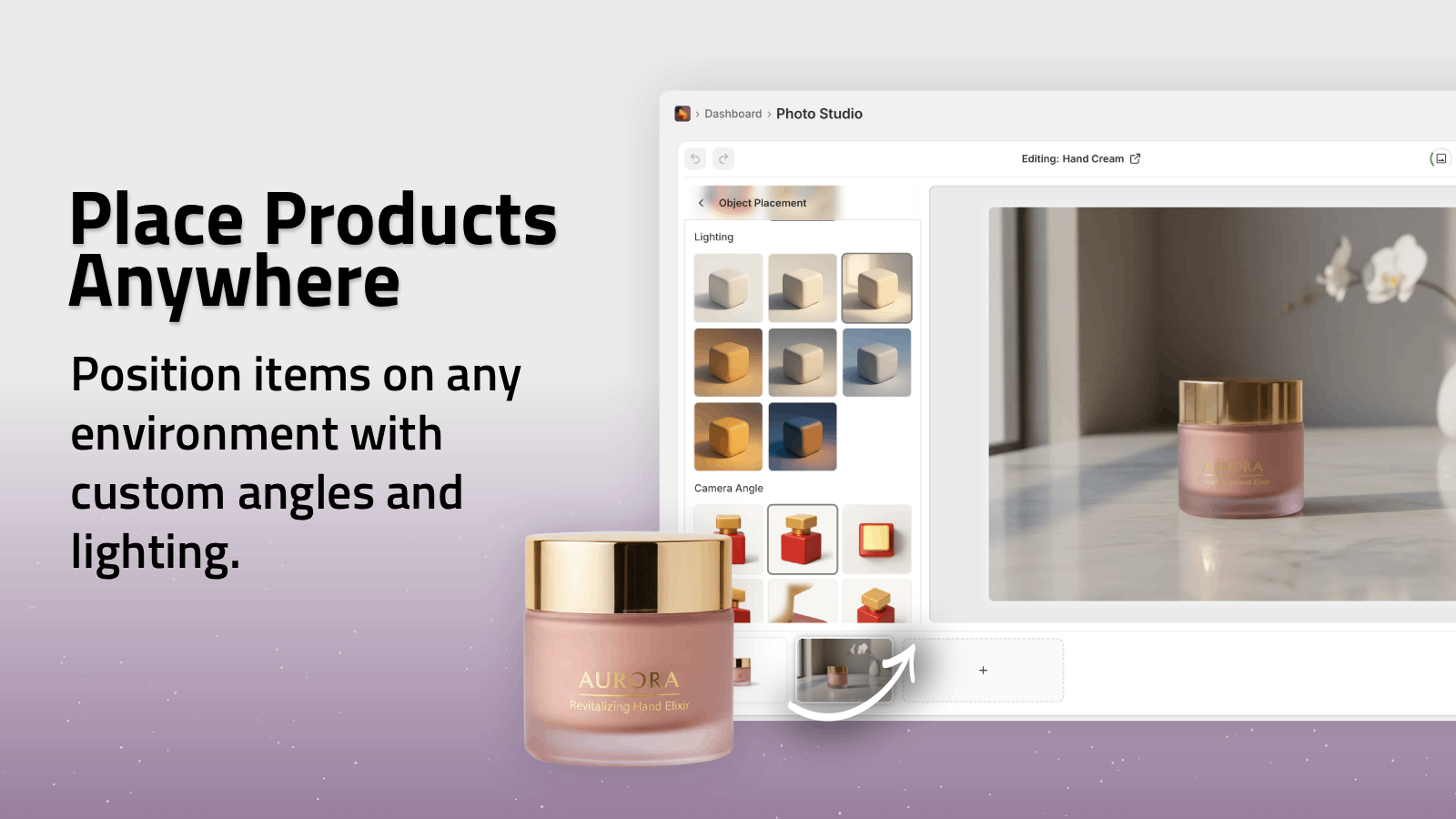
Now your mobile product gallery can show:
- 1–2 clean studio shots
- 2–3 lifestyle images in real contexts
This dramatically increases add-to-cart rates because shoppers immediately see the product “in the wild.”
5. Use On-Model Images That Still Look Great on Phones
For fashion, jewelry, and accessories, try-on photos on real-looking models are critical—especially on a small screen where fit and scale matter.
But model shoots are expensive and slow.
Use AI Try-On to put products on realistic models
With Supra AI Photo Studio:
- Choose AI Try-On.
- Select or create a model (adjust pose, skin tone, body type).
- Apply your apparel, jewelry, or accessories to the model.
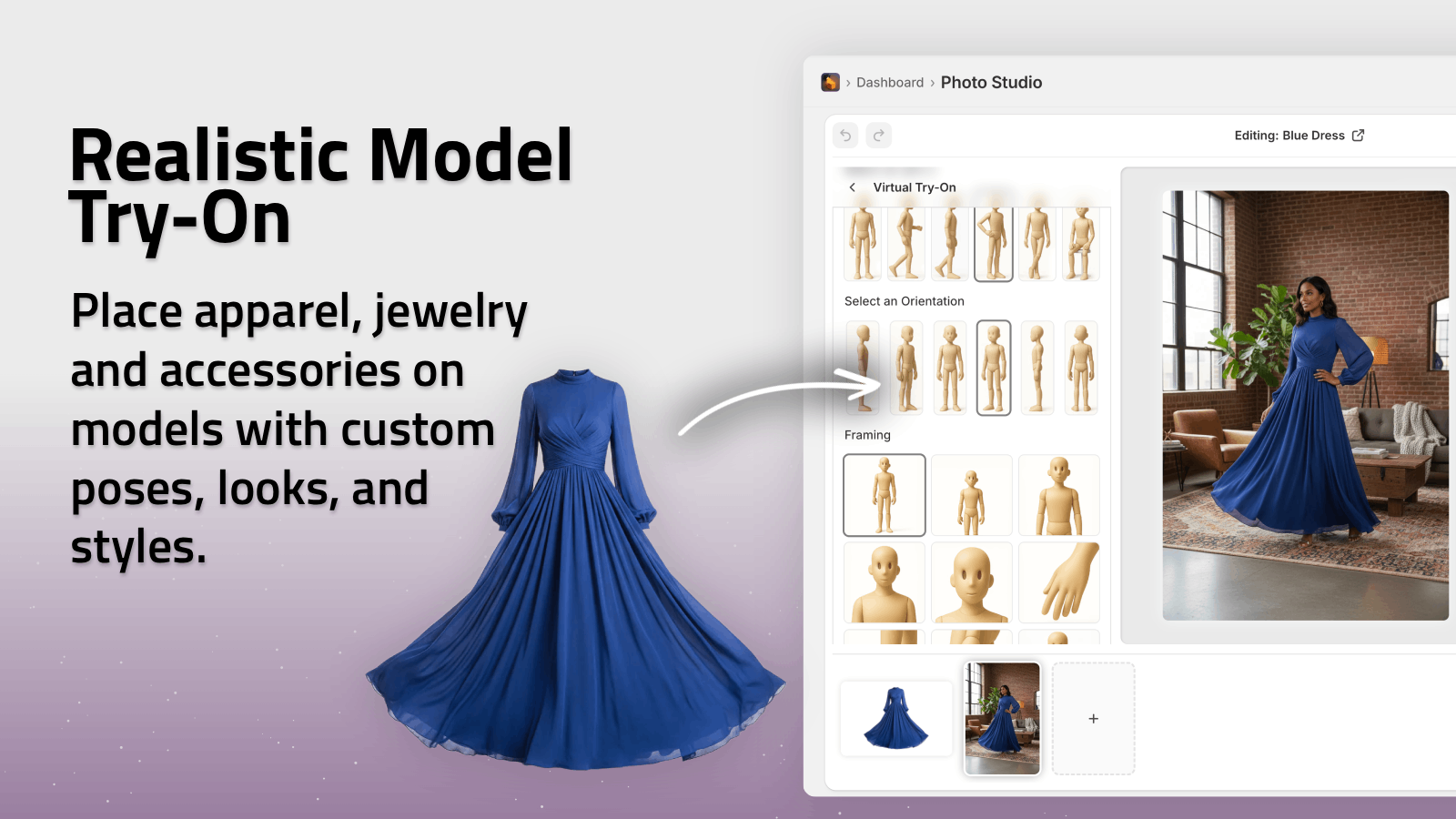
The AI maintains accurate product details (fit, pattern, length), so customers can:
- Understand sizing and drape
- See how items look on different body types
- Trust that what they see is what they’ll get
On mobile, these images do the job of both description and sizing chart in one glance.
6. Make Your First Image Thumb-Stop-Worthy
On mobile, your first image is your hook:
- It sells the click from collections and search
- It’s the hero visual above the fold on product pages
Optimize your first image for mobile by:
- Making the product big and bold
- Avoiding tiny text overlays or clutter
- Using a bright, high-contrast background that fits your brand
Use Supra’s editor to quickly:
- Test clean vs lifestyle hero images
- Adjust crop so the product fills the frame
- Enhance lighting and contrast to stand out in mobile grids
7. Add Short, Eye-Catching Mobile Videos
Short videos can dramatically boost engagement on mobile—especially for ads, PDPs, TikTok, and Reels.
What works best on mobile:
- 5–15 second clips
- Clear focus on product features or movement
- Vertical or square aspect ratios
Generate product videos in minutes with AI
Supra AI Photo Studio includes:
- UGC-style videos: Turn images into influencer-like clips, perfect for Reels and TikTok.
- B-roll videos: Cinematic product drops, splashes, and close-ups for ads.
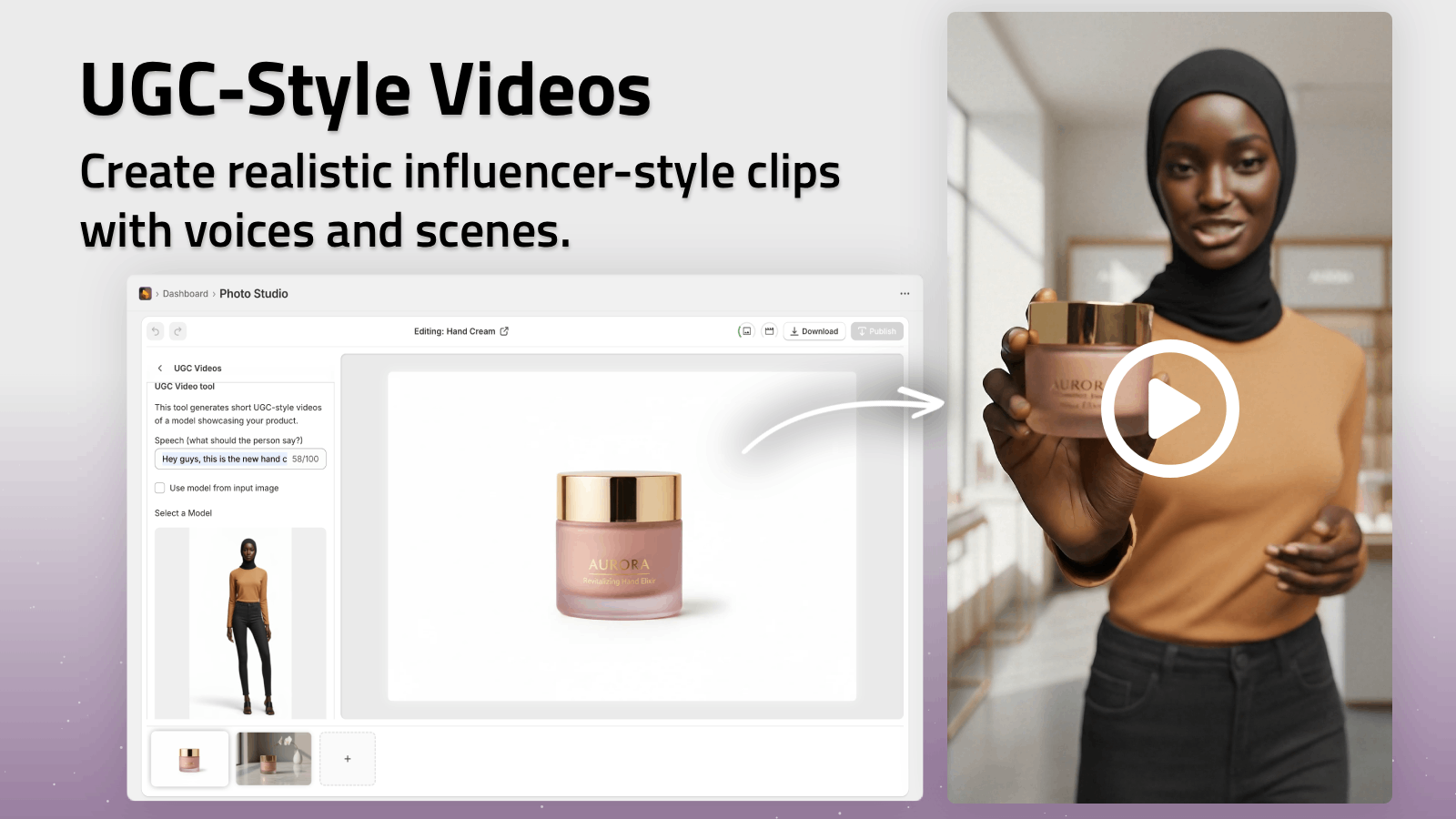
You can choose the vibe, setting, and voice, then repurpose the same visuals:
- On product pages for mobile shoppers
- In paid social campaigns
- In email and SMS campaigns with embedded GIFs or short clips
8. Keep Your Mobile Catalog Visually Consistent
One of the quickest ways to look amateurish on mobile is inconsistent visuals:
- Different background colors
- Different lighting styles
- Mixed aspect ratios
Consistency builds trust and makes your store feel like a real brand.
With Supra AI Photo Studio, you can:
- Apply the same background style across your catalog
- Use similar lighting and angles for each category
- Enhance and upscale all older images to match new ones
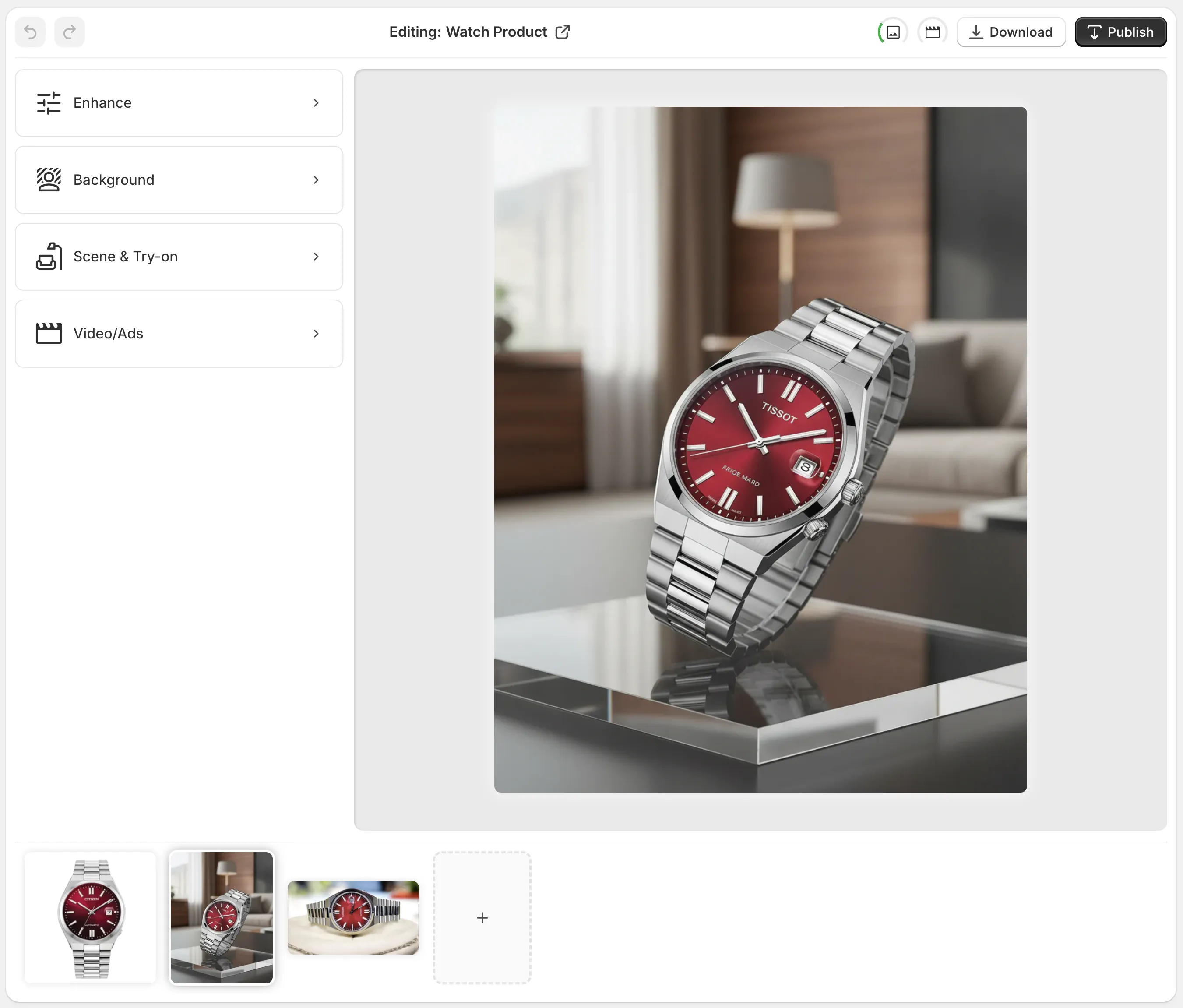
Because everything runs inside your Shopify admin, it’s easy to go product by product and fix your visuals without leaving your workflow.
9. Implement These Quick Changes Today
You don’t need a studio or a full reshoot to improve mobile product images. Start with these fast wins:
- Remove clutter and isolate your products.
- Auto enhance & upscale for sharp, bright details.
- Re-crop so products fill the mobile frame.
- Add 1–2 lifestyle scenes for context.
- Use AI try-on for fashion and accessories.
- Add a short video for key products and best-sellers.
You can do all of this with one tool, directly in Shopify: Supra AI Photo Studio.
- Free plan available to test on your current photos.
- Scale up with affordable plans as you grow.
- No design skills required.
Transform your mobile product images into high-conversion visuals in minutes—not weeks.