How To Remove Background From Product Photos (Step‑By‑Step for Shopify Stores)
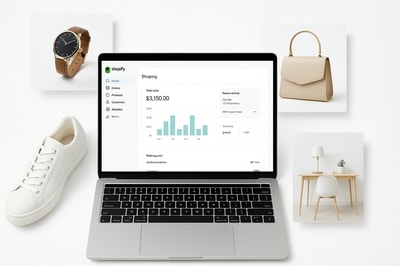
Removing the background from product photos is one of the fastest ways to make your store look professional and boost conversions.
Clean backgrounds help your products stand out, keep your catalog consistent, and make it easier to reuse images in ads, social media, and email campaigns.
In this guide, you’ll learn:
- Why background removal matters for ecommerce SEO and conversions
- The main methods (manual, free tools, and AI)
- A step‑by‑step workflow using Supra AI Photo Studio for Shopify
- Pro tips to get perfect cut-outs every time
Why Removing Backgrounds From Product Photos Matters
1. Higher Conversion Rates
A messy or dark background distracts buyers. A clean, consistent background:
- Draws attention to the product
- Makes your store look trustworthy and “brand ready”
- Reduces cognitive load so shoppers decide faster
Merchants who switch from random backgrounds to clean, consistent visuals often see better click‑through rates on ads and higher add‑to‑cart rates.
2. Better SEO & Click-Through From Search
High-quality, clean product images improve:
- Image SEO (Google Images visibility)
- SERP click‑through (when your product grid appears in Google Shopping or rich results)
Search engines favor listings that lead to clear, high‑quality visuals and a good user experience. Clean, background‑removed photos are easier to compress, crop, and adapt for all channels.
3. Brand Consistency Across Your Catalog
If half your catalog is shot on someone’s kitchen table and the rest on random colored carpets, your brand looks chaotic.
Removing backgrounds lets you:
- Use the same white, off‑white, or brand color behind every product
- Quickly generate matching lifestyle scenes without reshooting
With Supra AI Photo Studio, you can remove the background and then instantly place the product in studios, luxury boutiques, outdoor scenes, or flat‑lays—all from the same base image.
Main Ways To Remove Backgrounds From Product Photos
1. Manual Editing (Photoshop & Similar)
Pros
- Pixel-level control
- Great for complex objects
Cons
- Time‑consuming, especially with large catalogs
- Requires design skills & expensive software
Manual methods (Pen Tool, Layer Masks, Select & Mask) are powerful, but not realistic for most Shopify merchants who need to process dozens or hundreds of SKUs.
2. Free Online Background Removers
Pros
- Quick and simple
- No software install needed
Cons
- Limited control
- Often low resolution or watermarks
- Not integrated with your Shopify products
These tools can be fine for one‑off tasks, but they quickly become painful when you’re managing a real ecommerce catalog.
3. AI Background Removal Inside Shopify (Recommended)
Using an AI tool directly in your Shopify back office is ideal:
- No switching tabs or re‑uploading
- All edits stay attached to your product
- Easy to create multiple versions of the same photo (white background, lifestyle scene, ad creative, etc.)
That’s exactly what Supra AI Photo Studio does:
- Isolate products with one click (“Isolate Product” tool)
- Remove or replace the background
- Upscale, denoise, and auto‑enhance lighting at the same time
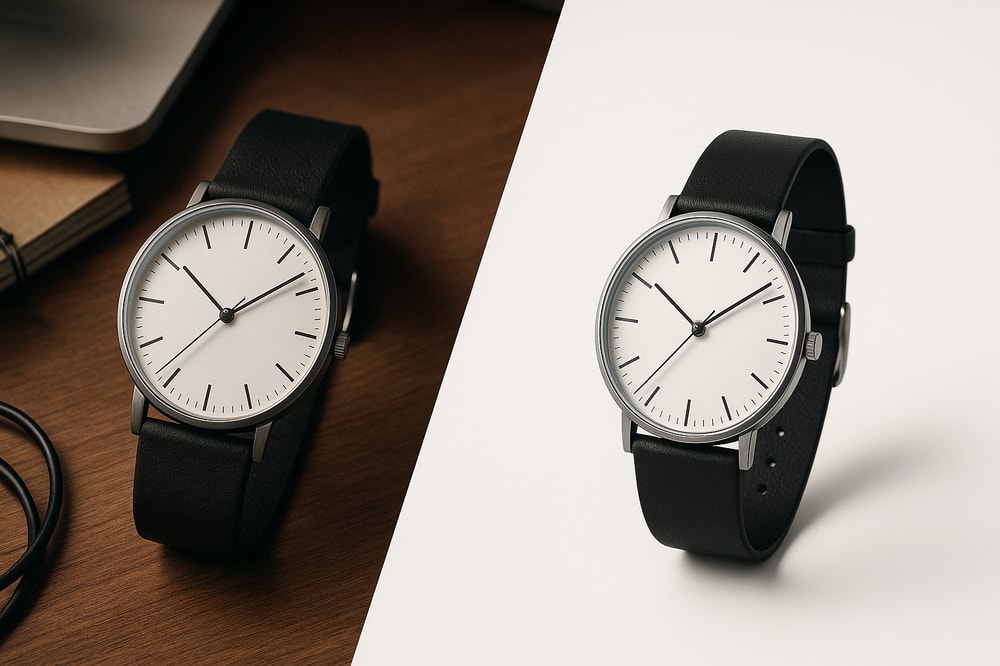
Step‑By‑Step: How To Remove Background From Product Photos With Supra AI Photo Studio
Below is a workflow you can use for any Shopify store, whether you sell clothing, accessories, home decor, or electronics.
Step 1 – Install Supra AI Photo Studio on Your Shopify Store
- Go to the app listing: Supra AI Photo Studio on the Shopify App Store.
- Click Add app and follow the install steps.
- Once installed, open it from your Shopify admin under Apps → Supra AI Photo Studio.
You can also explore the features on the landing page: supra-ai-photo-studio.sktch.io and watch the short demo trailer: YouTube demo.
Step 2 – Open a Product in the Editor
From the app dashboard, you can:
- Pick a product from your existing Shopify catalog, or
- Upload a new image directly into the editor.
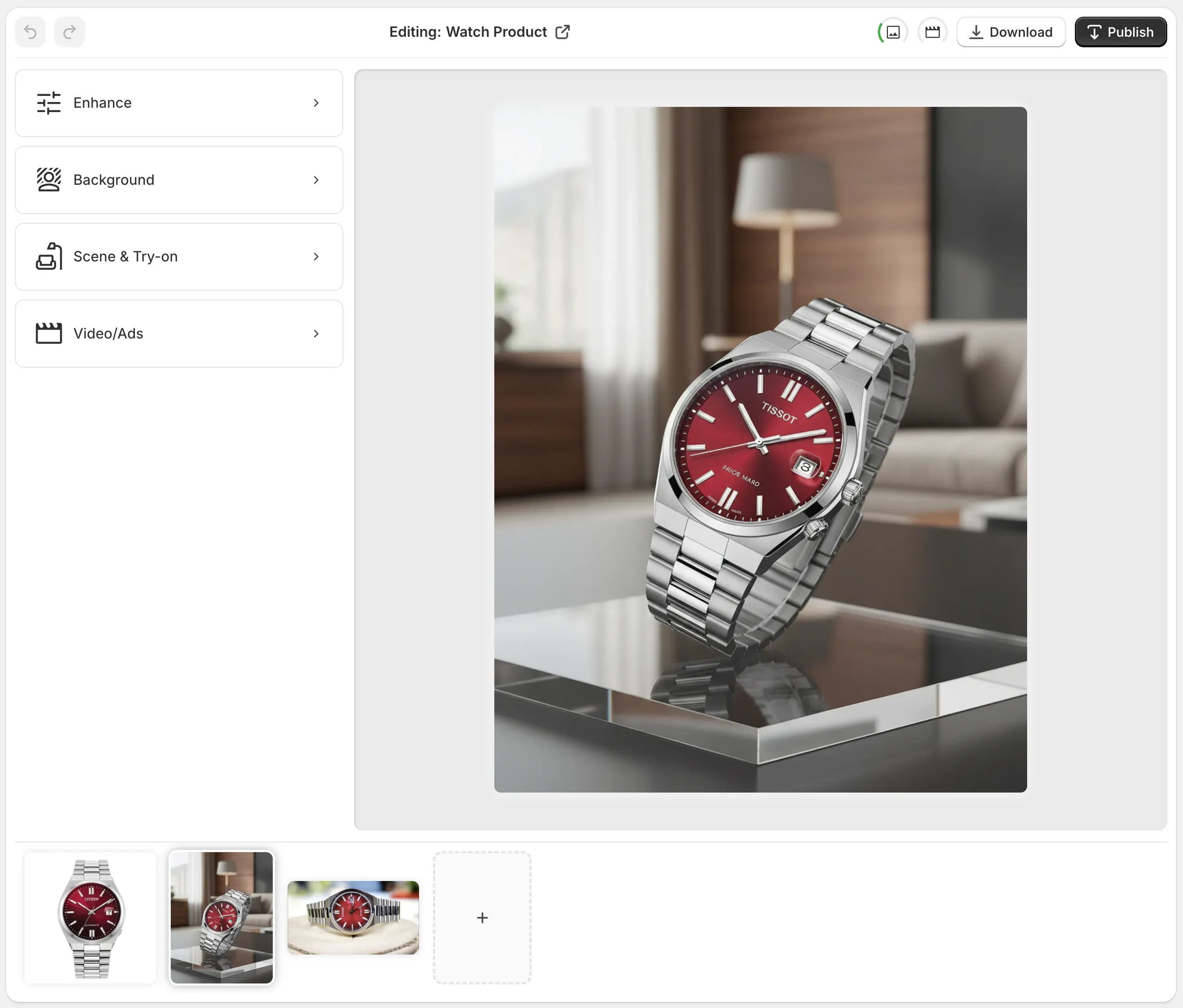
The editor layout:
- Top bar – Undo/redo, pick a different product, download, or publish to Shopify.
- Left tools panel – All AI tools (Isolate Product, Background Remove/Replace, Try‑On, Object Placement, etc.).
- Canvas (right) – Your current image preview with zoom and pan.
- Image Gallery (bottom) – All images linked to that product.
Step 3 – Isolate the Product (Best Practice)
For most products, start with the "Isolate Product" tool.
Why this matters:
- It removes distracting elements from the original shot
- The AI understands better where the product ends and background begins
- Later edits like Object Placement or Try‑On become more accurate
In the tools panel:
- Select Isolate Product.
- Let the AI detect the subject automatically.
- Check edges (handles, straps, transparent parts) and tweak if needed.
You now have a clean cut‑out that can be used on any background.
Step 4 – Remove or Replace the Background
With your product isolated, you can:
Option A – Pure White or Light Background (Catalog Standard)
Perfect for:
- Marketplace requirements (e.g., platforms that want #ffffff background)
- Clean product listing pages
In the editor:
- Choose the Background or Remove Background tool.
- Set the background to solid white or light grey.
- Adjust shadow strength and softness so the product doesn’t look like it’s floating unnaturally.
Option B – Branded Solid Color Background
Great for:
- Matching your brand palette
- Creating visual sections (e.g., different collections with different color themes)
- Pick a brand color that complements your product.
- Use the color picker or input the exact HEX code.
- Keep contrast high enough for the product to stand out.
Option C – Lifestyle or Themed Backgrounds (Using Object Placement)
This is where Supra AI Photo Studio becomes more than just a background eraser.
You can drop your cut‑out product into:
- A modern kitchen (for cookware)
- A minimalist office (for tech & accessories)
- An outdoor park or beach (for fashion & lifestyle)
- A luxury boutique or studio (for jewelry, cosmetics, high‑end items)
Use the Object Placement tool to:
- Select the environment (e.g., “sunlit marble bathroom counter”).
- Configure camera angle and surface type.
- Place your product; the AI generates realistic lighting and shadows.
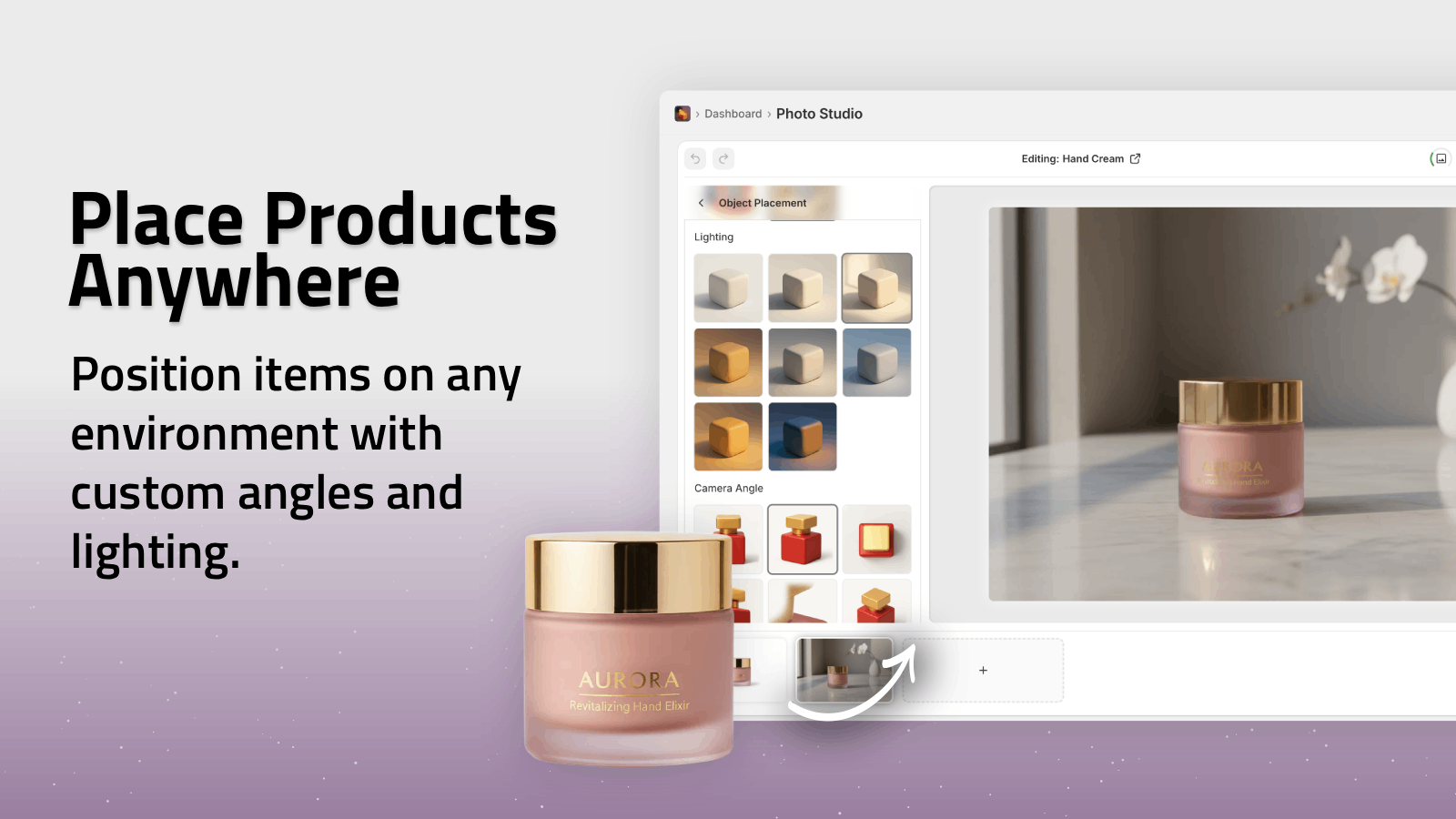
You can generate multiple lifestyle variants from the same base cut‑out, ideal for A/B testing your product images in ads.
Step 5 – Auto Enhance & Upscale For Maximum Quality
Background removal is only half the job; the final image also needs to look sharp, bright, and crisp.
Use Supra AI Photo Studio’s enhancement tools to:
- Upscale low‑resolution photos
- Denoise and deblur slightly blurry images
- Fix color balance and lighting with auto‑enhance
This is especially helpful if your original photo was shot:
- On a smartphone
- In low light
- Without a professional setup
The app ensures your product looks like it was shot in a real studio—even if it wasn’t.
Step 6 – Publish Back to Shopify
Once you’re happy with the new background:
- Hit Download if you want to use the image outside Shopify.
- Or click Publish from the top bar to save it directly as a product image in your Shopify admin.
Because the app is integrated, you don’t have to:
- Download from one tool
- Rename files
- Re‑upload into Shopify
Your entire workflow stays in one place.
Pro Tips For Perfect Background Removal
1. Start With Decent Source Photos
AI can work miracles, but give it something to work with:
- Shoot against a plain, non‑busy background when possible
- Avoid extreme motion blur
- Use natural light or a simple soft light
Even if the image is imperfect, Supra AI’s upscaling + auto‑enhance can still produce a very polished result.
2. Maintain Consistency Across Your Catalog
Decide on a system like:
- Main image: white or very light background
- Secondary images: lifestyle scenes (kitchen, outdoor, studio)
- Additional images: close‑ups or on‑model shots
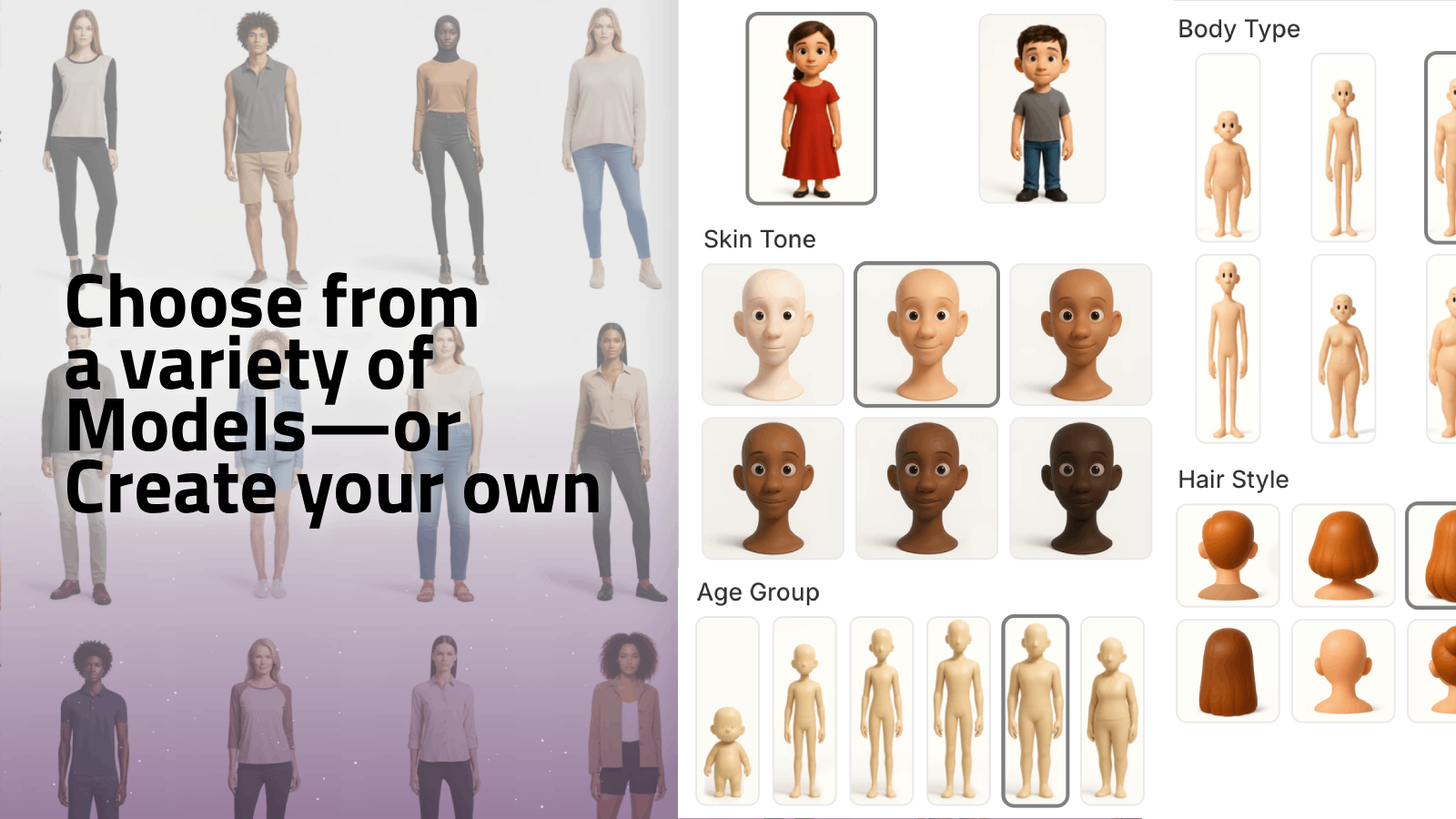
With Supra AI Photo Studio you can generate all of these from the same base cut‑out using:
- Object Placement for scenes
- AI Try-On for clothing, jewelry, accessories
3. Use Lifestyle Backgrounds in Ads & Social
Your product page might prefer clean white backgrounds, but your ads need context.
Use your background‑removed assets to quickly generate:
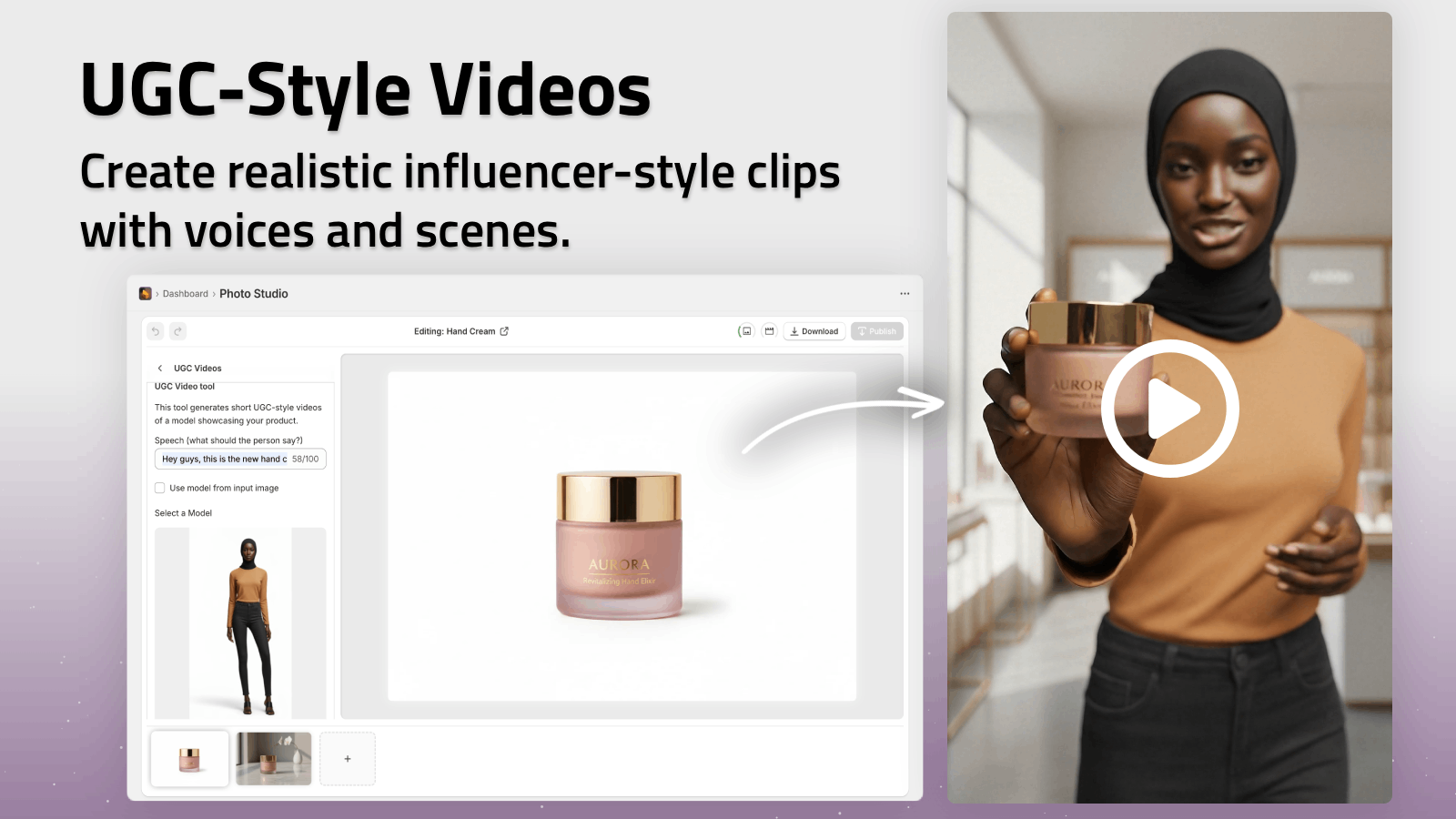
- TikTok/Reels creatives with UGC‑style videos
- Cinematic B‑roll of your product dropping, rotating, splashing
Supra AI Photo Studio can turn a single product image into:
- UGC videos with influencer‑style framing and voiceover
- B‑roll clips with dust, liquid, or smoke effects
Why Use Supra AI Photo Studio Instead of Basic Background Removers?
Most background remover tools stop at giving you a transparent PNG.
Supra AI Photo Studio gives you an end‑to‑end product visuals system inside Shopify:
- Background removal & replacement in one click
- Studio‑quality enhancements (lighting, sharpness, resolution)
- AI Try-On for fashion products (create on‑model photos without photoshoots)
- Object placement for realistic lifestyle scenes
- AI UGC & B‑roll videos for ads, TikTok, and Reels
You can try it risk‑free:
- Free plan with image generations included
- Upgrade only when you need more volume or video capacity
👉 Install it here: Supra AI Photo Studio on the Shopify App Store
Final Thoughts
If you want your products to look premium, removing the background is a must—but it doesn’t have to be slow or technical.
By using an AI‑powered tool like Supra AI Photo Studio directly inside Shopify, you can:
- Remove and replace backgrounds in seconds
- Keep your catalog visually consistent
- Repurpose the same product cut‑outs into lifestyle images, mockups, and videos
Start with one product today, create a before/after comparison, and you’ll immediately see how much more clickable a clean, background‑optimized image is.
Install Supra AI Photo Studio and turn your plain product photos into studio‑grade visuals that actually sell.