
How To Upscale Small Product Images For Shopify (Without Losing Quality)
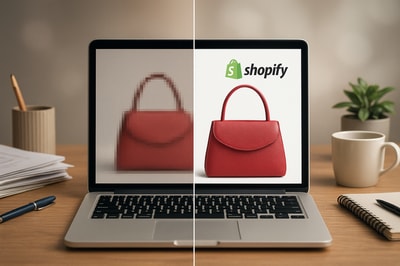
If your Shopify store is packed with small, blurry, or pixelated photos, you’re silently losing sales.
Shoppers judge product quality in seconds — and low-resolution images scream cheap and untrustworthy. The good news: you can upscale small product images for Shopify and make them look sharp, professional, and conversion-ready.
In this guide, you’ll learn:
- Why image size and quality matter so much on Shopify
- The ideal image sizes & ratios for your store
- The difference between basic resize vs AI upscaling
- Step-by-step ways to upscale images (manual & AI-powered)
- How to do it in minutes with Supra AI Photo Studio
Why Small Product Images Hurt Your Shopify Conversions
Low-res images don’t just look bad — they kill trust and conversions:
- Pixelated photos make products feel cheap or second-hand.
- Tiny images stop shoppers from zooming in and inspecting details.
- Inconsistent sizes make your collection pages look messy and amateur.
- Blurry visuals on mobile push impatient visitors to hit the back button.
On the other hand, crisp, high-resolution, consistent images:
- Increase perceived value of your products
- Make your brand look professional
- Reduce doubts and returns (customers can actually see what they’re buying)
- Give you better creative assets for ads, email, and social
If you started with supplier photos, old catalog shots, or screenshots, upscaling them the right way can transform your store overnight.
Ideal Image Sizes For Shopify Products
Shopify is flexible, but here are battle-tested guidelines that work well for most themes.
Product Images
- Minimum recommended size:
1200 × 1200 px - Better target size:
1500–2048 pxon the longest side - Aspect ratio:
1:1(square) or consistent 4:5 / 3:4 for apparel - Zoom feature: Aim for 2000 px+ on the longest side if your theme supports zoom.
Collection Images
1200 × 1200 pxor1200 × 800 pxdepending on layout
Thumbnails & Others
- Thumbnails are auto-generated, but start from a high-res master so Shopify can downscale cleanly.
If your current images are 400–800 px, they’ll look soft, especially on Retina and 4K screens. That’s where upscaling comes in.
Upscaling vs. Just Resizing (Why It Matters)
There’s a crucial difference between:
- Resizing in a basic editor (stretching pixels)
- AI upscaling (rebuilding detail intelligently)
What Happens With Simple Resizing
If you take a 500 × 500 px image and resize it to 2000 × 2000 px in a standard tool:
- The editor “guesses” new pixels
- Edges look soft
- Textures become muddy
- Artifacts and halos appear around objects
The result: bigger, but still blurry.
What AI Upscaling Does Instead
AI upscalers analyze the content and reconstruct missing details:
- Sharper edges and lines
- Cleaner text and logos
- Reduced noise and compression artifacts
- More natural textures (fabric, wood, metal, skin, etc.)
This is exactly what Supra AI Photo Studio does inside Shopify: upscale, clean, and enhance your product photos in one shot.
Option 1: Upscale Small Images Manually (The Old Way)
You can upscale using traditional tools like Photoshop or free web editors, but it’s slower and more technical.
Steps in a Classic Editor (e.g., Photoshop or Similar)
- Open your product image in the editor.
- Go to Image Size or Resize.
- Set the new dimensions (e.g., from 600 px → 2000 px wide).
- Choose a better resampling method (like Preserve Details or Bicubic).
- Optionally add sharpening and noise reduction.
- Export as JPEG (quality 70–85) or WebP.
- Upload back to Shopify and replace the old image.
Pros:
- Full control over each image
- Good if you’re comfortable with design tools
Cons:
- Time-consuming for more than a handful of products
- Easy to create over-sharpened or artificial-looking images
- Doesn’t fix backgrounds, lighting, or consistency
If speed and scale matter, you’ll want an AI-based workflow.
Option 2: Upscale Shopify Images With AI (Fast & Scalable)
AI tools can clean up, upscale, and enhance your visuals in a few clicks — especially when they’re built directly into Shopify.
Why Use an AI Photo App Instead of Standalone Tools
With a Shopify-native app like Supra AI Photo Studio you can:
- Work directly with your existing product images
- Save edited versions straight back to products
- Keep everything inside your admin workflow
- Fix not just resolution, but also backgrounds, lighting, and color
Step-by-Step: Upscale Small Product Images With Supra AI Photo Studio
You can install Supra AI Photo Studio here: Supra AI Photo Studio on the Shopify App Store.
Supra AI Photo Studio is built to help merchants turn basic, small images into studio-grade visuals in minutes — no design skills required.
1. Install the App
- Go to Supra AI Photo Studio on the Shopify App Store.
- Click Add app and follow Shopify’s install flow.
- Open it from your Shopify admin once installed.
There’s a free plan, so you can test upscaling and enhancements before committing.
2. Open the Editor For a Product
When you open the app you can:
- Pick an existing product from your catalog, or
- Directly upload an image to work with.
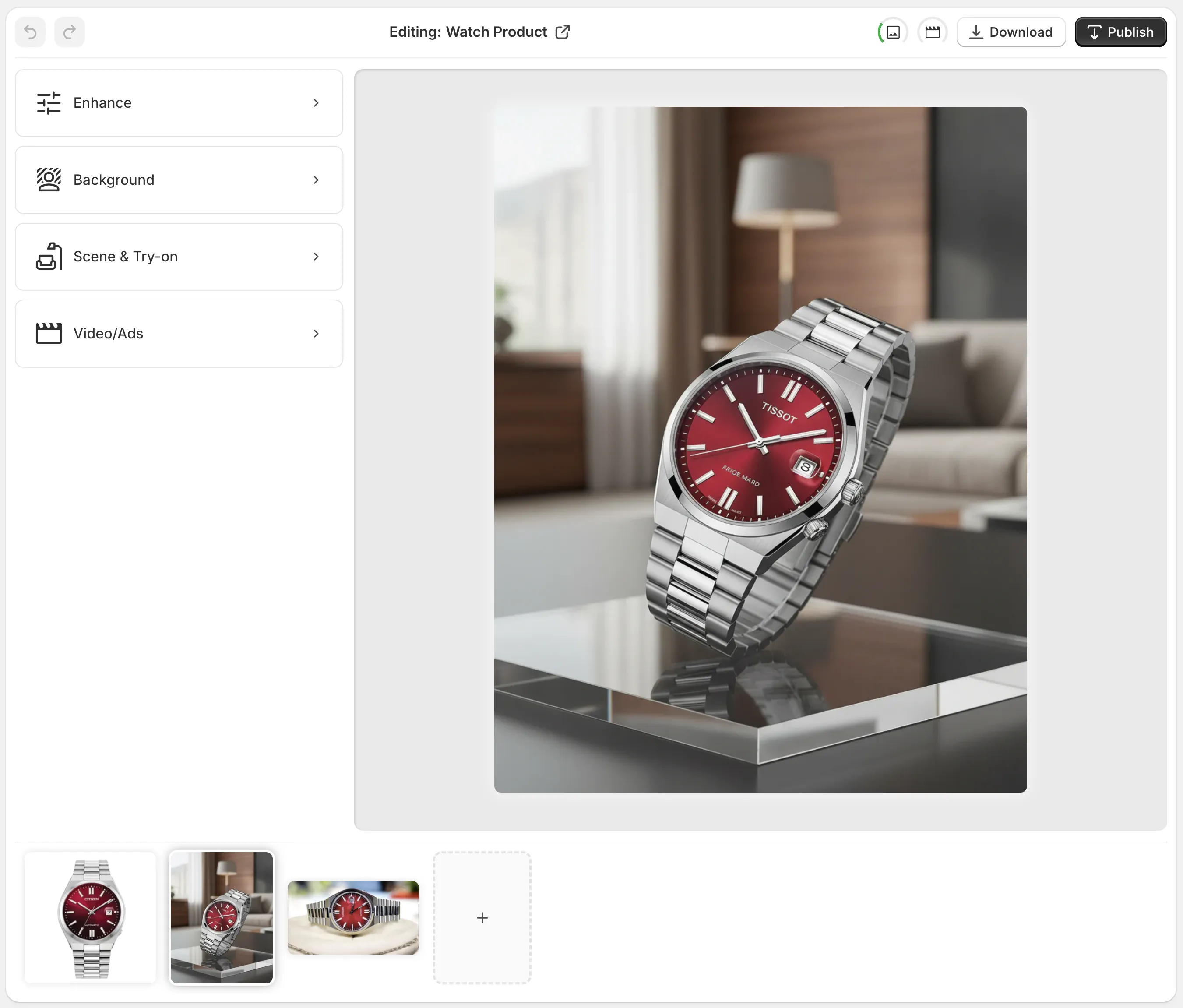
You’ll see the main editor with:
- Top bar: undo/redo, switch products, download, publish changes
- Left panel: AI tools (background remover, upscaling, auto-enhance, try-on, object placement, etc.)
- Canvas: your current image preview
- Bottom gallery: all images linked to that product
3. Isolate and Clean the Product (Optional but Recommended)
If your original small image has a messy background:
- Use Isolate Product / Background Remover.
- Let the AI cut out your product cleanly.
- You can later place it on:
- A clean white background
- A colored gradient matching your brand
- A lifestyle scene (kitchen, office, outdoors, bedroom, etc.)
Cleaning the background first can help the AI focus on your product when upscaling and enhancing.
4. Upscale & Enhance the Image
Now for the main part: turning your tiny, soft image into a sharp, Shopify-ready visual.
- Select the Upscale / Enhance tool.
- Choose your target output (for example, 2× or a minimum of 1500–2000 px on the longest side).
- Enable auto-enhance so the AI can:
- Denoise and reduce compression artifacts
- Sharpen edges and details
- Improve lighting and contrast
- Fix colors and white balance
- Apply the changes and preview the result on the canvas.
If needed, you can tweak again or run a second pass for tricky images.
5. Fix Backgrounds & Create Variants (Optional, But Powerful)
Since you’re already enhancing your images, it’s a perfect time to fix the rest:
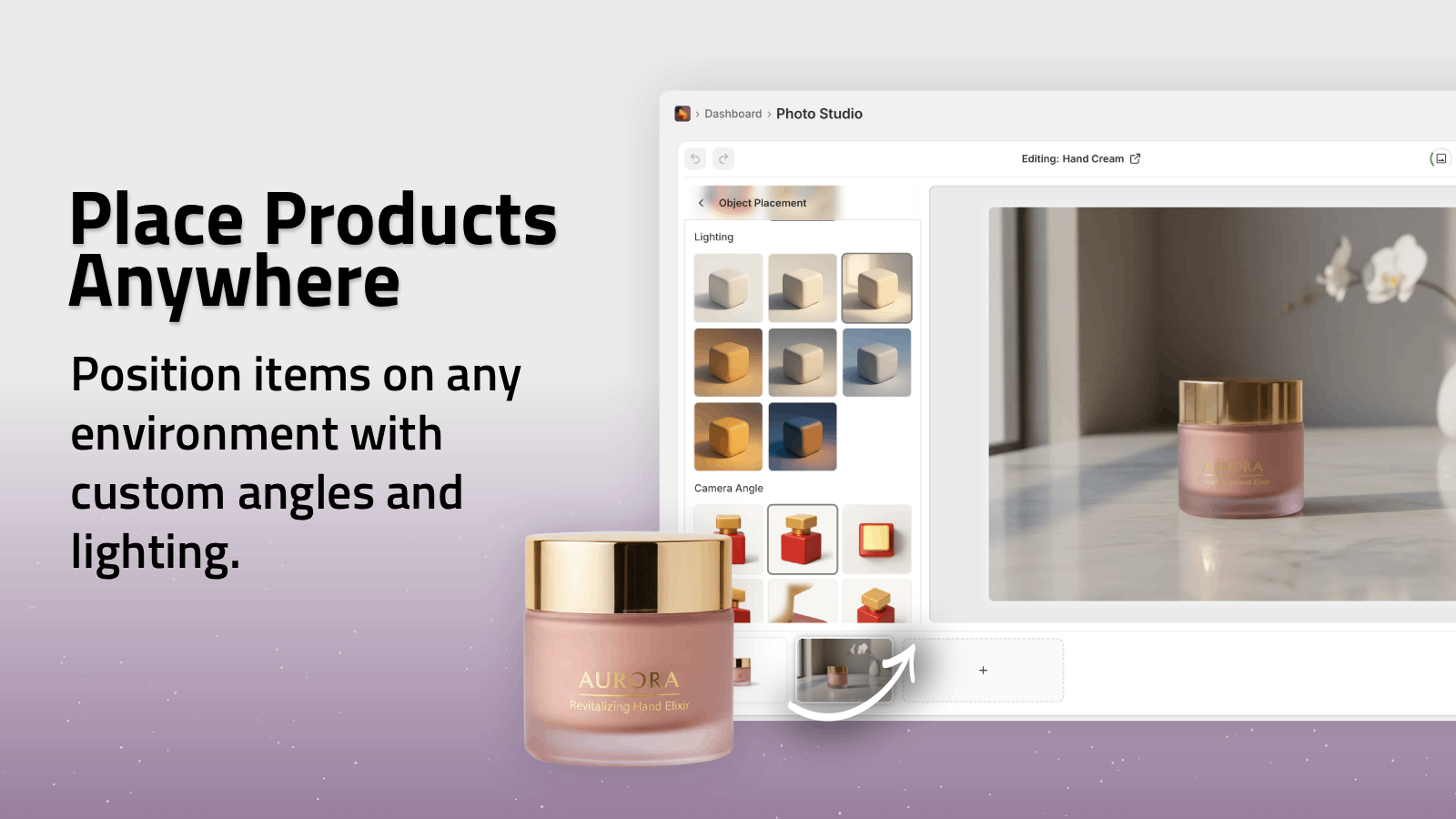
- Use Object Placement to drop your now-sharp product into:
- A studio setup
- A luxury boutique
- A natural outdoors scene
- A desk, kitchen, bathroom, etc.
For fashion and accessories, you can also:
- Use AI Try-On to place your product on realistic AI models
- Adjust pose, skin tone, and body type while keeping product accuracy
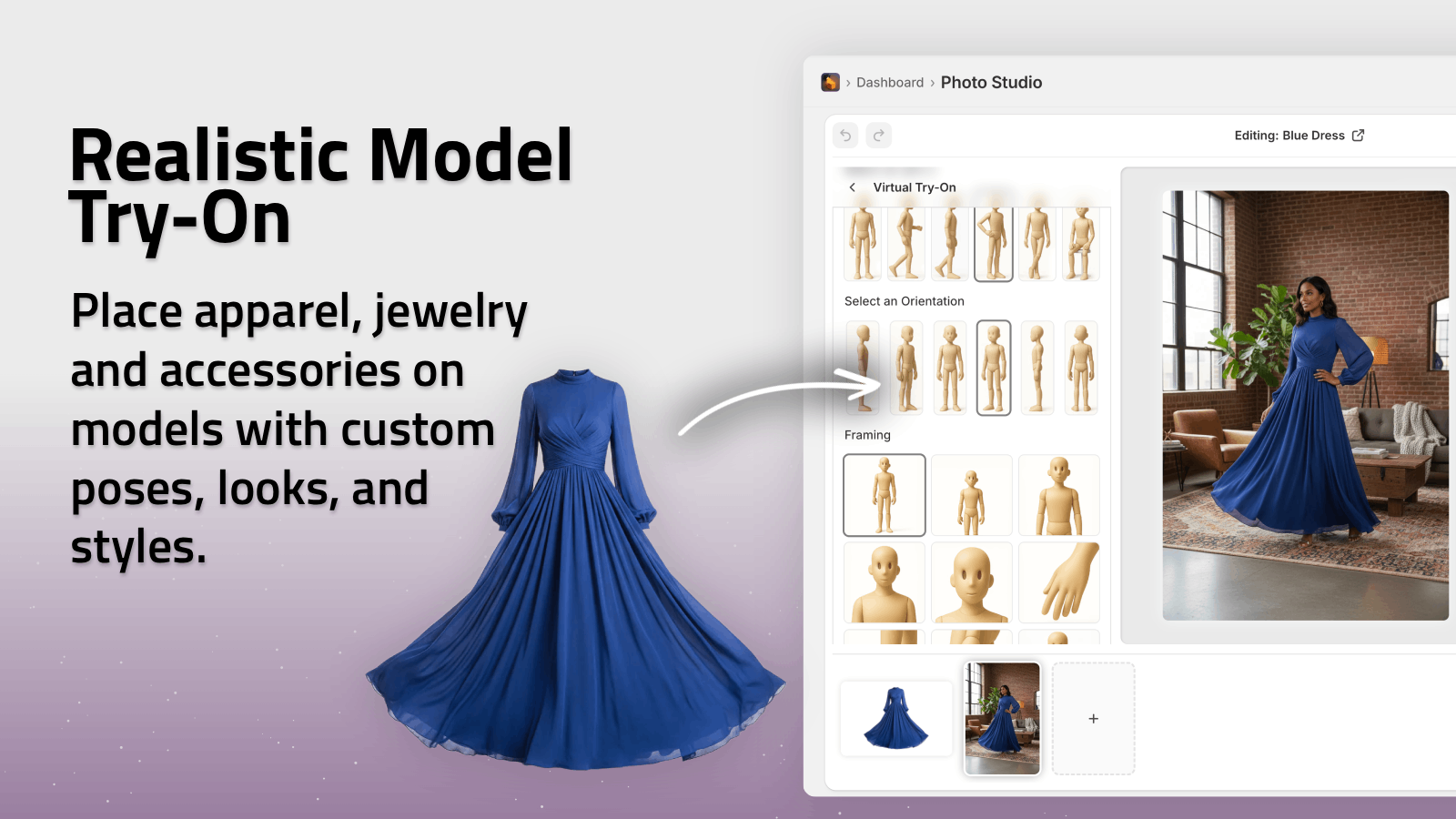
This gives you high-res lifestyle images, not just larger versions of studio shots.
6. Save Back to Your Shopify Products
When you’re happy with the upscaled image:
- Click Publish from the top bar.
- Supra AI Photo Studio will attach the new image directly to your Shopify product.
- You can keep the old ones as backups or hide them.
No exporting, renaming, or manual re-uploading needed.
Pro Tips: Making Sure Upscaled Images Still Load Fast
Big images don’t have to mean slow pages — if you do it right.
- Avoid massive overkill: You rarely need more than 2500 px on the longest side.
- Use compression: Shopify automatically optimizes images, but starting from a clean, AI-enhanced master gives better results.
- Stay consistent: Use the same aspect ratio for all products so grids look tidy.
- Test on mobile: Check how fast and how sharp your images look on a real phone.
With AI upscaling + Shopify optimization, you can have both speed and quality.
Going Beyond Upscaling: Turn Small Photos Into a Full Visual System
Once you’re using Supra AI Photo Studio, you can push things much further than just bigger images:
- Create UGC-style videos from product images for TikTok & Reels
- Generate cinematic B-roll for ads and product pages
- Embed your designs into mockups (apparel, mugs, posters, packaging)
- Build entire lifestyle galleries around a single original shot
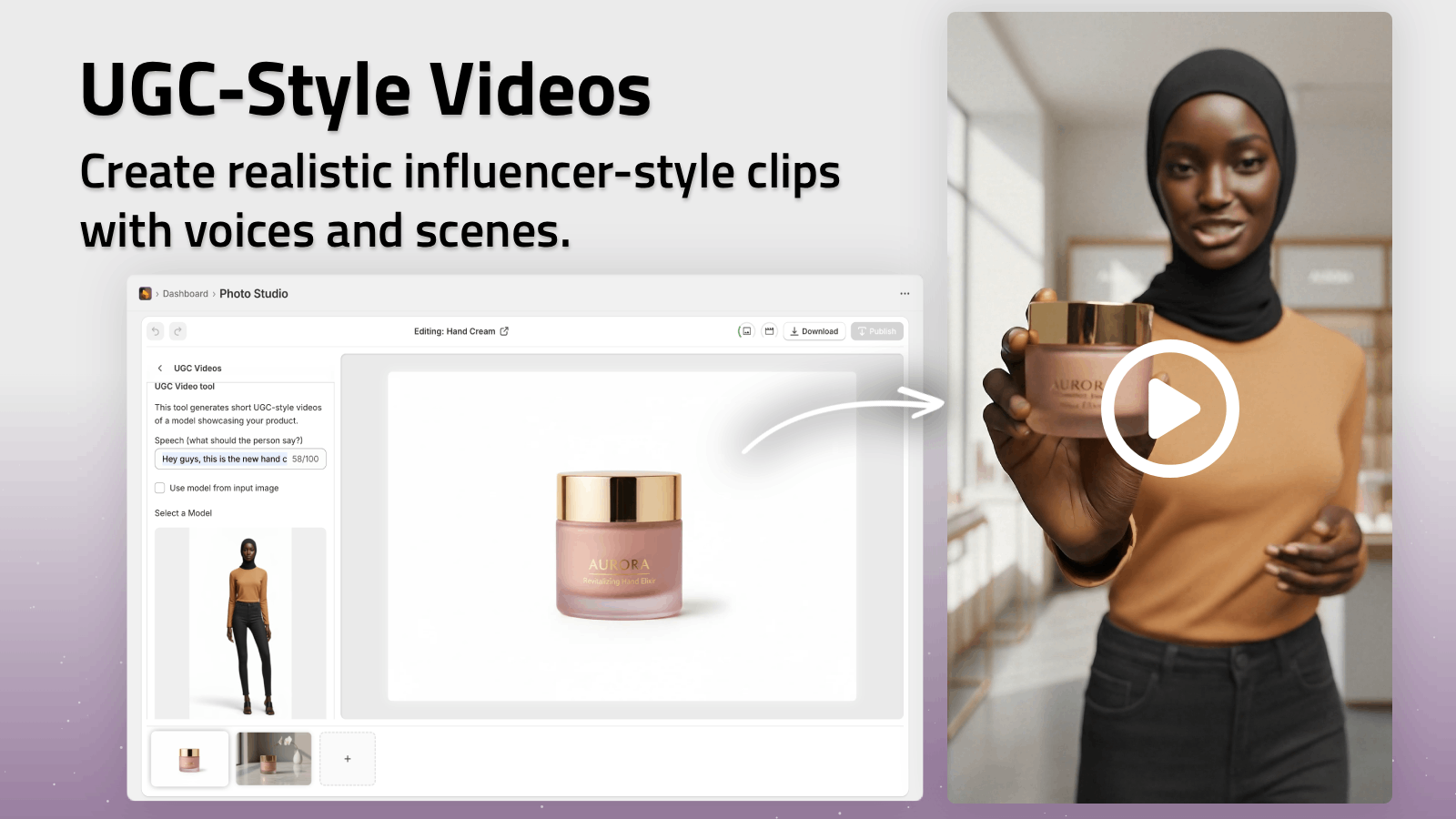
Your small, low-res starting photos become the raw material for a full library of high-converting visuals.
Visualizing the Transformation
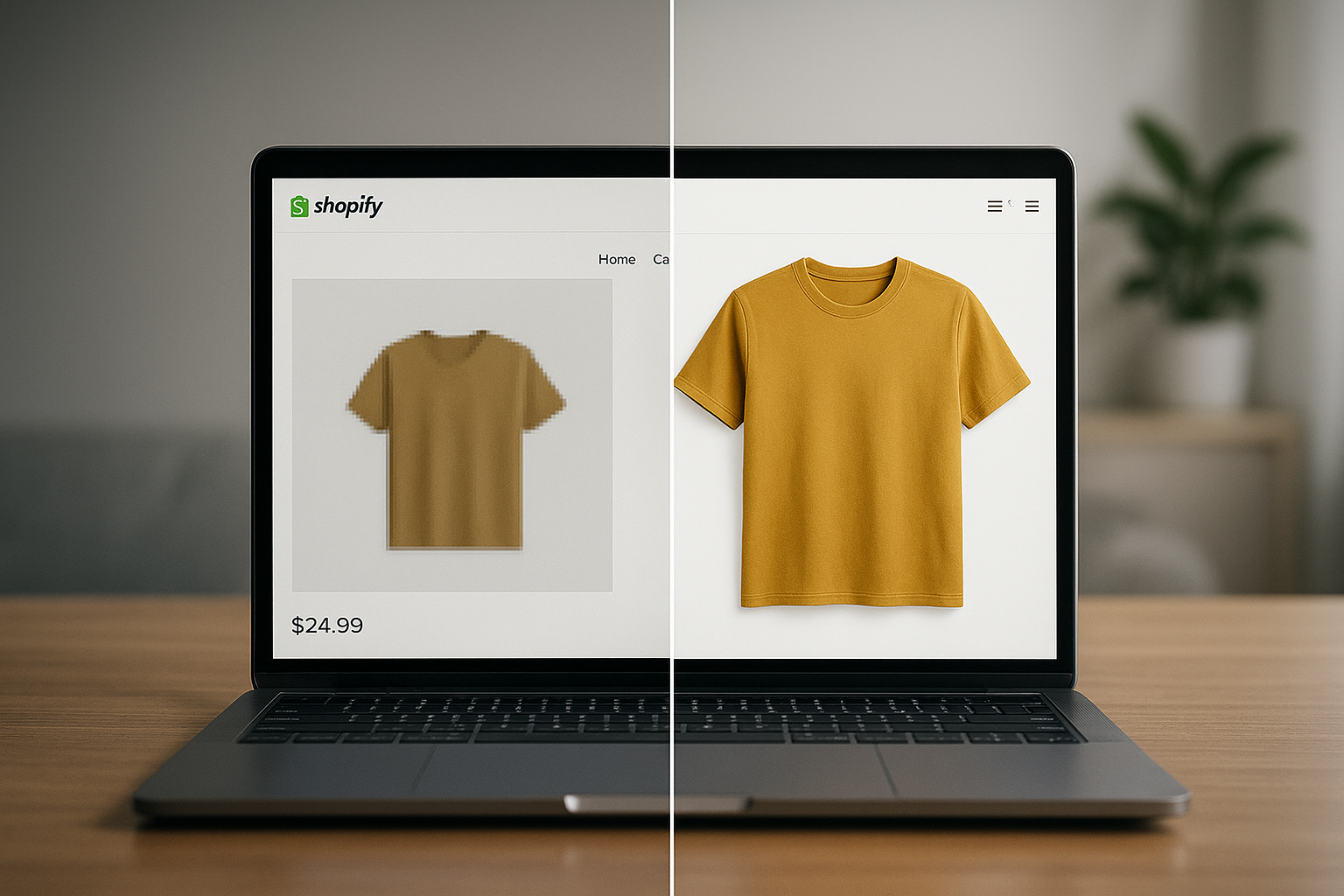
Recap: The Fastest Way to Fix Small Product Images on Shopify
To upscale small product images for Shopify without losing quality, you should:
- Aim for 1500–2000 px on the longest side.
- Avoid naive resizing — use AI upscaling to reconstruct detail.
- Clean backgrounds and fix lighting while you’re at it.
- Keep aspect ratios and style consistent across your catalog.
You can do all of this manually — or handle it in minutes with an AI tool built specifically for Shopify merchants like Supra AI Photo Studio.
Install it, pick a few of your smallest, blurriest product photos, and watch them turn into sharp, studio-grade images that actually sell.