
How To Create UGC Videos From Product Images (Step-By-Step Guide For Shopify Brands)
User-generated content (UGC) videos are now some of the highest-converting assets for ecommerce. But what if you don’t have influencers on speed-dial—or the budget for full-scale shoots?
You can turn a simple product image into a UGC-style video in minutes using AI.
In this guide, you’ll learn exactly how to create UGC videos from product photos, which tools to use, and how to plug them into your Shopify marketing funnel.
Why Turn Product Images Into UGC Videos?
Before we dive into the how, it’s worth understanding the why. UGC-style videos created from product images give you:
- Speed – Go from idea ➝ ad-ready video the same day.
- Cost savings – No studio, no influencer fees, no editing contractor.
- Scalability – Create dozens of variations for A/B testing.
- Consistency – Keep your brand visuals aligned across all channels.
With tools like Supra AI Photo Studio, you can feed in a single product image and output:
- UGC-style review videos
- Unboxing-style clips
- TikTok/Reels-ready vertical ads
- B-roll product animations to mix into edits
All without filming a single second yourself.
What You Need Before You Start
To get high-quality UGC-style videos from still images, make sure you have:
- Clean product photos – Sharp, well-lit images where the product is clearly visible.
- A clear value proposition – What’s the main benefit you want the video to highlight?
- A Shopify store – So you can install Supra AI Photo Studio directly into your admin.
If your current product photos are messy or inconsistent, you can fix that first with the same app:
- Remove/replace backgrounds
- Enhance resolution & lighting
- Isolate the product for better AI results
➡️ Install Supra AI Photo Studio here: https://apps.shopify.com/supra-ai-photo-studio
Step 1: Prepare Your Product Image For Video
The better your source image, the better your UGC video will look.
1.1 Pick the right product image
Choose a photo that:
- Shows the product clearly (no heavy shadows or clutter)
- Is at least 1000px on the shortest side
- Has the product centered or easy to isolate
If needed, you can upload a fresh shot from your phone—AI can fix a lot of issues.
1.2 Clean it up with AI enhancements
Open Supra AI Photo Studio in your Shopify admin and load your product:
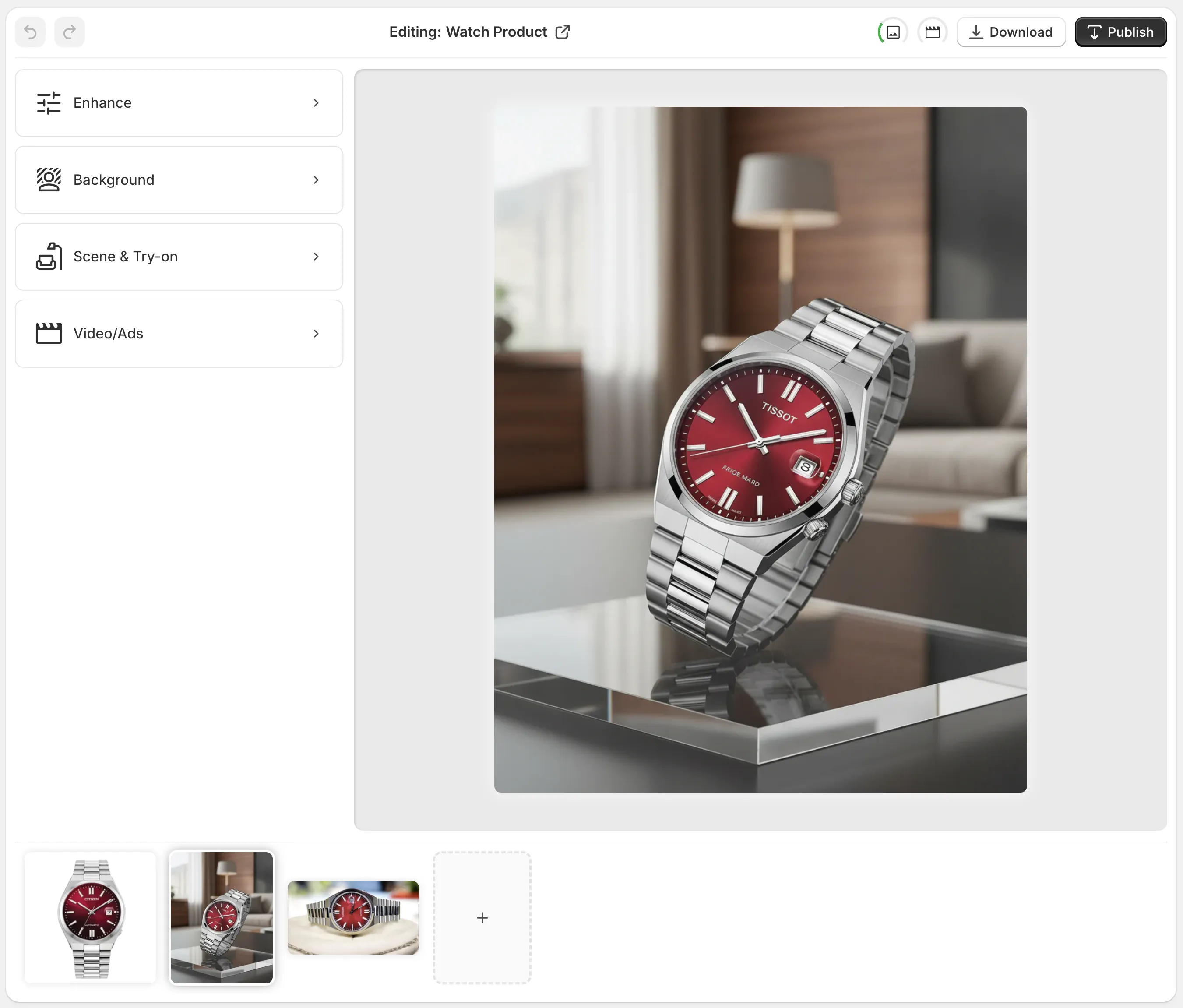
Use the built-in tools to optimize the image:
- Isolate Product / Background Remover – Remove distracting backgrounds so the AI can focus on the item.
- Auto Enhance – Fix lighting, colors, and sharpness.
- Upscaling – Improve resolution for crisp video output.
This base image will be reused across multiple UGC and ad creatives, so it’s worth taking 2–3 minutes to perfect it.
Step 2: Generate UGC-Style Videos From Your Image
Once your photo is ready, it’s time to turn it into content that feels like it was made by a real person.
2.1 Open the UGC Video Generator
Inside Supra AI Photo Studio:
- Select your product.
- Choose the image you want to use.
- Open the UGC Video or UGC-style videos tool.
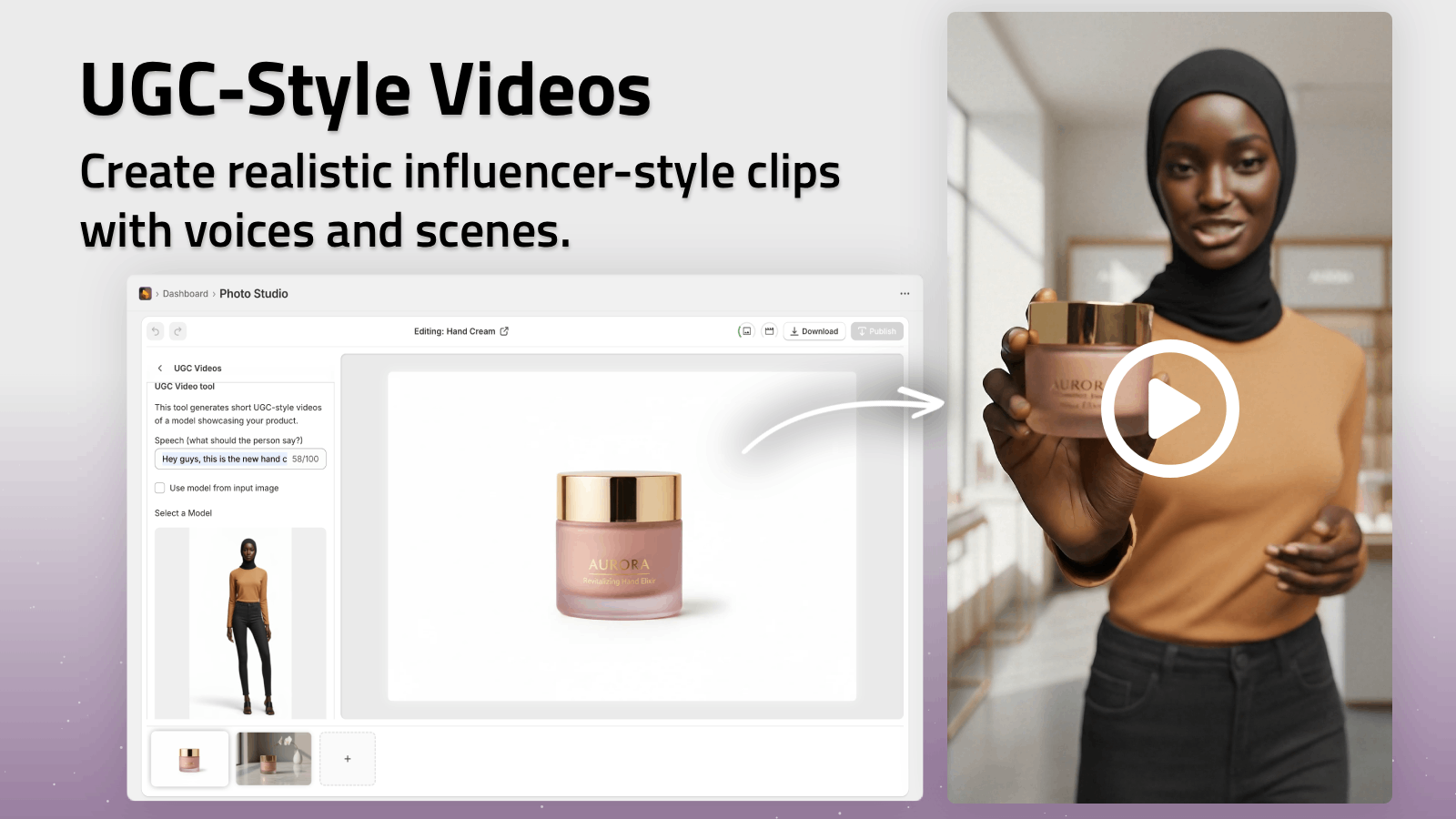
You’ll see options to control the voice style, vibe, and setting, so your clip matches your brand.
2.2 Choose the video style & voice
Think about where you’ll use this video:
- TikTok / Reels – Short, casual, energetic, vertical 9:16
- Facebook/Instagram Ads – Clear message, 15–30 seconds
- Product Page – Calm, informative walkthrough
In the UGC generator, configure:
- Voice – Friendly, enthusiastic, calm, expert, etc.
- Vibe – Casual review, aesthetic showcase, problem–solution, unboxing.
- Setting – At home, in a bathroom, office desk, gym, outdoors, etc.
You’re basically describing what a real creator would shoot, and the AI handles the heavy lifting.
2.3 Add a simple brief (script idea)
You don’t need to write a full script, but a short brief helps the AI nail the message.
Examples you can paste into the prompt/description box:
- “Short TikTok-style review, 15 seconds. Show the product close-up, talk about how it saves time in the morning, end with a clear call to action to ‘check this out’.”
- “Instagram Story vibe. Emphasize that it’s high-quality but affordable, great for everyday use, and mention free shipping.”
- “Unboxing-style video for product page. Calm voice, focus on details of the product and how it feels premium.”
The AI will use your existing product image, add motion, text overlays, and realistic voiceover to simulate UGC.
2.4 Generate and refine
Click Generate and let the AI create the clip. In a few moments, you’ll get a preview you can:
- Play inside the app
- Regenerate with different vibes or scripts
- Export for ads or social media
Need a slightly different angle (e.g., more focus on benefits, another accent, shorter length)? Just tweak the description and regenerate. It’s fast enough to create multiple variants for testing.
Step 3: Create B-Roll Clips To Mix With UGC
UGC videos perform even better when you mix them with cinematic b-roll: slow-motion spins, close-ups, product drops.
Supra AI Photo Studio includes an AI B-roll Video generator that turns your static product image into:
- Product spins and rotations
- Impact animations (dust, liquid, smoke effects)
- Top-down slides and hero shots
Use these clips to:
- Overlay text and UGC-style captions
- Cut between AI b-roll and AI-generated talking-style sequences
- Create dynamic ads that feel native to TikTok/Reels
The result is a hybrid video: part UGC, part polished product showcase—all made from a single photo.
Step 4: Plug Your New UGC Videos Into Your Marketing
Creating the video is only half the battle. Here’s how to actually use it to drive sales.
4.1 Add UGC videos to product pages
- Embed your best UGC-style clip near the top of the product page.
- Combine it with AI lifestyle images generated from the same product photo.
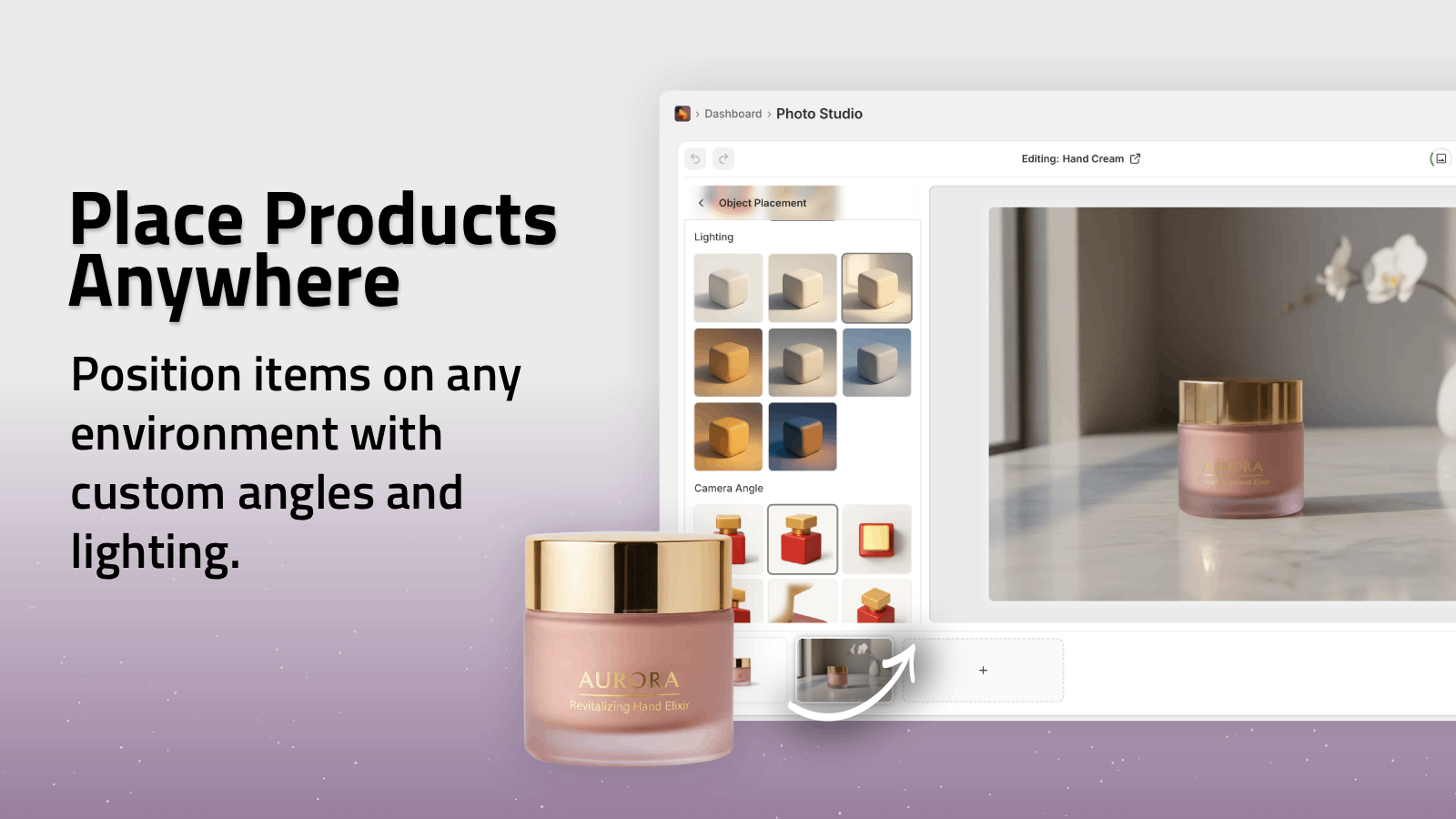
You can use Supra AI’s object placement and try-on features to create supporting visuals:
- Show apparel on AI models in realistic poses.
- Place your product in a kitchen, bedroom, or office scene.

These visuals reinforce what the UGC video is saying and help visitors imagine owning the product.
4.2 Use them as TikTok, Reels & Shorts ads
Export your vertical UGC videos and upload them as ads. For best results:
- Keep key messages within the safe text zones (not covered by UI).
- Test 3–5 different hooks (first 3 seconds).
- Highlight one main benefit per video.
Because Supra AI makes generation cheap and fast, you can quickly spin up multiple creative angles instead of betting everything on a single ad.
4.3 Turn one image into a full content system
From one decent product image, you can now have:
- 3+ UGC-style videos (different hooks and vibes)
- 2–5 b-roll clips
- Lifestyle stills with object placement
- On-model photos using AI try-on (for apparel/jewelry/accessories)
All of this lives inside your Shopify admin via Supra AI Photo Studio, so you’re not jumping between a dozen separate tools.
Best Practices For High-Converting UGC Videos
To make your AI-generated UGC content perform like real creator content, keep these tips in mind:
1. Focus on problems, not just features
Instead of: “This bottle is 500ml and made of steel,” aim for:
- “Keeps drinks cold all day at your desk or in the gym.”
- “No more buying plastic bottles every week.”
Add these angles to your UGC brief so the AI voiceover leans into real-life outcomes.
2. Match your audience’s language
If your customers are teens on TikTok, your script should sound different than if you’re selling B2B office gear. In your prompts, specify:
- “Casual, slang allowed, short sentences.”
- “Professional but friendly, clear explanations.”
3. Keep it short and punchy
- Aim for 15–30 seconds for social.
- Put the hook in the first 3 seconds.
- Make the call-to-action crystal clear: “Tap to see more colors”, “Swipe to shop now”, etc.
4. Look and feel like native content
Your AI UGC videos should blend in with the platform:
- Vertical 9:16 for TikTok/Reels/Shorts
- Simple, readable text overlays
- Natural pacing and language
Because Supra AI is trained for UGC-style outputs, it already pushes in this direction—you just steer it with your prompt.
Why Use Supra AI Photo Studio For UGC From Images?
There are many video tools out there, but for Shopify merchants, Supra AI Photo Studio has specific advantages:
- Direct Shopify integration – Work from within your admin on real products.
- All-in-one visual suite – Background removal, enhancement, try-on, object placement, UGC & b-roll videos under one roof.
- Free plan to test – Start with the free tier, then scale with Standard, Professional, or Agency plans as your needs grow.
- Ownership of assets – You fully own every image and video generated.
➡️ Explore the app and pricing: Supra AI Photo Studio on the Shopify App Store
➡️ Learn more about the features: Landing page & demo
➡️ Watch a quick demo: Video trailer
From Static Photos To a UGC Video Engine
You don’t need a studio, a team of editors, or a roster of influencers to get high-performing UGC videos.
With a single product image and Supra AI Photo Studio, you can:
- Clean and enhance your photos
- Generate UGC-style videos and b-roll
- Produce lifestyle and on-model imagery
- Deploy everything across your Shopify store and ad channels
Install the app, run your first UGC video, and within an hour you can have realistic, on-brand content live on your product pages and social ads—without ever picking up a camera.