How To Generate B-Roll Videos From Product Photos (Step-by-Step Guide for Shopify Stores)
B-roll used to require cameras, lights, and a studio. Now, you can turn a single product photo into cinematic ad-ready clips in a few minutes — directly inside Shopify.
In this guide, you’ll learn how to generate B-roll videos from product photos using AI, how to use them in your ads and product pages, and how to get the best results without any video-editing skills.
✅ Tool used in this guide: Supra AI Photo Studio — an AI photo & video app for Shopify that turns static product photos into lifestyle images, UGC clips, and cinematic B-roll.
What Is B-Roll And Why It Sells Products
B-roll is the supporting footage you see in ads and product videos:
- Slow-motion product spins
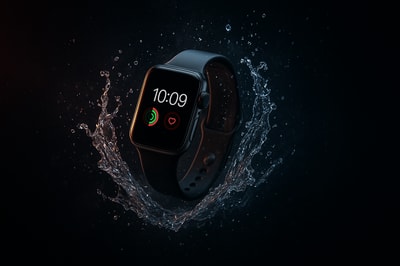
- Liquid or dust splashes
- Close-up detail shots
- Top-down drops, unboxings, textures
In ecommerce, B-roll is gold because it:
- Makes your product feel premium (cinematic angles and lighting)
- Increases trust (shows real details and textures)
- Boosts conversions (keeps shoppers watching longer on PDPs)
- Improves ad performance (thumb-stopping visuals on TikTok, Reels, Shorts)
The problem? Traditional B-roll requires cameras, gear, and editing skills.
AI B-roll fixes that by generating short product clips directly from your existing product photos.
Can You Really Create B-Roll From Just a Photo?
Yes. With tools like Supra AI Photo Studio, you can:
- Upload or select a product image
- Choose a B-roll style (drop, splash, spin, impact, etc.)
- Let AI generate a short, cinematic video while perfectly preserving your product’s shape, logo, and details
This means you can:
- Repurpose your catalog into scroll-stopping ads
- Add motion to otherwise static PDPs
- Create variations for A/B testing in minutes

Step 1: Install Supra AI Photo Studio on Your Shopify Store
To follow along, first install the app:
- Go to the Supra AI Photo Studio app listing on Shopify.
- Click Add app and complete the install process.
- Open the app from your Shopify Admin → Apps → Supra AI Photo Studio.
You can start on the Free plan (includes AI image & video generations) and upgrade later as you scale.
Want to see it before installing? Watch the short demo here: Supra AI Photo Studio Trailer
Step 2: Pick the Best Product Photo for B-Roll
The quality of your B-roll starts with the right image. Inside the app, you can:
- Select an existing product from your catalog, or
- Upload a new image directly into the editor
For best results, choose a photo that is:
- High resolution (sharp edges, no heavy compression)
- Well lit (no extreme shadows hiding key details)
- Clean composition (product clearly visible, not cut off)
If your source image isn’t perfect, don’t worry — you can fix a lot with AI in the next step.
Step 3: Clean Up and Enhance the Product Image (Optional but Powerful)
Before you generate B-roll, use Supra AI Photo Studio’s tools to enhance the base image:
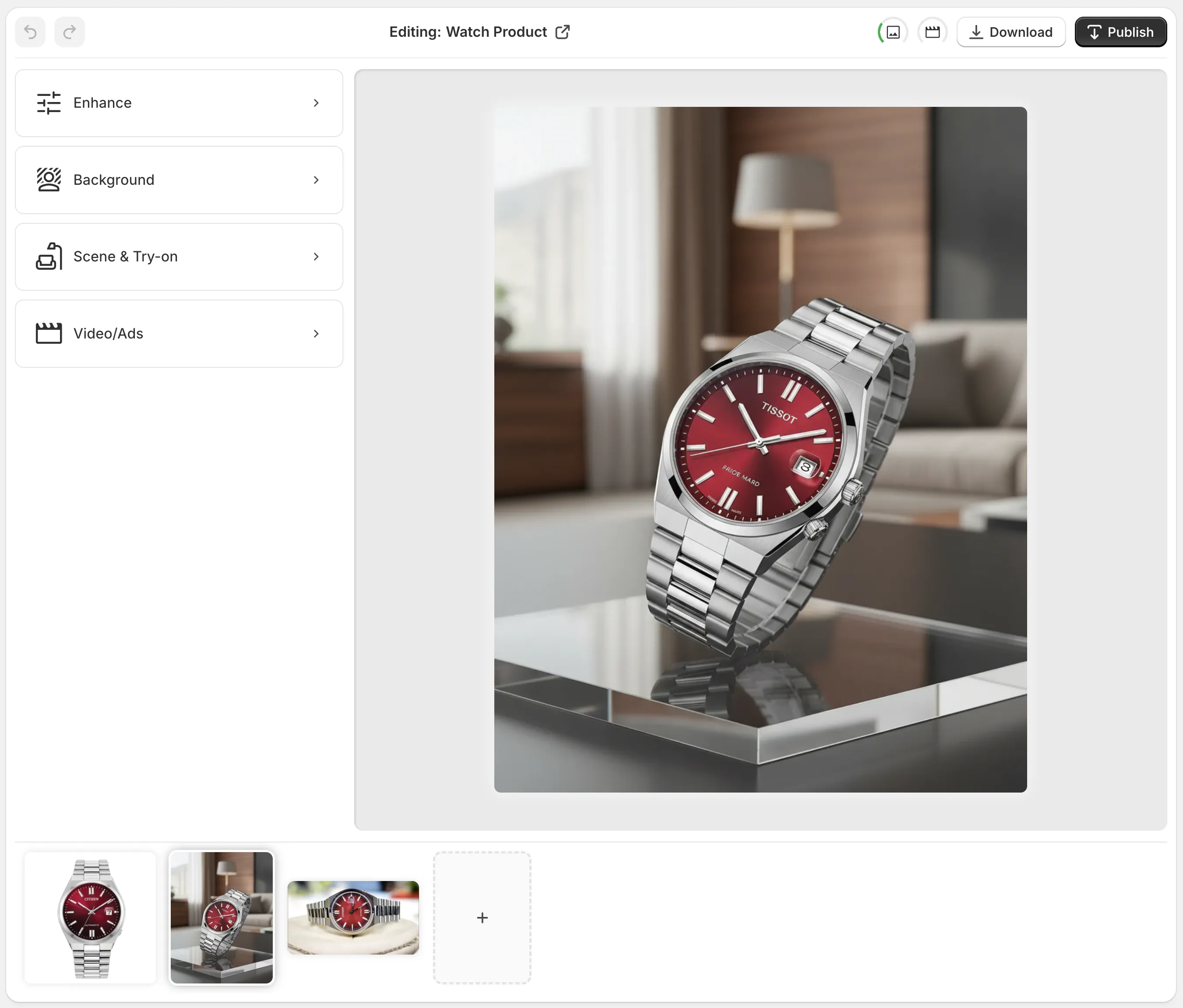
Use the tools in the left panel to:
-
Remove or isolate the background
- Use Isolate Product or Background Remover to cut out distractions.
- This helps the AI focus purely on your product for crisp animations.
-
Upscale & sharpen
- Use Upscaling to increase resolution and clarity.
- Perfect if your supplier images are a bit soft or low res.
-
Fix lighting & colors
- Use Auto Enhance to:
- Correct exposure and white balance
- Add contrast
- Reduce noise and blur
- Use Auto Enhance to:
These tweaks make the AI-generated video look far more professional and “studio-grade”, even if you started with a basic supplier shot.
Step 4: Generate B-Roll Videos From Your Product Photo
Now the fun part.
Inside Supra AI Photo Studio, choose the B-Roll / Product Video tool (naming may appear as B-roll videos or AI product videos depending on your version).
Then follow these steps:
-
Select the style of B-roll you want:
- Product drop onto a surface (great for tech, gadgets, watches)
- Liquid splash or pour (perfect for cosmetics, beverages, skincare)
- Dust, smoke, or particle burst (premium, dramatic feel)
- Top-down slow motion (great for small accessories and jewelry)
-
Choose camera angle & motion (where available):
- Front, side, or top-down
- Gentle rotation vs. impact motion
-
Set the mood with lighting and background style:
- Clean studio white or black
- Soft gradient backgrounds
- Dark cinematic with rim lighting
-
Generate the video
- Click Generate and let the AI do the rest.
- In a few moments, you get a short, ad-ready B-roll clip that keeps your original product perfectly intact.
You can generate multiple variations to test different looks and pick the one that fits your brand.

Step 5: Download and Use Your B-Roll Everywhere
Once your AI B-roll is generated, you can:
- Download the video directly from the top bar in the editor
- Attach it to the product media in Shopify
- Reuse it in:
- Product detail pages (PDPs)
- Homepage hero sections
- TikTok, Reels, and Shorts
- Meta & Google video ads
- Email campaigns & landing pages
Because everything is integrated with Shopify, you manage your clips alongside your product images — no messy folders or external tools.
Practical Ideas: How to Use AI B-Roll to Boost Conversions
Here are some concrete ways to use AI-generated B-roll from Supra AI Photo Studio:
1. Add Motion to Product Detail Pages
Place a short B-roll clip as the first or second media item on your PDP. Shoppers will:
- See the product in motion
- Understand material and finish faster
- Stay on the page longer (good for SEO and conversions)
2. Create High-Impact Ad Creatives Quickly
Use your B-roll as:
- The opener of a UGC-style ad
- A punchy 1–2 second hook before testimonials
- Background footage under text overlays like “New Collection” or “Limited Drop”
You can even pair B-roll with Supra AI’s UGC Video Generator to create full influencer-style clips where:
- An AI voice talks about the product
- The B-roll plays as cutaway footage
3. A/B Test Multiple Visual Styles
Because generations are fast and affordable, you can create:
- A dark, moody version
- A bright, minimal studio version
- A liquid or dust effect version
Then test which style performs better in ads or on PDPs.
Tips to Get Better B-Roll From Product Photos
To make your AI-generated B-roll look as premium as possible:
-
Start with a clean product cutout
Use Isolate Product first to remove messy backgrounds. -
Avoid overly busy product labels
Too much tiny text can look noisy in motion. Simplify where possible. -
Match B-roll style to your brand
- Minimal brand → simple studio shots
- Luxury brand → dark backgrounds, subtle smoke/dust
- Fun brand → brighter colors, playful angles
-
Mind aspect ratios
For social ads, export in vertical-friendly ratios when available (9:16) or crop later. -
Use multiple clips in one creative
Generate 2–3 variations and edit them together into a 10–15 second ad.
Why Use Supra AI Photo Studio For B-Roll (Instead of Generic AI Tools)?
While there are standalone AI video tools, Supra AI Photo Studio is built specifically for Shopify merchants:
- Lives inside your Shopify admin
- Works directly with your existing product images
- Offers AI Try-On, object placement, background removal, mockups, and UGC videos in one place
- Keeps your brand visuals consistent across photos and videos
You can explore the app here:
- App listing: Supra AI Photo Studio on Shopify
- Landing page & feature overview: https://supra-ai-photo-studio.sktch.io/
Get Started: Turn a Single Photo Into a Scroll-Stopping Video
You don’t need a camera, studio, or editor anymore to get premium product B-roll.
With Supra AI Photo Studio, you can:
- Turn one plain product photo into multiple cinematic clips
- Add motion and polish to your entire catalog
- Generate UGC-style videos, lifestyle scenes, and try-ons — all from the same tool
Install the app, pick a product, and generate your first B-roll video in minutes:
👉 Install Supra AI Photo Studio on your Shopify store and start transforming your product photos into high-conversion visuals today.