Help & Support
Welcome to the Supra AI Photo Studio help center! Here you'll find all the information you need to get started and make the most out of our AI-powered product photography tools for your Shopify store.
Getting Started
To get started with the Supra AI Photo Studio app for Shopify, you first need to install the app on your shopify store:
Install Supra AI Photo Studio
Once installed, you can access the app from your Shopify admin dashboard. From there, you can start uploading your product images and using the AI-powered tools to enhance and generate new visuals.
Using the App
Supra AI Photo Studio offers a variety of features to help you create stunning product images.
When you open the app, you can either pick a product directly upload an image to load it in the editor.
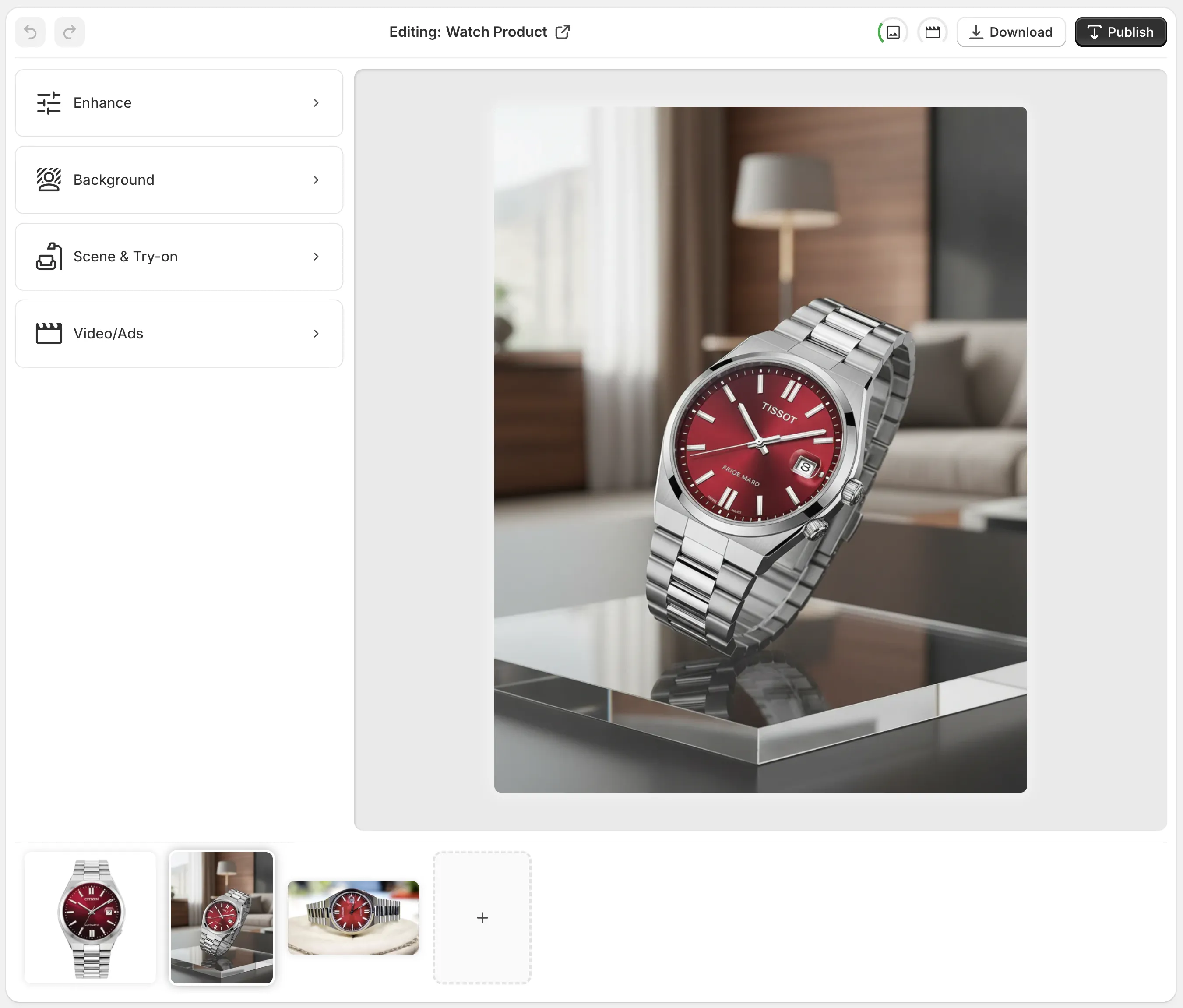
The editor has 4 sections:
- Top Bar: This is where you can undo / redo your edits, pick a different product, download the current image or publish your changes to the product.
- Tools (left): This is where you can find all the AI-powered tools to enhance your product images, such as background removal, image upscaling, virtual try on and more.
- Canvas (right): This is where you can see the current image you are working on. You can zoom in / out and pan around the image to see the details.
- Image Gallery (bottom): This is where you can see all the images associated with the current product. You can select an image to edit it, or add new images to the product.
Tips for Best Results
Different types of products may require different approaches to achieve the best results. Here are some tips to help you get the most out of Supra AI Photo Studio:
- Isolate Products: For most products it's highly recommended to first isolate them using the "Isolate Product" tool which will remove all background distractions and help the AI focus on the product itself when using tools like the "Virtual Try On" or the "Object Placement" tool.
- High-Quality Images: For the best results, start with high-resolution images that clearly showcase your products. Avoid blurry or pixelated images.
- Experiment with Tools: Don't hesitate to try out different AI tools and settings to see what works best for your specific products.
- Give extra instructions: Some tools allow you to provide extra instructions to the AI to guide the generation process. Be as specific as possible to get the desired results.
Frequently Asked Questions (FAQ)
Contact Us
If you have further questions or need assistance, please don't hesitate to contact us. We're here to help!