
How To Remove Backgrounds From Multiple Images (Fast, Clean & Consistent)

Removing backgrounds from multiple images doesn’t have to be a painful, click‑by‑click chore. If you’re running a Shopify store (or any ecommerce brand), batch background removal is one of the fastest ways to instantly upgrade your product photos, improve brand consistency, and boost conversions.
In this guide you’ll learn:
- Why clean, consistent backgrounds matter for ecommerce
- The pros and cons of the main background removal methods
- How to remove backgrounds from multiple images using AI in minutes
- Practical tips to get professional, Shopify‑ready results
If you want a direct shortcut: you can bulk‑clean, enhance and restyle product images right inside Shopify using Supra AI Photo Studio.
Why Background Removal Matters For Product Images
Background removal isn’t just an aesthetic tweak—it directly affects:
- Conversion rate – Clean images reduce distractions and make the product pop.
- Perceived quality – Studio‑style images signal professionalism and trust.
- Consistency across catalog – Same style across all products → stronger brand.
- Ad performance – Platforms like Meta, Google Shopping, and marketplaces often favor clear, product‑focused imagery.
Most stores start with photos taken on desks, beds, or random tables. Removing and standardizing backgrounds—at scale—is how you move from "home photos" to "brand-ready visuals".
Main Ways To Remove Backgrounds From Multiple Images
1. Manual Editing (Photoshop, GIMP, etc.)
How it works: You open each image and use tools like the Pen Tool, Magic Wand, or Object Selection to cut out the product.
Pros:
- Very precise when done by a skilled editor
- Fine control over hair, glass, shadows, reflections
Cons:
- Extremely time‑consuming for multiple images
- Requires design skills and expensive software
- Hard to maintain consistency across a large catalog
Manual editing makes sense for a few hero images, not for hundreds of SKUs.
2. Online Background Removal Tools
There are many web tools where you upload a photo and get a cut‑out PNG.
Pros:
- Usually fast for single images
- No design skills needed
Cons:
- Often not integrated with Shopify or your product catalog
- Limited control over styling and post‑processing
- Batch support is sometimes clunky or paywalled
- You still have to manually download, rename, and upload back to Shopify
These tools are fine for occasional use, but they become a bottleneck if you want to optimize your full store.
3. AI Background Removal Inside Shopify (Best For Merchants)
The most efficient option for Shopify merchants is to use an app that:
- Works directly with your product catalog
- Removes backgrounds in batch
- Lets you enhance, upscale, and restyle at the same time
Supra AI Photo Studio is built exactly for this workflow:
- Remove or replace backgrounds in bulk
- Auto‑enhance colors, lighting, sharpness
- Upscale low‑res images
- Create lifestyle and studio scenes from the same product images
Because it lives inside your Shopify admin, you:
- Don’t juggle folders and file names
- Don’t re‑upload images manually
- Keep everything synced with the correct products and variants
Step‑By‑Step: How To Remove Backgrounds From Multiple Images Using Supra AI Photo Studio
Below is a practical workflow you can follow today to clean and standardize a big batch of product photos.
1. Install Supra AI Photo Studio on Your Shopify Store
- Go to the app listing: Supra AI Photo Studio on Shopify.
- Click Add app and follow the installation steps.
- Once installed, open it from your Shopify admin > Apps > Supra AI Photo Studio.
There’s a free plan so you can test background removal and enhancement before upgrading.
2. Load Your Product Images Into the Editor
When you open the app, you can:
- Select an existing product from your catalog, or
- Directly upload images you want to clean and then attach them to products later.
The editor layout is simple:
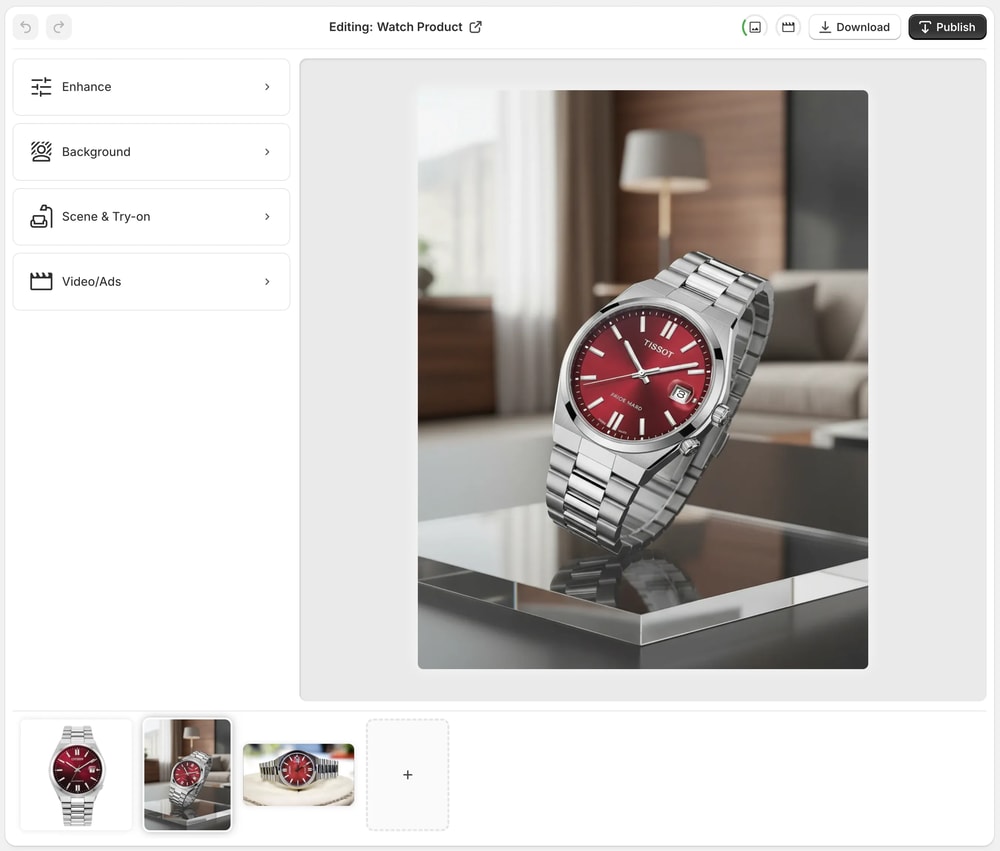
- Top bar – Undo/redo, change product, download, publish images
- Tools (left) – Background remover, isolate product, upscale, auto‑enhance, object placement, try‑on, etc.
- Canvas (right) – Live preview of the image you’re editing
- Image gallery (bottom) – All images associated with the current product
3. Isolate Your Products (Recommended First Step)
For the best results in bulk, start by isolating your products:
- Select one or multiple images in the gallery.
- Use the “Isolate Product” or background removal tool.
- Let the AI remove all distractions and keep only the product.
This tells the AI, “This is the object that matters”, which leads to cleaner edges and better results when you later:
- Replace backgrounds
- Create lifestyle scenes
- Generate try‑on images (for apparel, accessories, jewelry)
4. Apply Background Removal To Multiple Images
To remove backgrounds from a batch at once:
- Select the images you want to clean (within a product, or across products depending on your workflow).
- Choose the background removal / isolate tool.
- Confirm your settings (e.g., keep transparent background or apply a solid color like white or light grey).
- Run the tool; the AI will process all selected images.
Within a few moments, you’ll have:
- Background‑free PNGs ready to use
- Or standardized studio‑style backgrounds across your catalog
Because this happens inside Shopify, your product pages can be updated in one click when you publish.
5. Enhance and Upscale While You’re At It
Background removal is important—but don’t stop there. Once your images are isolated, you can:
- Use Auto Enhance to fix exposure, contrast, and colors
- Denoise and deblur soft or grainy photos
- Upscale low‑resolution images so they look crisp on retina screens
You can do this in batch too, which means you can go from raw photos → studio‑ready catalog in a single editing session.
Try it on a few SKUs first: run background removal + auto enhance + upscale on 10–20 images and compare before/after on mobile and desktop.
6. Replace Plain Backgrounds With On‑Brand Scenes (Optional, but Powerful)
Once backgrounds are removed, you don’t have to stick with boring white. You can:
- Apply on‑brand solid colors that match your Shopify theme
- Use soft gradients for a modern DTC look
- Create AI lifestyle scenes using Supra AI Photo Studio’s Object Placement tool:
- Place a mug on a cozy kitchen table
- Put skincare products on a marble bathroom counter
- Show a lamp in a stylish living room setup
This keeps your product as the hero while giving shoppers context—without scheduling real photoshoots.
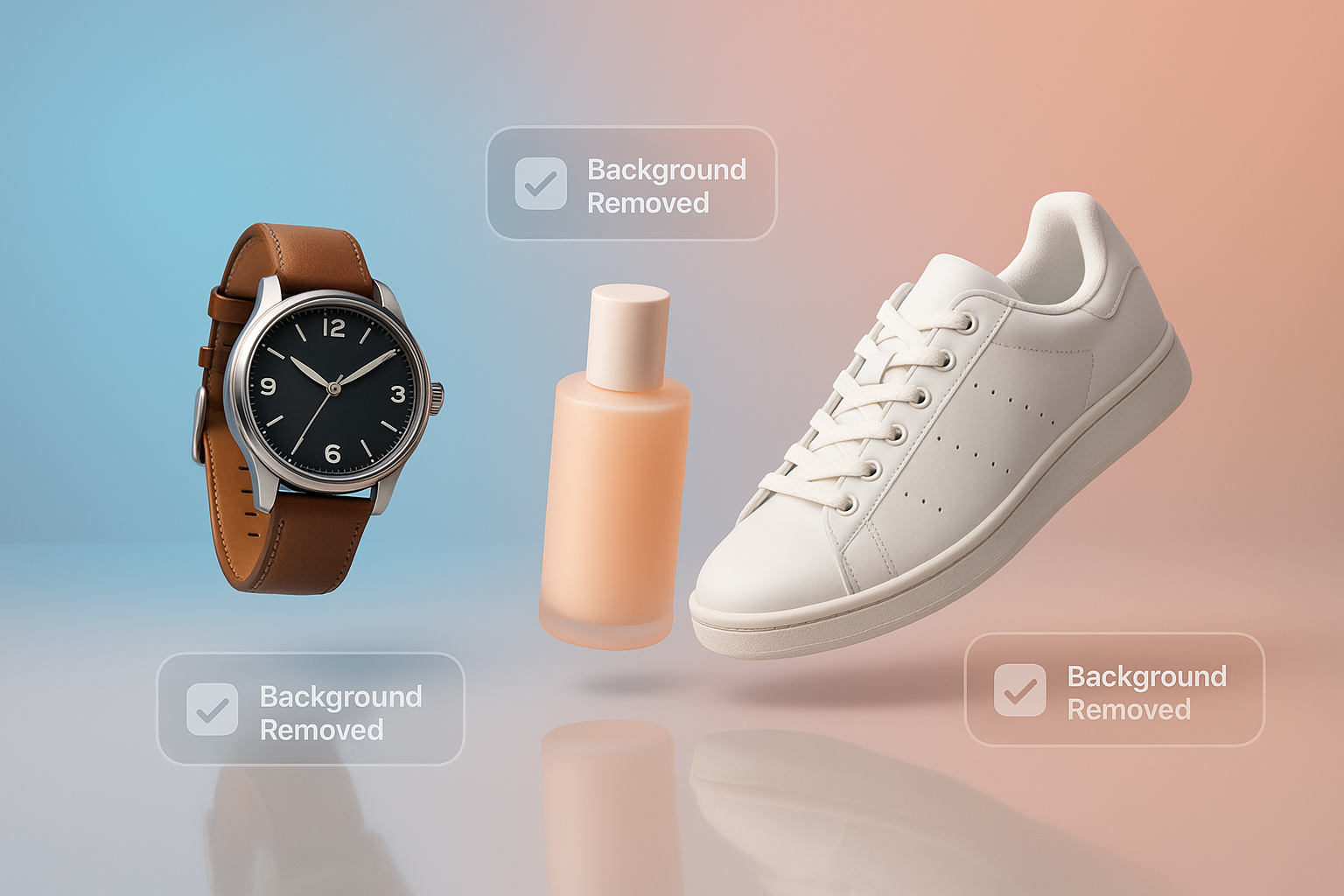
You can explore these creative options in the same app you used for background removal—no extra tools required.
Advanced Uses: Beyond Simple Background Removal
Once your products are cleanly cut out, you unlock several advanced features in Supra AI Photo Studio:
AI Try‑On for Fashion & Accessories
- Put apparel, jewelry, or accessories on realistic AI models
- Adjust pose, skin tone, and body type
- Maintain accurate colors and fit for your product
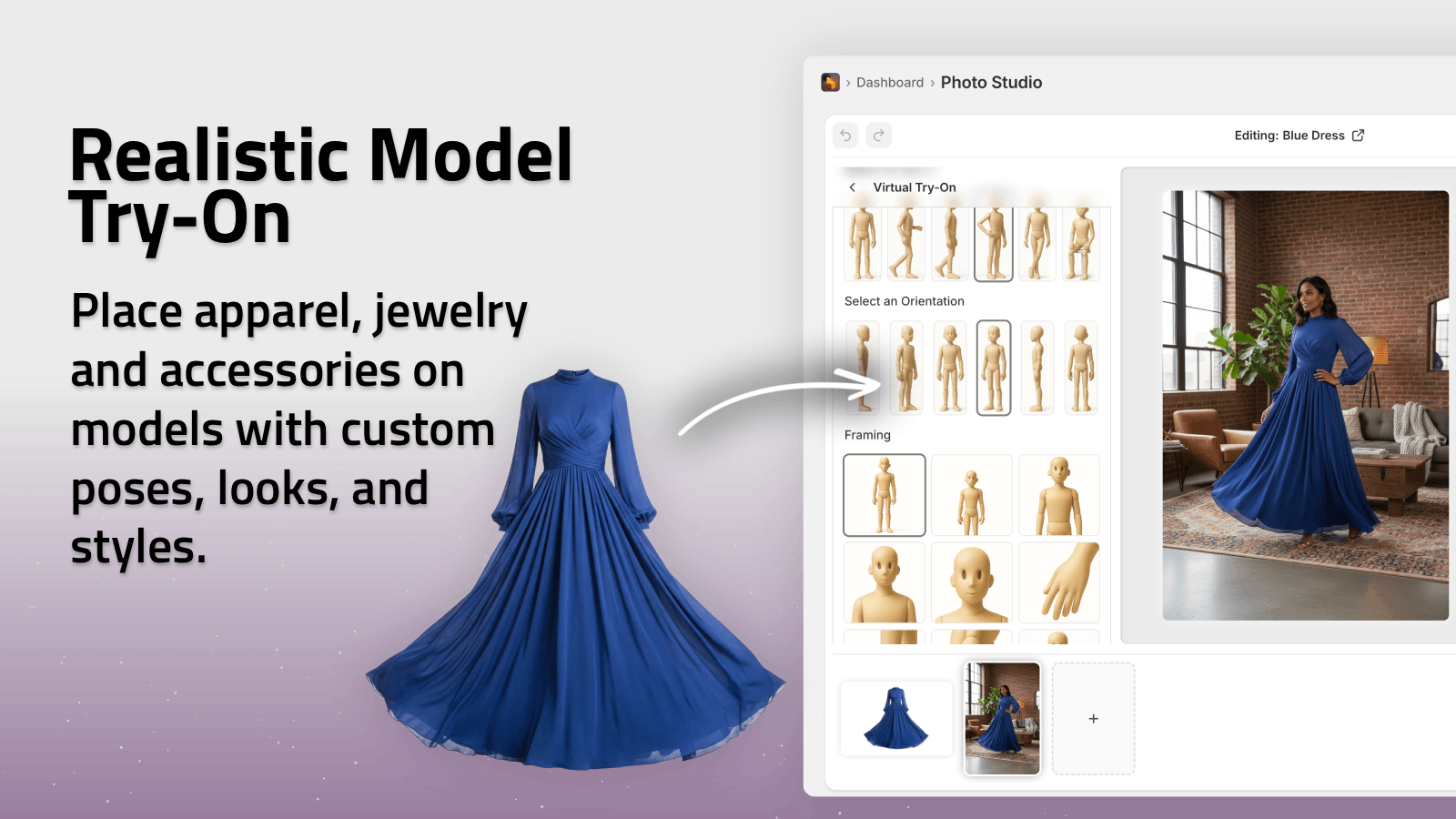
Background removal is the first step that lets the AI place your product correctly on models.
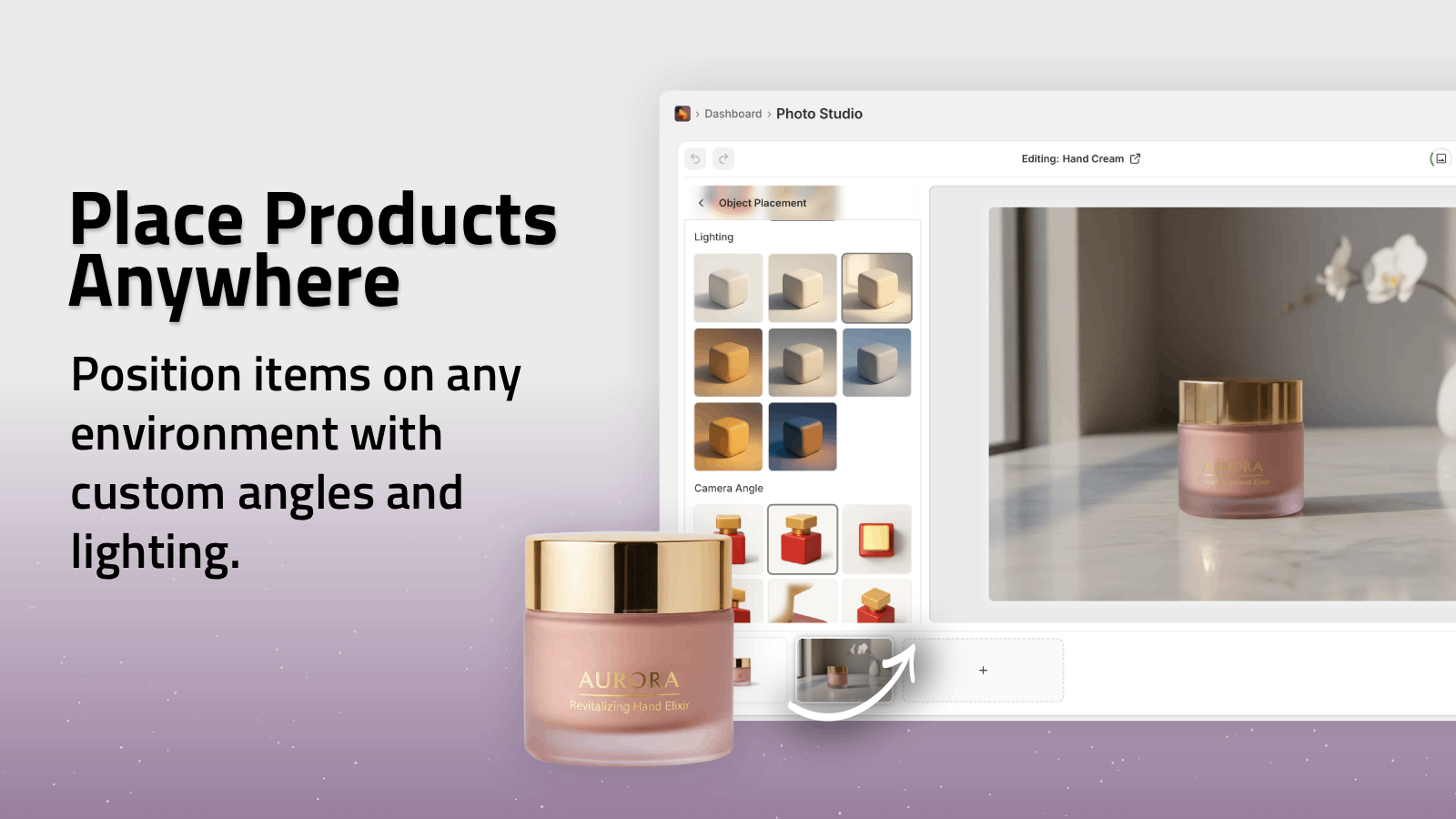
Lifestyle Object Placement
- Drop your background‑free product into studios, boutiques, nature, offices and more.
UGC‑Style & B‑Roll Videos
Once your product cut‑outs are clean, you can generate:
- UGC‑style videos that look like influencer content
- Cinematic b‑roll with slow motion, splashes, dust effects, and top‑down shots
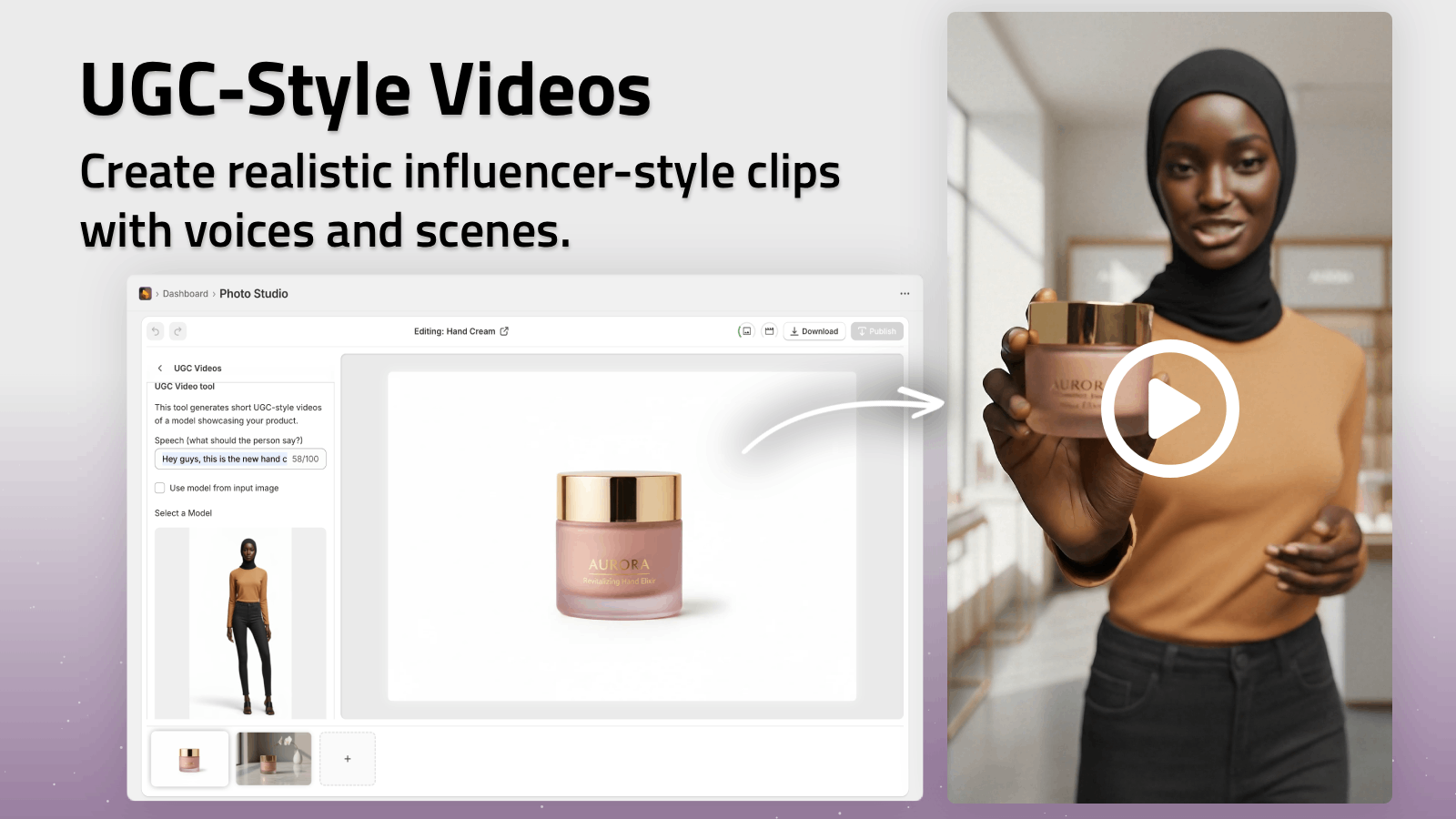
These assets are perfect for TikTok, Reels, and paid ads, reusing the same product images you already cleaned.
You can see a quick demo of these capabilities in this trailer: Supra AI Photo Studio Demo.
Tips For Better Background Removal Results
To get the cleanest possible cut‑outs when working with multiple images:
-
Start with decent source images
Avoid extremely blurry, dark, or low‑res photos. Use your phone camera in good lighting if needed. -
Avoid heavy shadows touching the product
Strong, hard shadows can confuse background removal. Softer light is best. -
Use consistent angles
Shoot similar products from similar angles to keep your catalog cohesive after background removal. -
Check tricky areas
Hair, transparent packaging, and reflective surfaces may need a quick review before publishing. -
Test across devices
Always preview your new images on both mobile and desktop product pages.
Turn Messy Photos Into a Clean, High‑Converting Catalog
Removing backgrounds from multiple images used to require design skills, expensive software, and a lot of time. With AI tools integrated directly into Shopify, you can:
- Clean and standardize your entire image catalog
- Enhance and upscale photos automatically
- Create on‑brand lifestyle scenes, try‑ons, and videos—all from the same assets
If you’re ready to turn your existing product photos into studio‑grade visuals in minutes, install Supra AI Photo Studio and try the free plan. Start with a handful of products, compare before and after, and then roll the workflow out to your whole store.