How To Upscale Close Up Photos Of Small Accessories
High-quality close-up photos can make or break your sales when you’re selling jewelry, watches, sunglasses, or other small accessories online. Customers zoom in. They want to see textures, stones, metal finishes, clasps, stitching. If your images look soft, noisy, or pixelated, they lose trust—and you lose conversions.
In this guide, you’ll learn how to upscale close-up photos of small accessories the right way: preserving details, avoiding artifacts, and getting conversion-ready visuals for your Shopify product pages, ads, and social media.
If you want a fast, Shopify-native way to do this with AI, you can try Supra AI Photo Studio on the Shopify App Store. It can upscale, enhance, and clean up product photos automatically, without needing Photoshop skills.
Why Upscaling Matters So Much For Small Accessories
Small accessories are unforgiving in photos:
- Customers zoom in heavily to judge quality.
- Minor blur or noise becomes very obvious at close range.
- Reflections and tiny textures (stones, engravings, leather grain, hinges) need to look clean and sharp.
If your source image is low resolution (for example, from an older phone, a compressed screenshot, or a cropped image), simply displaying it larger will magnify its flaws.
AI upscaling solves this by:
- Increasing resolution while preserving/adding detail
- Reducing noise and compression artifacts
- Making edges, stones, engravings and textures look cleaner
Common Problems When Upscaling Close-Up Product Photos
Before fixing images, it helps to know what can go wrong.
- Pixelation – The image looks blocky or jagged when zoomed in.
- Over-smoothing – Skin, leather, or metal looks plasticky because the algorithm removed too much detail.
- Halos around edges – Bright outlines where metal meets background.
- Color shifts – Metals can look too warm/cool compared to real life.
- Noise and grain – Especially visible on dark backgrounds or black leather.
The goal is to increase resolution and clarity without making your accessories look fake or misrepresented.
Best Practices Before You Upscale
Even if you plan to use AI tools, a few simple habits will dramatically improve results.
1. Start With the Highest Quality Source You Have
- Use the original file, not screenshots or images downloaded from social media.
- Avoid images already heavily edited or filtered.
- Shoot in good light (window light or softbox) to avoid harsh shadows and heavy noise.
2. Keep the Accessory Isolated and in Focus
- Make sure the product is sharply focused—especially stones, watch faces, logos, clasps.
- Use a plain, uncluttered background to make it easier for AI to enhance edges.
- Avoid cropping too tight; leave some margin around the accessory so upscalers have more context.
3. Maintain Color Accuracy
Color matters a lot for metals and stones:
- Gold should not look like brass.
- Silver should not turn blue or yellow.
- Gemstones should keep realistic saturation.
If your source is very off in color, correct it before or during enhancement.
How To Upscale Close Up Photos With Supra AI Photo Studio (Shopify)
If you run a Shopify store, Supra AI Photo Studio gives you a built-in AI upscaler and auto enhancement tools directly inside your admin. Here’s a step-by-step workflow tailored for small accessories.
Step 1: Install Supra AI Photo Studio
- Go to the Supra AI Photo Studio app listing.
- Click Add app and follow the installation steps.
- Open it from your Shopify admin.
Supra offers a free plan with monthly AI generations, so you can test the upscaling workflow before upgrading.
Step 2: Open Your Product and Select a Close-Up Image
From the app:
- Either select an existing product and pick the close-up image you want to improve
- Or upload a new image of your accessory directly into the editor
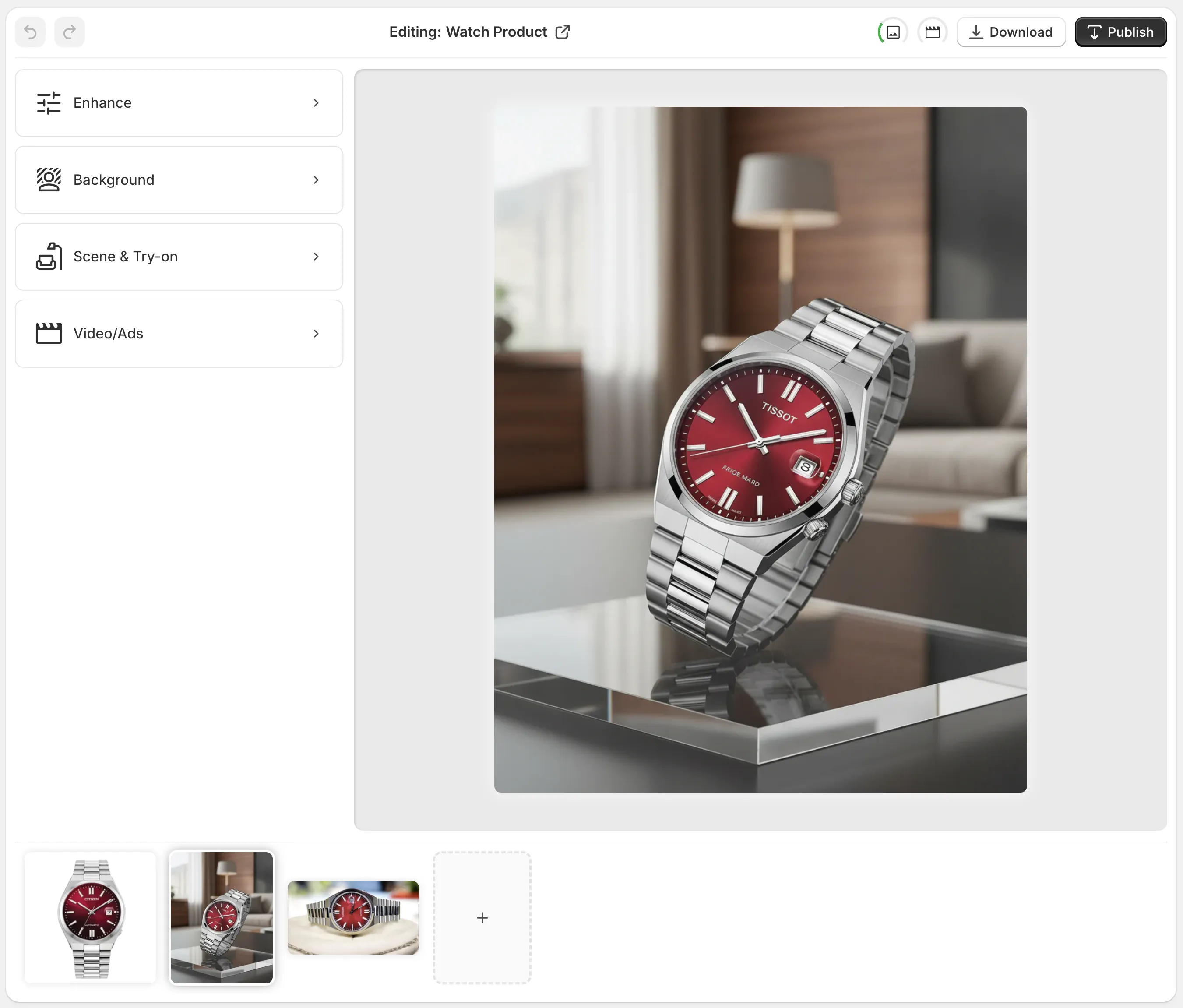
This opens the main editor, where you’ll see:
- Top bar – undo/redo, download, publish to product
- Left panel – AI tools (background remover, upscaling, auto enhance, object placement, try-on, etc.)
- Main canvas – your image
- Bottom gallery – all images tied to that product
Step 3: Isolate the Product (Optional but Highly Recommended)
For small accessories, clarity around edges is crucial. Use the Isolate Product / Background Remover tool to cleanly separate your item from distractions:
- Click Background Remover / Isolate Product from the tools.
- Let the AI cut out the accessory from the background.
- Refine edges if needed (especially chains, fine jewelry, or intricate silhouettes).
This helps the AI upscaler focus purely on the object and reduces weird halos.
Step 4: Use AI Upscaling To Increase Resolution
Now apply AI upscaling:
- Select the Upscale tool in the left panel.
- Choose your target (e.g., 2x or 4x resolution depending on use: zoom images, hero images, or ad creatives).
- Run the upscaler and review the preview:
- Check engravings, stones, watch hands, small logos.
- Zoom in to confirm that edges are sharp, not jagged.
If your source image wasn’t extremely low-quality, the upscaling will:
- Sharpen micro-details without harshness
- Reduce compression artifacts
- Smooth noise in flat areas (like backgrounds) while keeping texture in metal/leather
Step 5: Auto Enhance for Final Polish
After upscaling, you can use Auto Enhance in Supra AI Photo Studio to fine-tune:
- Lighting – Add gentle contrast so facets and textures pop.
- Color balance – Keep metals and stones true to real life.
- Clarity – Enhance micro-contrast without turning everything gritty.
Because Supra was designed specifically for product photos, it tends to avoid the “overly retouched” look you sometimes get with generic photo apps.
Visual Example: Plain vs. Upscaled & Enhanced Accessory Photo
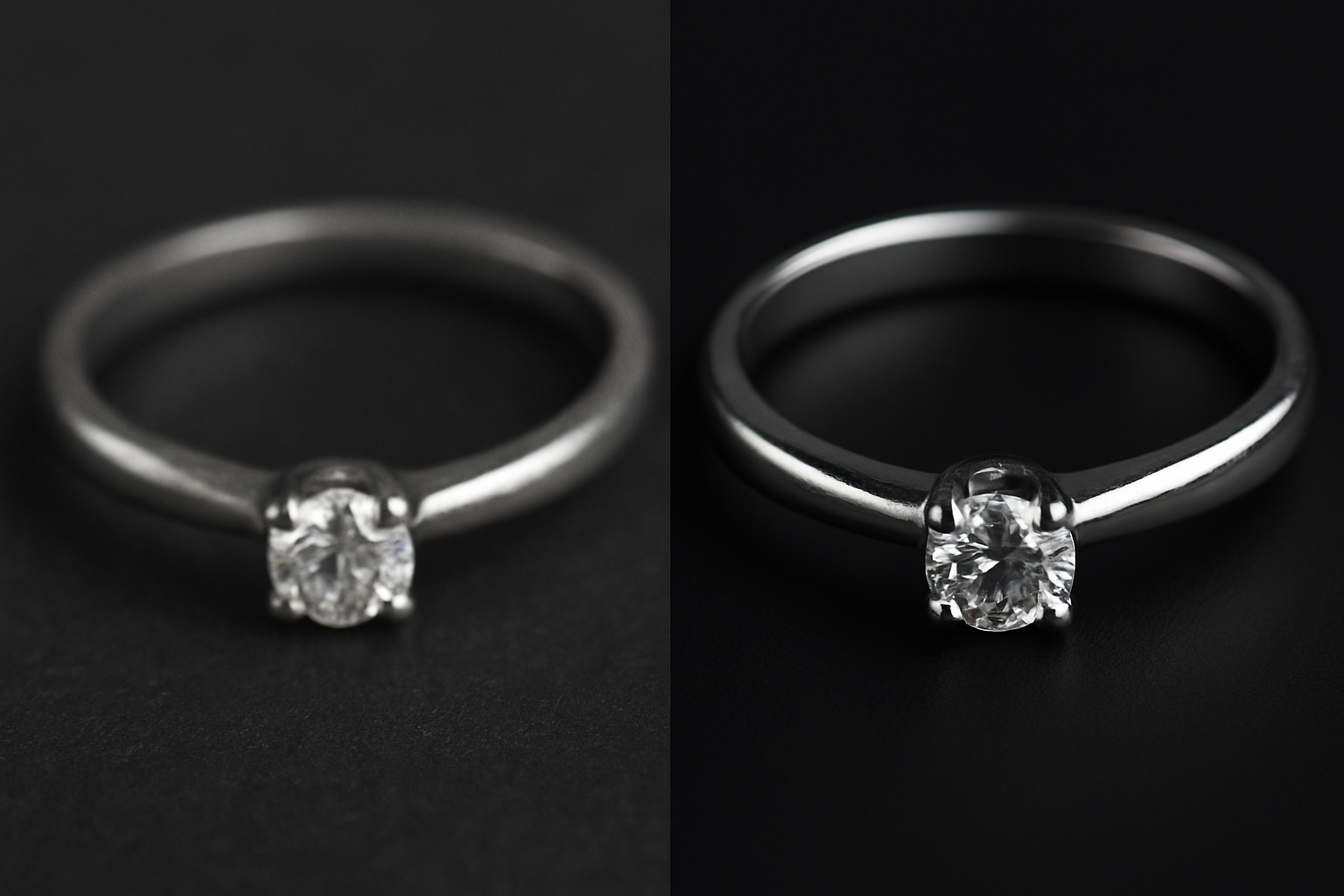
On the left, you’d see a typical low-res accessory shot: soft gem edges, noisy background, and dull metal. On the right, after using AI upscaling + auto enhancement:
- The stone facets are sharp and defined.
- Engravings are legible.
- The background is clean and smooth, ready for your Shopify product page.
Extra Tricks To Make Upscaled Accessory Photos Look Premium
Once your base photo is clean and high-res, you can go beyond simple upscaling to create scroll-stopping visuals.
1. Create Consistent Backgrounds With Object Placement
Inconsistent backgrounds across your catalog look unprofessional. With Supra AI Photo Studio, you can use Object Placement to put your upscaled accessory into curated scenes:
- Place a ring on a marble slab with soft daylight.
- Put sunglasses on a minimalist concrete pedestal.
- Show a watch on a wood desk with a laptop in the background.
Check out the object placement capability here:
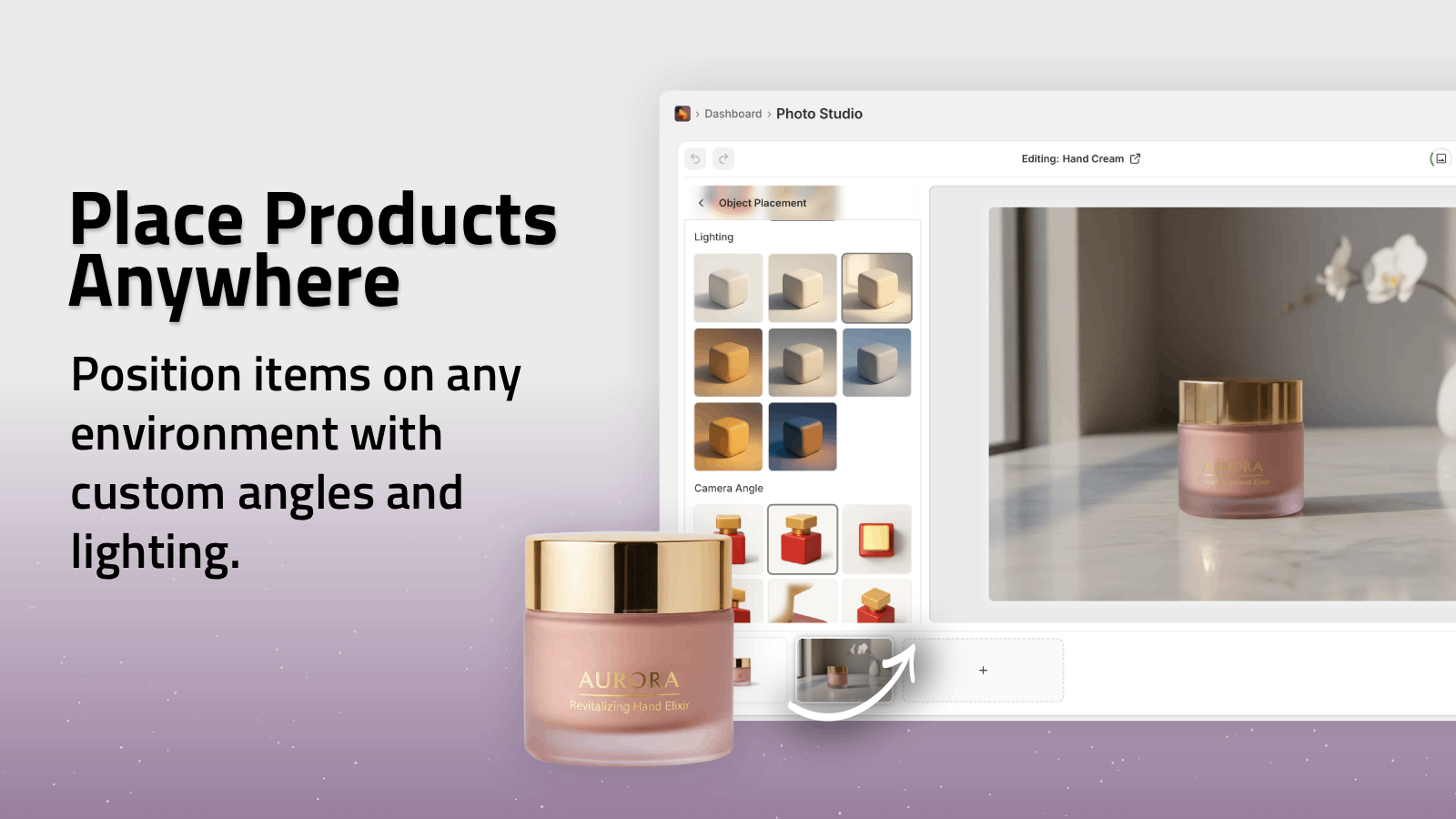
This lets you maintain lifestyle context while keeping your accessory perfectly sharp.
2. Generate UGC-Style Clips From Your Upscaled Photos
Once your imagery is crisp, you can recycle it into video content. Supra AI Photo Studio can turn a single product shot into UGC-style videos or B-roll for TikTok, Reels, and ads.
- Show your accessory in dynamic close-ups.
- Add subtle camera motion and voiceover.
- Keep the product details crystal clear thanks to prior upscaling.
Example of UGC-style visuals:
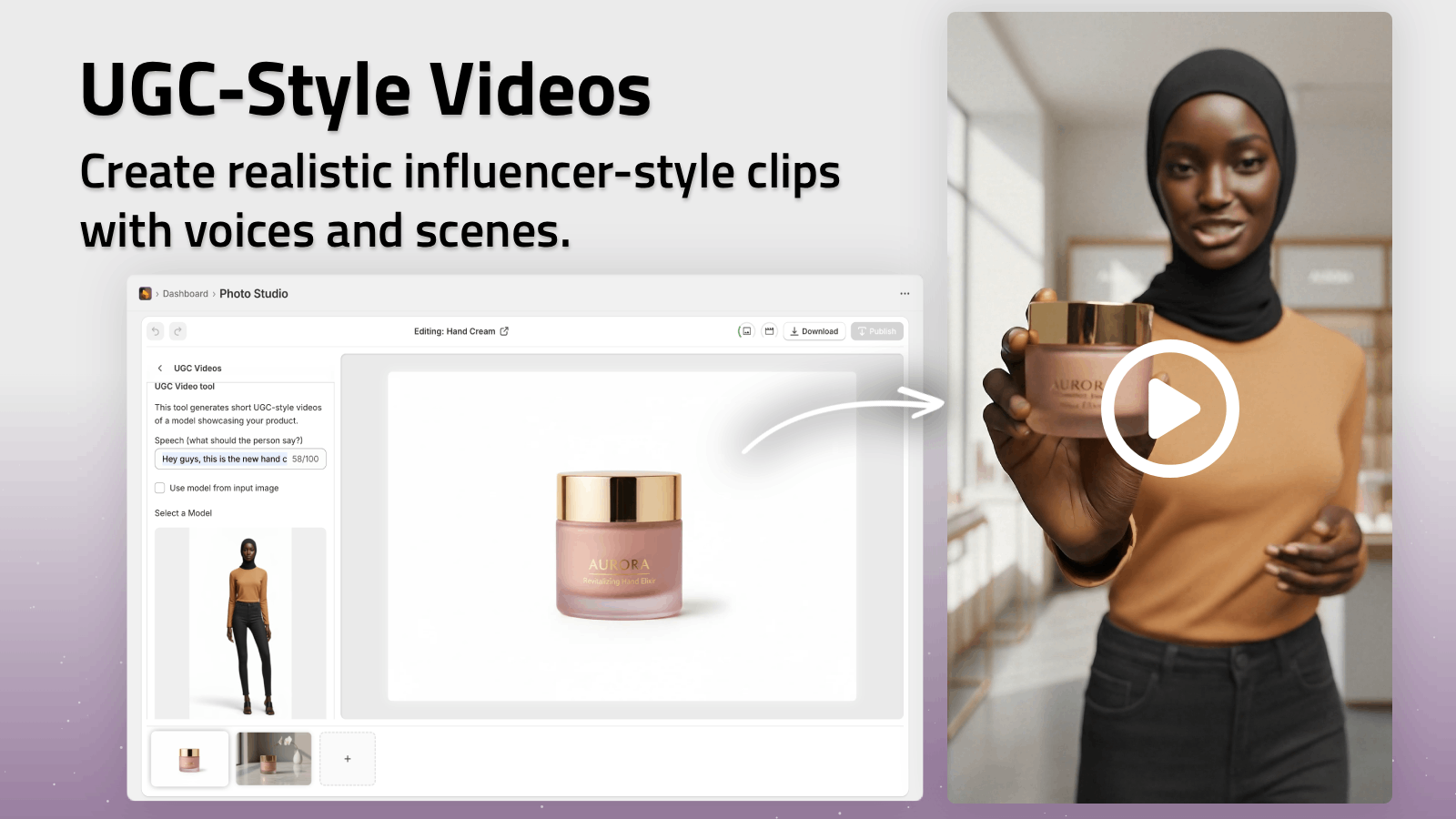
You can also watch the short demo trailer to see the workflow:
Technical Tips: File Sizes, Formats, and Shopify
Upscaling close-up photos of accessories is only half the job—you also need to serve them correctly on your store.
Recommended Resolutions
For Shopify product photos:
- Main product image / hero: 2000–3000 px on the longest side
- Zoomable close-ups: 2500–3500 px on the longest side
With Supra’s upscaler, you can easily hit those ranges even if your original is smaller.
File Format & Compression
- Use JPEG for most product photos (good size/quality balance).
- Keep file size under ~500 KB per image when possible.
- Export at around 80–90% quality to avoid visible compression.
Supra AI Photo Studio is built to generate web-ready files that look sharp without bloating page load times.
When You Should Not Upscale
There are cases where upscaling won’t save the image:
- The photo is severely out of focus (nothing is sharp).
- The subject is motion-blurred (handshake, moving object).
- The file is tiny (e.g., 200 px icons or heavily compressed WhatsApp images).
In these situations, it’s faster and more honest to re-shoot the accessory and then enhance/upscale that new image.
Putting It All Together: A Simple Workflow
To summarize, here’s a streamlined process you can follow for every new accessory you list:
- Shoot in good light with the highest resolution available.
- Upload to Supra AI Photo Studio in your Shopify admin.
- Isolate the product with the Background Remover.
- Upscale (2x–4x) to get a crisp, zoomable image.
- Auto Enhance to fix lighting, color, and clarity.
- (Optional) Use Object Placement to create lifestyle variants.
- (Optional) Generate UGC/B-roll videos for social and ads.
- Publish back to your Shopify product in one click.
This gives you a repeatable, scalable way to make small accessories look premium and trustworthy on every product page.
Start Upscaling Your Accessory Photos Today
If your close-up accessory photos look soft, noisy, or inconsistent across your catalog, you’re likely leaving money on the table.
With Supra AI Photo Studio, you can:
- Instantly upscale and enhance close-up images of jewelry, watches, sunglasses, and more
- Maintain studio-quality consistency without hiring a photographer or retoucher
- Create lifestyle scenes and videos from the same base images
Install it on your Shopify store, try the free plan, and turn your small accessories into high-conversion, high-resolution visuals in minutes.