
How To Remove Backgrounds From Textured Fabric Photos (Without Ruining The Details)
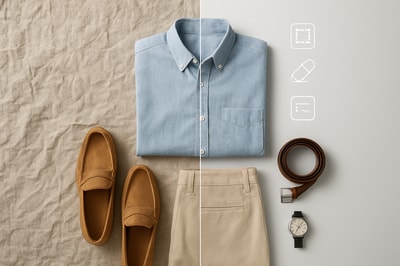
Removing backgrounds from textured fabric photos is one of the trickiest parts of product photography.
Threads, folds, lace, mesh, knits, fuzzy edges, tiny tassels — all of these confuse basic background removers. The result? Choppy cutouts, missing details, and that ugly halo around your products.
In this guide, you’ll learn how to remove backgrounds from textured fabric photos cleanly, while preserving fine details and realism — and how to turn those clean cutouts into high-converting lifestyle images using Supra AI Photo Studio for Shopify.
Why Textured Fabrics Are So Hard To Cut Out
Before we jump into tools and workflows, it helps to know why your usual background remover struggles with fabric:
-
Soft, fuzzy edges
Wool, fleece, frayed denim, and knitwear don’t have hard, clear edges. Algorithms can’t easily tell where the product ends and the background begins. -
Semi-transparent areas
Lace, mesh, tulle, and sheer fabrics let the background show through. Naive removers either:- Erase too much, leaving holes, or
- Keep parts of the old background inside the pattern.
-
Complex textures & deep folds
Patterns, shadows, and wrinkles look a lot like background noise. Many tools over-smooth them, making fabrics look flat and fake. -
Busy original backgrounds
If the product was shot on patterned sheets, carpets, or textured walls, it’s even harder to isolate the garment.
To handle all of this, you need a workflow that’s built for e‑commerce fabrics, not just generic cutouts.
The Two Main Ways To Remove Backgrounds
There are two broad approaches:
1. Manual / Traditional Methods
Used in Photoshop, GIMP, etc.
- Pen tool or vector paths
- Magic Wand / Quick Selection
- Refine Edge / Select and Mask
- Layer masks and brushes
Pros
- Precise when done by a professional
- Full control over every pixel
Cons
- Time-consuming (especially for catalogs)
- Steep learning curve
- Expensive if outsourced at scale
2. AI-Powered Background Removal
Modern AI can:
- Understand the product vs. background context
- Preserve fibers, frays, lace holes, and translucent parts
- Work in seconds, even across large catalogs
Supra AI Photo Studio was built specifically for Shopify product photos and fabrics. Instead of doing everything manually, you:
- Upload or select a product image inside Shopify
- Use Isolate Product / Background Remover
- Optionally replace the background with studio or lifestyle scenes
Try it directly from your Shopify admin:
👉 Install Supra AI Photo Studio
Best Practices Before You Remove The Background
Even with strong AI, your source image quality still matters.
-
Shoot on a contrasting background
If the fabric is dark, avoid dark backdrops; if it’s light, avoid pure white floors or sheets. -
Use diffuse, even lighting
Harsh shadows and blown-out highlights make the edge confusing. Soft side lighting or a light tent works best. -
Flatten and arrange the fabric well
- Avoid tangled straps and hidden corners.
- For flat-lays, smooth out major wrinkles but keep some natural texture.
-
Capture high resolution
The more pixels you give the AI, the better it can read fibers, seams and weave.
If your photos are already taken and not perfect, don’t worry — Supra AI’s Auto Enhance and Upscaling can still rescue a lot.
Step‑By‑Step: Removing Backgrounds From Textured Fabric in Supra AI
Here’s a practical workflow inside Supra AI Photo Studio that works especially well for apparel, textiles and home linens.
1. Open Your Product in the Supra Editor
Once the app is installed on your Shopify store:
- In your Shopify admin, open Apps → Supra AI Photo Studio.
- Pick the product that has the fabric image you want to clean.
- The image appears on the Canvas, with related images in the Image Gallery below.
Screenshot overview:
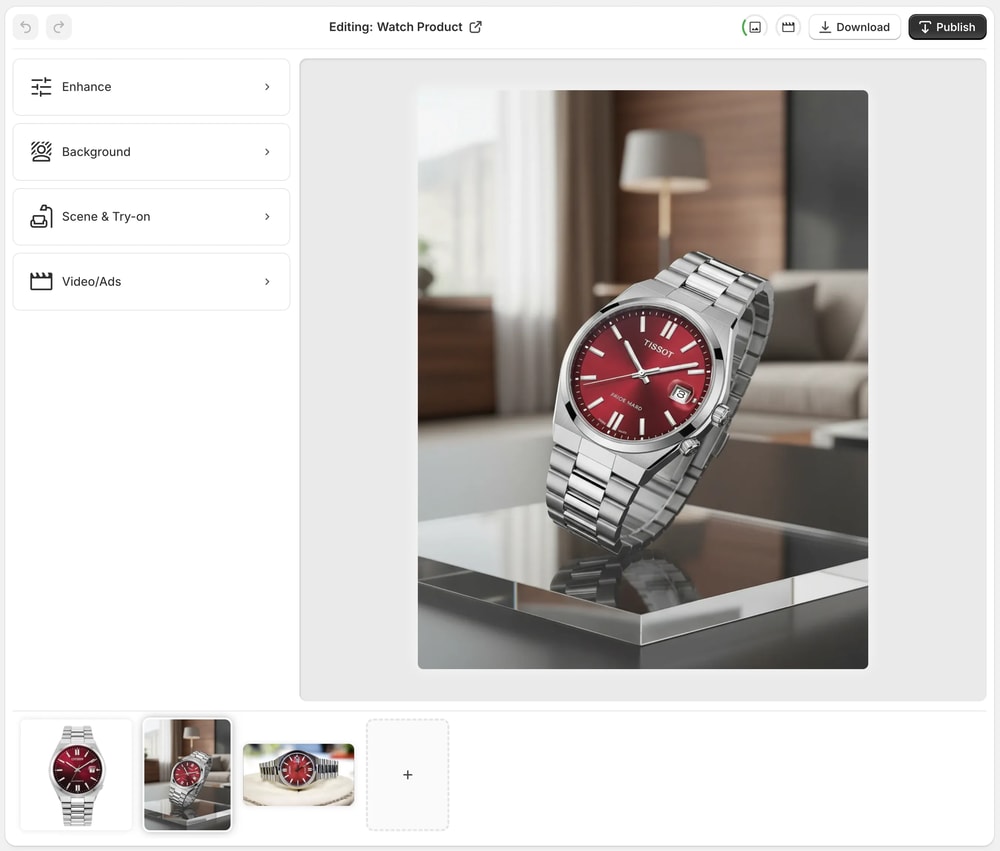
From here, you’ll use the tools in the left sidebar.
2. Isolate the Fabric With AI Background Removal
For 90% of fabric photos, start with Isolate Product or Background Remover:
- Select your image in the gallery.
- Click Isolate Product (or the background removal tool in the Tools panel).
- Let the AI analyze edges, fibers and folds.
In a few seconds, you’ll get a clean cutout of your garment or textile.
What makes this work better than generic removers?
Supra’s AI has been trained heavily on Shopify product photos — including dresses, shirts, towels, bedding, scarves, knitwear and more — so it’s better at:
- Preserving fuzzy or frayed edges
- Respecting lace holes and cutouts
- Keeping subtle weave textures intact
If you see small imperfections:
- Re-run the tool once (it may grab edges better the second time).
- Use any local refinement options (if available) to tidy specific areas.
3. Enhance Texture, Don’t Destroy It
Many tools make fabrics look plastic when trying to clean them. To avoid that:
- Use Auto Enhance to correct lighting, contrast and color without flattening detail.
- Use Upscaling if you started from a smaller or slightly soft photo.
This keeps the micro-texture of the weave, knit, or pile visible even after background removal.
Choosing The Right New Background For Fabrics
Once you’ve removed the original background, you have options:
- Simple solid or gradient (catalog, marketplaces)
- Subtle textured studio sets (higher perceived quality)
- Full lifestyle scenes (for conversion-optimized Shopify PDPs)
With Supra AI Photo Studio you can go far beyond just white backgrounds.
Option A: Clean Studio Backgrounds
Use neutral tones to make textures pop:
- Light gray for white or pale fabrics
- Warm beige or off‑white for cozy textiles (towels, blankets, knits)
- Soft charcoal for lighter knits or performance wear
Within Supra, you can:
- Replace the background with a simple studio environment.
- Choose surface type (table, hanger, mannequin, floating) and lighting style.
This keeps the focus on material and craftsmanship.
Option B: Lifestyle Scenes With Object Placement
To show how the fabric lives in the real world, use Object Placement:
- Place bedding in a styled bedroom scene.
- Drop towels into a spa-like bathroom.
- Show table linens on a dining table with soft morning light.
- Put scarves or shawls on a minimalist entryway hook.
With Object Placement in Supra AI:
- Select your isolated fabric product.
- Choose a scene type (bedroom, bathroom, kitchen, boutique, etc.).
- Pick camera angle and lighting.
- Let the AI generate a lifestyle shot that fits your brand.
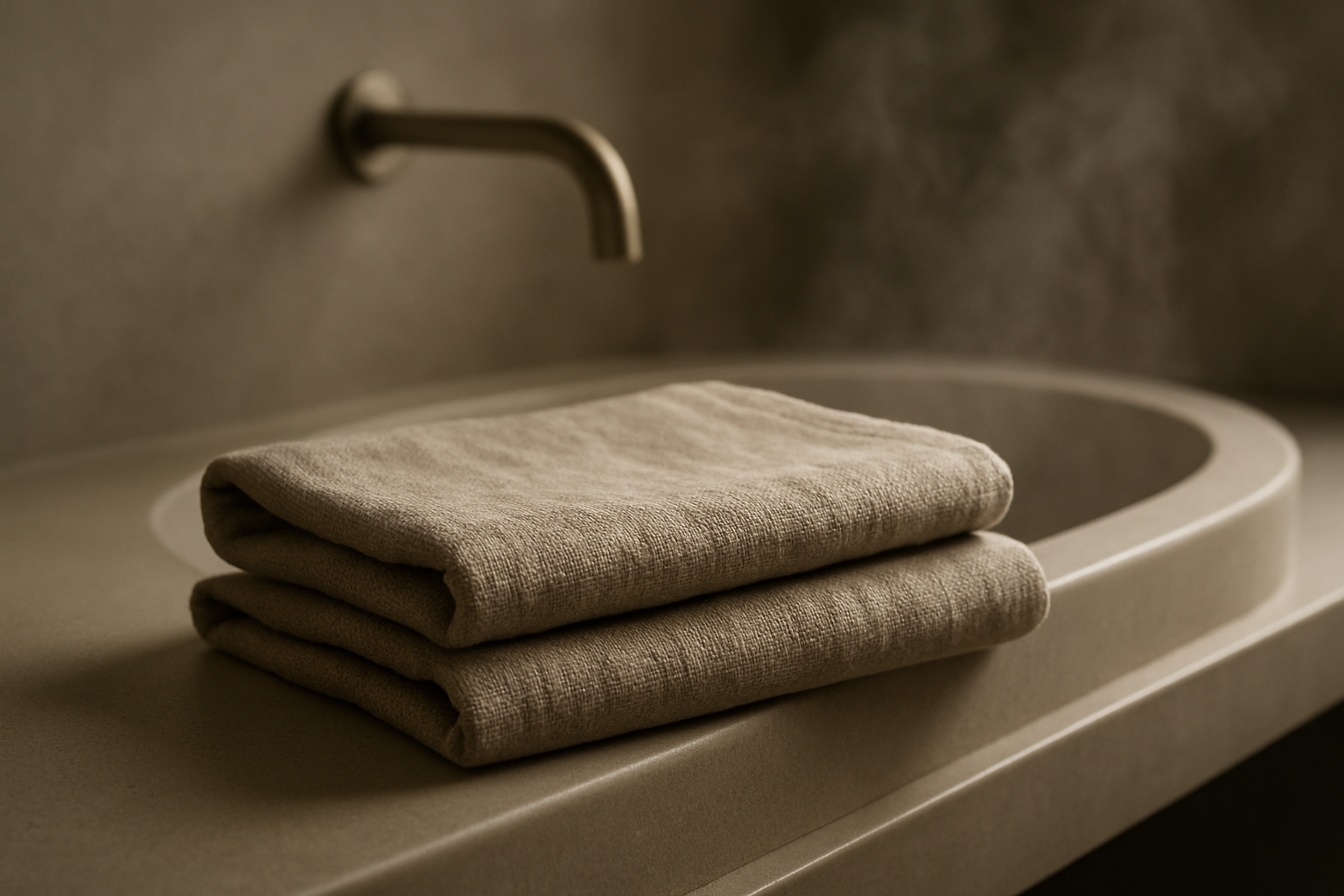
This way, the background removal is not just a cleanup step — it becomes the gateway to conversion-focused product storytelling.
Special Cases: Lace, Mesh, and Sheer Fabrics
These materials are the true background-removal stress test. Here’s how to handle them.
1. Keep Enough Contrast Behind Them
If you’re still shooting images:
- Place lace or mesh over a contrasting but simple surface.
- Avoid patterns under lace — they show through and confuse the AI.
If the photos are already taken, move directly to AI cleanup.
2. Use AI Removal + Careful Enhancement
With Supra AI:
- Run Isolate Product to remove the main background.
- Zoom into lace areas on the Canvas and check:
- Are the holes transparent as they should be?
- Is there leftover background trapped inside?
- If texture looks too soft, apply a gentle Auto Enhance and possibly Upscale to bring back definition.
Because Supra is optimized for product photography, it tends to keep:
- The pattern of the lace
- Natural shadowing within the fabric
- Fine thread definition
All of which preserves realism on your Shopify product pages.
Going Beyond Cutouts: On‑Model Fabric With AI Try‑On
For fashion stores, many textured fabrics look best on a model, not in a flat-lay. But traditional model shoots are expensive and slow.
Supra AI Photo Studio includes AI Try‑On for Fashion that can:
- Put your dresses, shirts, scarves, and jackets on AI models
- Change pose, body type, and skin tone
- Still keep accurate fabric color and shape
You can:
- Use background removal to isolate the garment shape.
- Use AI Try‑On to generate realistic on-model shots.
- Keep product pages consistent: one flat-lay, one ghost mannequin or hanger, and one on-model view.
See examples on the app listing:
👉 Realistic Model Try‑On preview

Turn Clean Fabric Photos Into Scroll‑Stopping Content
Once you’ve isolated your fabrics, you can reuse them everywhere:
- Category banners
- Homepage hero sections
- Social posts (Instagram, TikTok, Pinterest)
- Ad creatives for Meta and Google
- Email hero images and GIFs
Supra AI Photo Studio goes beyond stills:
-
UGC-style videos from a single product image — perfect for TikTok/Reels.
👉 Preview: UGC-style videos screenshot -
B‑roll product videos with cinematic drops, spins, and splashes.
👉 Learn more in the Supra AI demo trailer

Because the background is already removed cleanly, these visuals look polished and brand-consistent across your store and ads.
Why Use Supra AI Photo Studio For Fabric Background Removal?
There are many background tools, but most are generic. Supra is tuned specifically for Shopify merchants and product catalogs.
Key advantages for textured fabric photos:
- AI trained on real product imagery, not just portraits or random objects.
- Background removal that respects fibers, lace, and fuzzy edges.
- Built‑in Auto Enhance and Upscaling to keep texture rich.
- Object Placement and AI Try‑On to convert clean cutouts into real lifestyle imagery.
- UGC and B‑roll video generation to repurpose the same assets.
Pricing is simple, with a free plan so you can test on your own images:
👉 Check pricing and install Supra AI Photo Studio on Shopify
Practical Checklist: Perfect Background Removal For Fabric Photos
Use this quick checklist each time you prepare new images:
-
Start with good input
- High resolution
- Clear, even light
- Product well arranged
-
Isolate with AI
- Use Isolate Product in Supra
- Inspect fuzzy edges, lace, and folds
-
Enhance without flattening
- Apply Auto Enhance
- Upscale if starting from a small file
-
Choose the right background
- Neutral studio for catalog
- Lifestyle scene using Object Placement for PDPs and ads
-
Repurpose everywhere
- Product page galleries
- Collection banners
- Social, ads, and email visuals
Follow this workflow, and textured fabrics stop being a headache and start becoming a visual strength for your brand.
If you’re ready to upgrade your fabric photos from "good enough" to studio-grade, install Supra AI Photo Studio on Shopify and try background removal on a few of your toughest fabric shots. You’ll see how much cleaner, sharper, and more professional your catalog can look — without hiring a retoucher.