How To Place Small Accessories Into Lifestyle Scenes (Without a Studio)
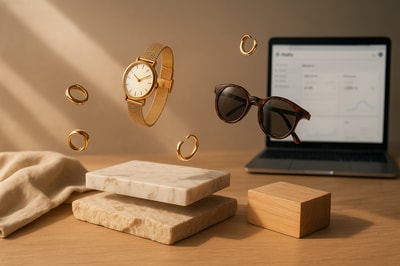
Placing small accessories into lifestyle scenes is one of the fastest ways to make your products look premium, increase add‑to‑cart rates, and stand out in crowded marketplaces. But shooting jewelry, watches, sunglasses or tiny tech in a real studio is expensive and technically tricky.
The good news: you can now create scroll‑stopping lifestyle photos directly inside Shopify using AI.
In this guide, you’ll learn how to place small accessories into realistic lifestyle scenes step‑by‑step, plus how to do it in minutes with Supra AI Photo Studio.
Why Lifestyle Scenes Matter So Much For Small Accessories
Small accessories suffer from three common problems:
- They look flat on white backgrounds
- Size and details are hard to understand
- They rarely communicate lifestyle or aspiration
Lifestyle scenes fix that by:
- Showing context (on a desk, on a wrist, on a beach towel, near a makeup bag)
- Making products feel aspirational (who uses it, where, and how)
- Boosting perceived value and trust (looks like a real brand, not a dropshipping test)
If two rings have the same price and specs, but one is photographed in a romantic café scene and the other on a flat white PNG, the first will almost always win.
3 Principles For Realistic Lifestyle Scenes
Before you start dropping your accessories into random backgrounds, keep these three principles in mind:
1. Consistent Story
Each image should answer: who is using this, where, and why?
- A minimalist gold ring → styled on a linen cloth, with a ceramic mug and a book
- Sporty smartwatch → on a gym bench with a towel, water bottle, and soft morning light
- Sunglasses → on a café table with sunlight and an iced latte, or on a beach chair
If the environment doesn’t match the product’s vibe, it will feel fake.
2. Lighting Match
The fastest way to ruin realism is mismatched light.
- If your original photo has soft diffused light, use a soft, indoor or overcast scene
- If it has strong shadows, go for outdoor or sunny scenes
- Keep shadow direction consistent: if light hits from the left in your product photo, it shouldn’t come from the right in the background
With Supra AI Photo Studio, the AI automatically adapts lighting in the new scene, which saves a ton of manual tweaking.
3. Scale & Perspective
Accessories are small, which makes wrong proportions very obvious.
- Rings next to a coffee cup shouldn’t look the size of a donut
- A watch on a wrist must follow the wrist curve and size realistically
- Earrings shouldn’t float; they must sit naturally on an earlobe or display stand
When you use AI object placement or try‑on, always zoom in and check scale.
The Traditional Way vs The AI Way
The Traditional Way
To create lifestyle scenes for accessories, you’d normally need:
- A camera, lenses, lights, and reflectors
- Props: books, cups, fabrics, trays, mirrors, flowers, etc.
- Models (for try‑on shots)
- Studio or nicely lit location
- Hours of retouching in Photoshop
Costly, time‑consuming, and hard to scale if you publish new products weekly.
The AI Way (Directly Inside Shopify)
With Supra AI Photo Studio, you upload a single clear product photo and:
- Remove the background in one click
- Place the accessory in any environment (desk, vanity, beach, luxury boutique…)
- Try it on models (rings, watches, jewelry, sunglasses, hats, scarves, etc.)
- Auto‑adjust lighting, shadows and sharpness to look like a real photoshoot
All directly from your Shopify admin, with a free plan to start:
➡️ Install here: Supra AI Photo Studio on the Shopify App Store
Step‑By‑Step: Placing Small Accessories Into Lifestyle Scenes With AI
Let’s walk through the practical workflow using Supra AI Photo Studio.
1. Start From a Clean Product Shot
The better your base image, the better your lifestyle scene.
Best practices for your original accessory photo:
- Shoot on neutral background (white, light gray, or soft gradient)
- Use as much resolution as possible
- Avoid heavy reflections on jewelry or glass
- Make sure the product is fully visible and in focus
If your existing image is messy, you can fix it inside the app.
2. Isolate Your Product
Inside your Shopify admin:
- Open Supra AI Photo Studio (Apps → Supra AI Photo Studio).
- Choose a product with the accessory image you want to improve.
- In the Tools panel, use “Isolate Product” or “Background Remover”.
This removes distractions and gives the AI a clean object to place into scenes.

Tip: For tiny items like earrings or small pendants, zoom in on the canvas and confirm edges are clean before going further.
3. Enhance the Image (Optional But Recommended)
Still inside the editor:
- Use Upscaling to increase resolution
- Use Auto Enhance to:
- Denoise
- Sharpen
- Adjust colors and lighting
This ensures your accessory looks crisp even after it’s placed in a larger lifestyle scene.
4. Choose Your Lifestyle Scenario
Now decide what story you want each image to tell.
For example:
-
Jewelry (rings, bracelets, necklaces)
- On a marble tray with dried flowers and perfume
- On an open book with soft window light
- On a hand model holding a cup or touching hair
-
Watches & bracelets
- On a wrist with a shirt cuff, laptop, and coffee (workday scene)
- On a gym bench, with towel and weights (sports watch)
-
Sunglasses & eyewear
- On a café table with a phone and keys
- On a beach towel with sunscreen, hat and sand
Document your favorite scenarios in a quick brand style doc so you can be consistent across the catalog.
5. Use Object Placement For Surface Scenes
For accessories that don’t need a model (like product‑only, flat lay, or styled surface shots):
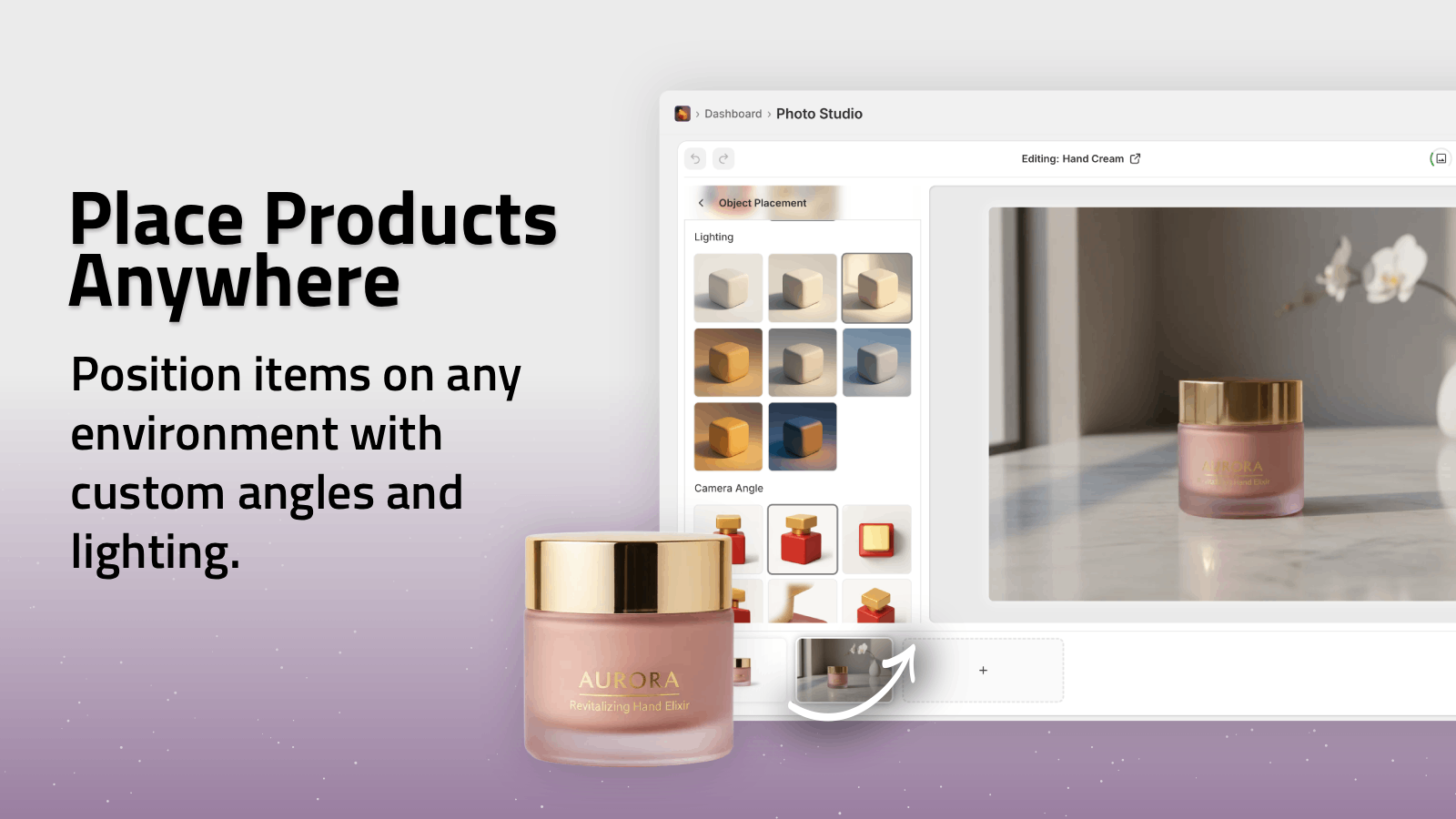
- In the Tools panel, choose Object Placement.
- Follow the prompts to define your scene:
- Environment (e.g. cozy bedroom vanity, minimal office desk, sunny beach towel)
- Surface type (marble, wooden table, linen fabric, mirror)
- Camera angle (top‑down, 45°, eye‑level)
- Lighting style (natural morning light, soft studio, golden hour)
- Generate and preview the result.
The AI will place your accessory realistically into that context with matching shadows and reflections.
If you don’t love the first version, simply regenerate or slightly tweak your environment description until it fits your brand.
6. Use AI Try‑On For On‑Body Accessories
For rings, bracelets, watches, necklaces, earrings, or sunglasses, on‑model photos convert extremely well.
With Supra AI’s AI Try‑On:
- Select your accessory image.
- Choose Try-On in the tools.
- Pick from a library of AI models or create your own to match your customer persona:
- Skin tone
- Body type
- Face shape & hairstyle (for earrings/sunglasses)
- Pose (hand near face, arm on table, walking, etc.)
- Generate the on‑model scene.
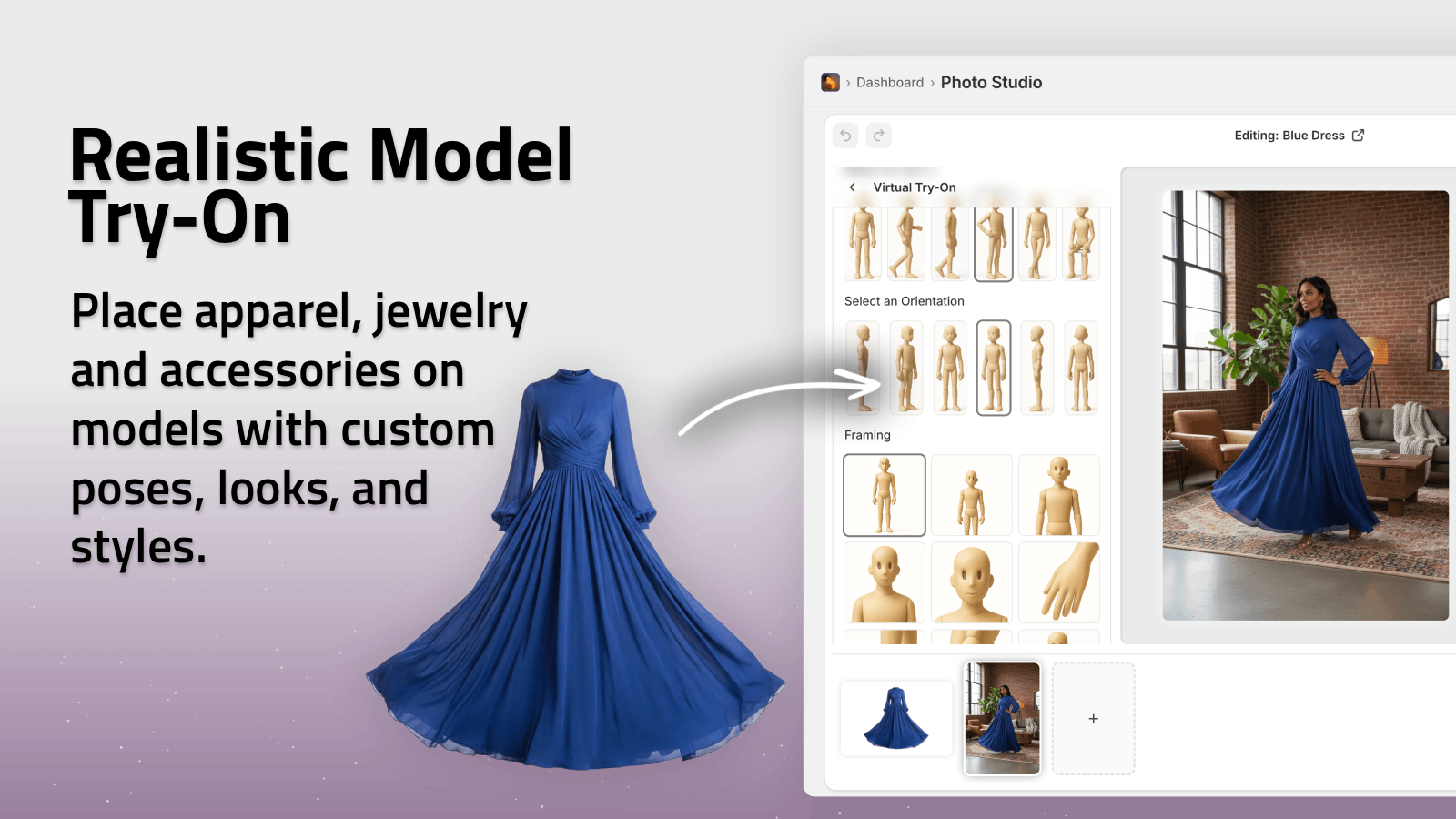
The AI keeps product accuracy (color, material, design) while seamlessly blending it onto the model.
Matching Lifestyle Scenes to the Buyer Journey
Don’t think of lifestyle images as random decoration. Use them strategically on your product page:
- Hero image – Clear, isolated shot or simple lifestyle scene
- Detail images – Close‑ups of clasp, stones, texture, engraving
- Context images –
- On a model (scale + lifestyle)
- On a surface (styling + mood)
- In a bundle (earrings + necklace + ring)
With Supra AI Photo Studio, you can generate multiple variations per accessory and quickly build that full visual story.
Keep Your Brand Consistent Across All Accessories
One common problem: every product looks like it belongs to a different brand because scenes, colors and models are inconsistent.
To avoid that:
- Reuse similar environments (same type of desk/vanity/beach setup)
- Keep lighting style consistent (all warm and soft, or all bright and clean)
- Limit yourself to a small set of model types that match your audience
Because Supra AI Photo Studio lives inside Shopify, you can apply these choices across your entire catalog as you edit product after product, instead of bouncing across tools.
Turn Lifestyle Images Into High‑Performing Videos
Once you have good lifestyle scenes for your accessories, you’re one step away from ads and social content.
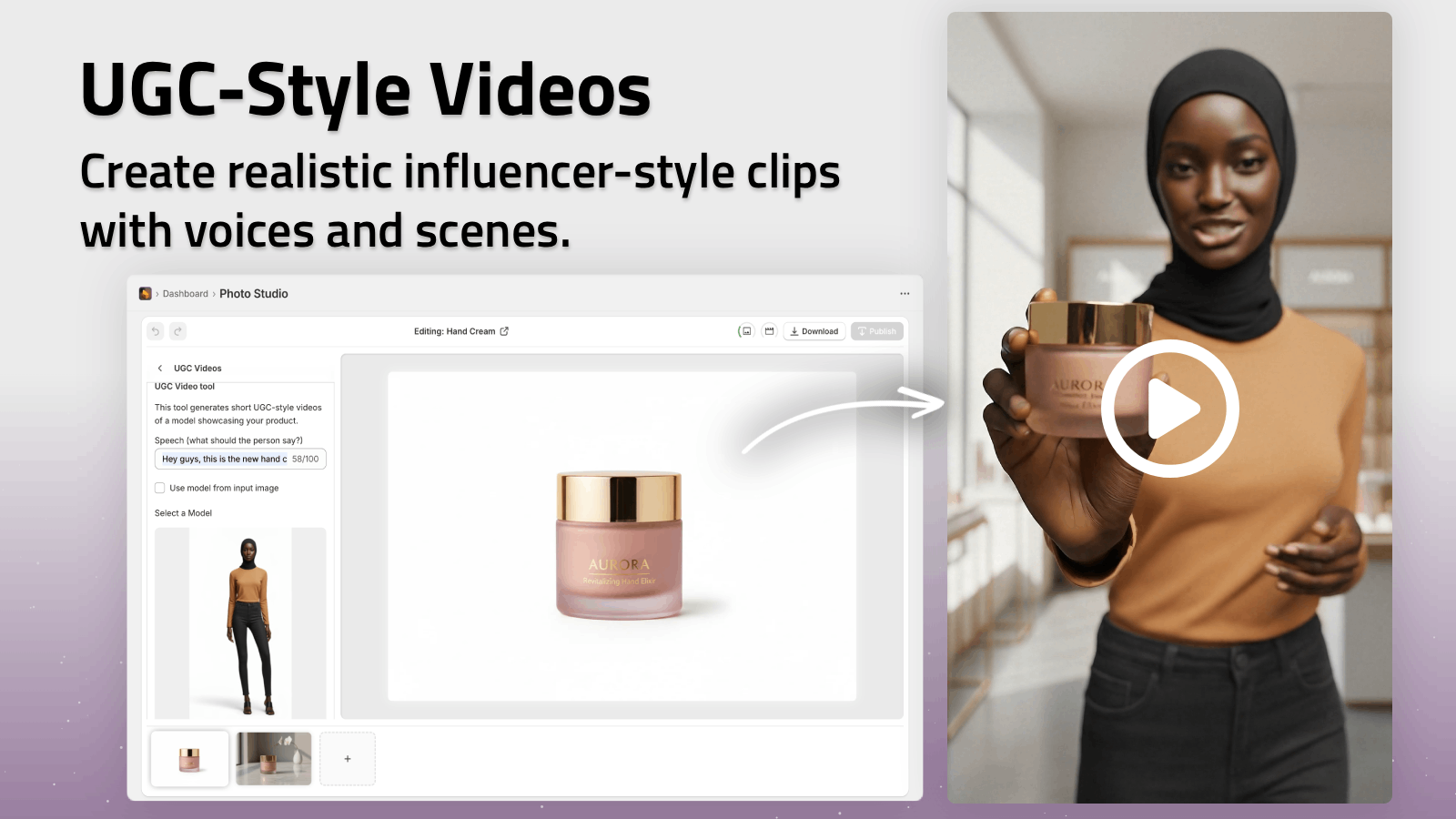
Supra AI Photo Studio can turn a single product image into:
- Cinematic B‑roll clips (rotating watches, floating sunglasses, slow‑motion drops)
- UGC‑style videos for TikTok, Reels, and Stories
Use these for:
- Product launch teasers
- Retargeting ads
- Social proof style content ("I’ve been wearing this ring every day…")
You can see a quick overview of what’s possible in the demo trailer:
➡️ Watch the Supra AI Photo Studio demo
Example: Styling a Minimal Gold Ring in 3 Scenes
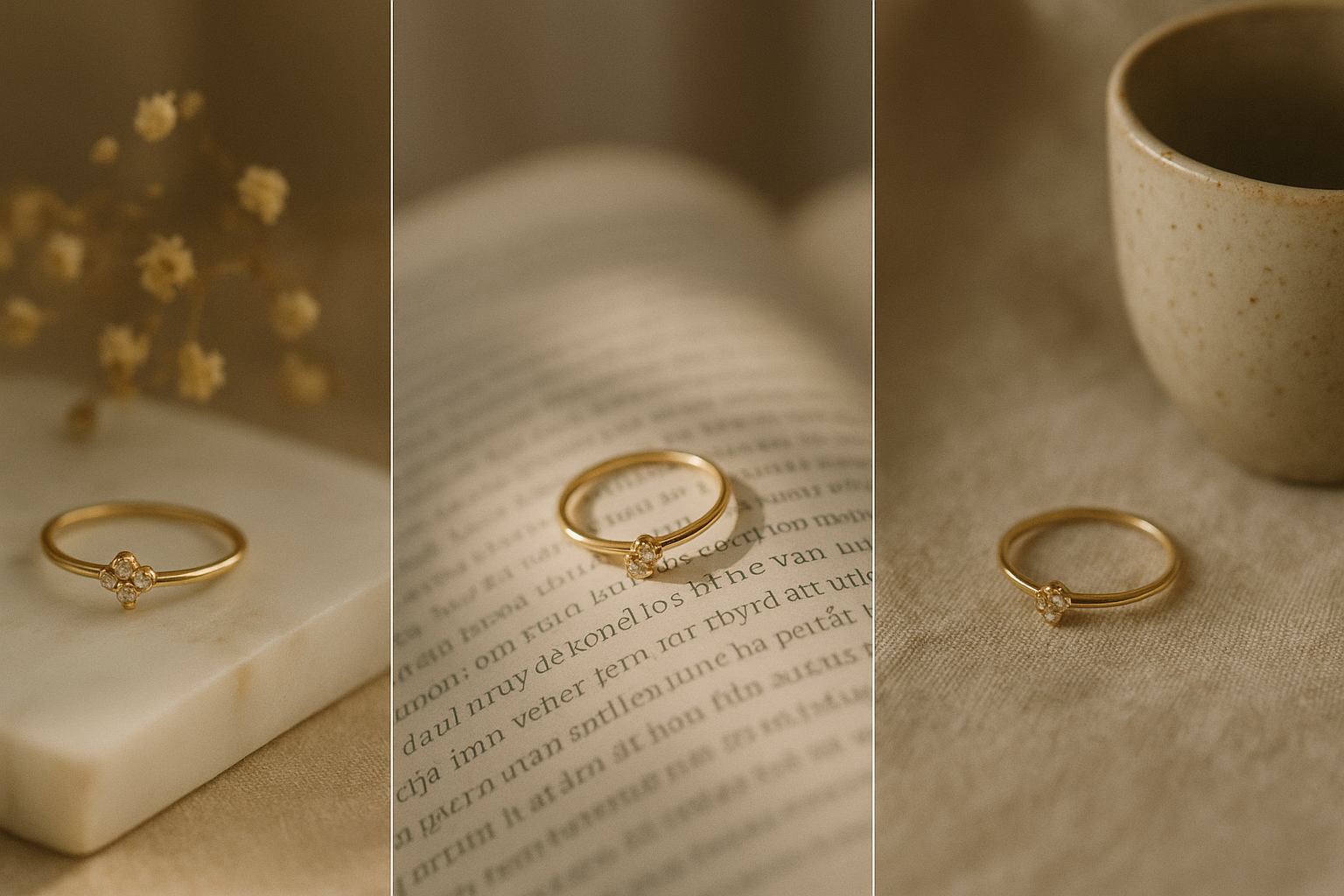
Imagine you sell a simple gold ring. Here’s how you could showcase it:
- Hero shot – Isolated on soft beige background, crisp and sharp
- Lifestyle flat lay – On a marble tray with perfume bottle, dried flowers, and silk cloth
- On‑hand try‑on – On a model’s hand holding a latte at a café, warm morning light
All three can be created from the same base ring image using background removal, object placement, and try‑on in Supra AI Photo Studio.
Start Placing Your Accessories Into Lifestyle Scenes Today
You don’t need a studio, photographer, or advanced Photoshop skills to create premium lifestyle visuals for tiny products.
With Supra AI Photo Studio you can:
- Remove messy backgrounds in seconds
- Place your accessories into any lifestyle environment
- Generate on‑model try‑on photos for jewelry, watches and eyewear
- Create B‑roll and UGC videos directly from product images
Install the app, pick one accessory, and build 3–5 lifestyle images for a single product page. Measure the difference in engagement and conversions — most merchants never go back to plain white PNGs.
➡️ Try it free on the Shopify App Store: Supra AI Photo Studio