How To Remove Backgrounds On Mobile Product Photos

Good product photos start on your phone.
But if your product is sitting on your kitchen counter, office desk, or a messy table, you must remove the background before uploading to your Shopify store. Clean, consistent backgrounds are one of the fastest ways to:
- Increase conversion rates
- Build a recognizable brand
- Reduce returns (customers see the product clearly)
In this guide, you’ll learn exactly how to remove backgrounds on mobile product photos—step by step—and how to go beyond simple white cutouts to create high-converting lifestyle images using AI.
Why Background Removal Matters For Mobile Product Photos
Most merchants take product photos with their phone. That’s fine—modern cameras are excellent—but the problems usually are:
- Distracting clutter (walls, furniture, shadows)
- Inconsistent colors and lighting across photos
- Hard-to-read product shape and details
Removing the background solves these issues by:
- Making the product the hero of the image
- Creating consistency across your entire catalog
- Giving you the flexibility to place products into studio or lifestyle scenes later
If you're running a Shopify store, this is especially powerful when paired with an AI editor like Supra AI Photo Studio, which lets you remove backgrounds and instantly create on-brand scenes directly inside your Shopify admin.
Step 1: Capture Better Mobile Photos (So Background Removal Looks Clean)
Background removal tools work best when your original photo is decent. Follow these quick tips when shooting on your phone:
-
Use natural light
Shoot near a window with indirect light. Avoid harsh sunlight or dark rooms. -
Choose a simple surface
A plain table, neutral wall, or single-color board makes it easier for the AI to detect edges. -
Avoid heavy shadows
Move the product around until shadows are soft. Hard shadows can confuse background removal. -
Leave some space around the product
Don’t crop too tightly while shooting. Extra space gives the AI more context to work with. -
Clean the lens
Wipe your phone lens with a soft cloth before shooting to avoid blur and haze.
These basics alone will dramatically improve how well any background remover performs.
Step 2: Methods To Remove Backgrounds On Mobile
There are several ways to remove backgrounds on mobile product photos:
1. Manual Background Removal (Built-in Phone Tools)
Some phones (and default gallery apps) have rudimentary tools:
- iOS (Photos App): Long-press on a subject in a photo, then tap Copy Subject or Share → saves a cutout.
- Android OEM Apps: Many Samsung, Xiaomi, etc. gallery apps offer an Object Eraser or Cut Out tool.
Pros:
- Free and built-in
- Good for quick, single-image tasks
Cons:
- Limited control
- No bulk processing
- No consistent background styles
- No direct pipeline into your Shopify products
2. Generic Background Removal Apps
There are many standalone apps on the app stores focusing solely on background removal.
Pros:
- Simple and focused on cutouts
- Often decent auto-detection
Cons:
- Export → download → re-upload to Shopify is slow
- No lifestyle scenes, model try-ons, or product-specific tools
- Inconsistent results when used across large catalogs
3. Shopify-Native AI Background Removal (Recommended)
For Shopify merchants, the most efficient solution is to use an AI tool inside your store’s admin, so you can:
- Edit directly on your product images
- Keep everything consistent and on-brand
- Easily generate studio backgrounds and lifestyle scenes
This is exactly what Supra AI Photo Studio is built for.
Instead of juggling multiple apps, you:
- Install the app on your Shopify store.
- Open a product from your admin.
- Use the Isolate Product / Background Remover tool.
- Instantly get a clean cutout, ready for white, colored, or lifestyle backgrounds.
Step 3: Removing Backgrounds With Supra AI Photo Studio
If you want a fast, professional workflow, here’s how to do it with Supra AI Photo Studio using your mobile browser or Shopify mobile app.
3.1 Install Supra AI Photo Studio
- Go to the app listing:
👉 Install Supra AI Photo Studio from the Shopify App Store - Add it to your store and follow the onboarding.
You can start on the Free plan (4 AI image generations per month) to test it.
3.2 Open Your Product Image in the Editor
- In your Shopify admin (mobile or desktop), go to Products.
- Open the product you want to improve.
- Launch Supra AI Photo Studio from the Apps menu.
- From the Image Gallery at the bottom, pick the mobile photo you want to edit.
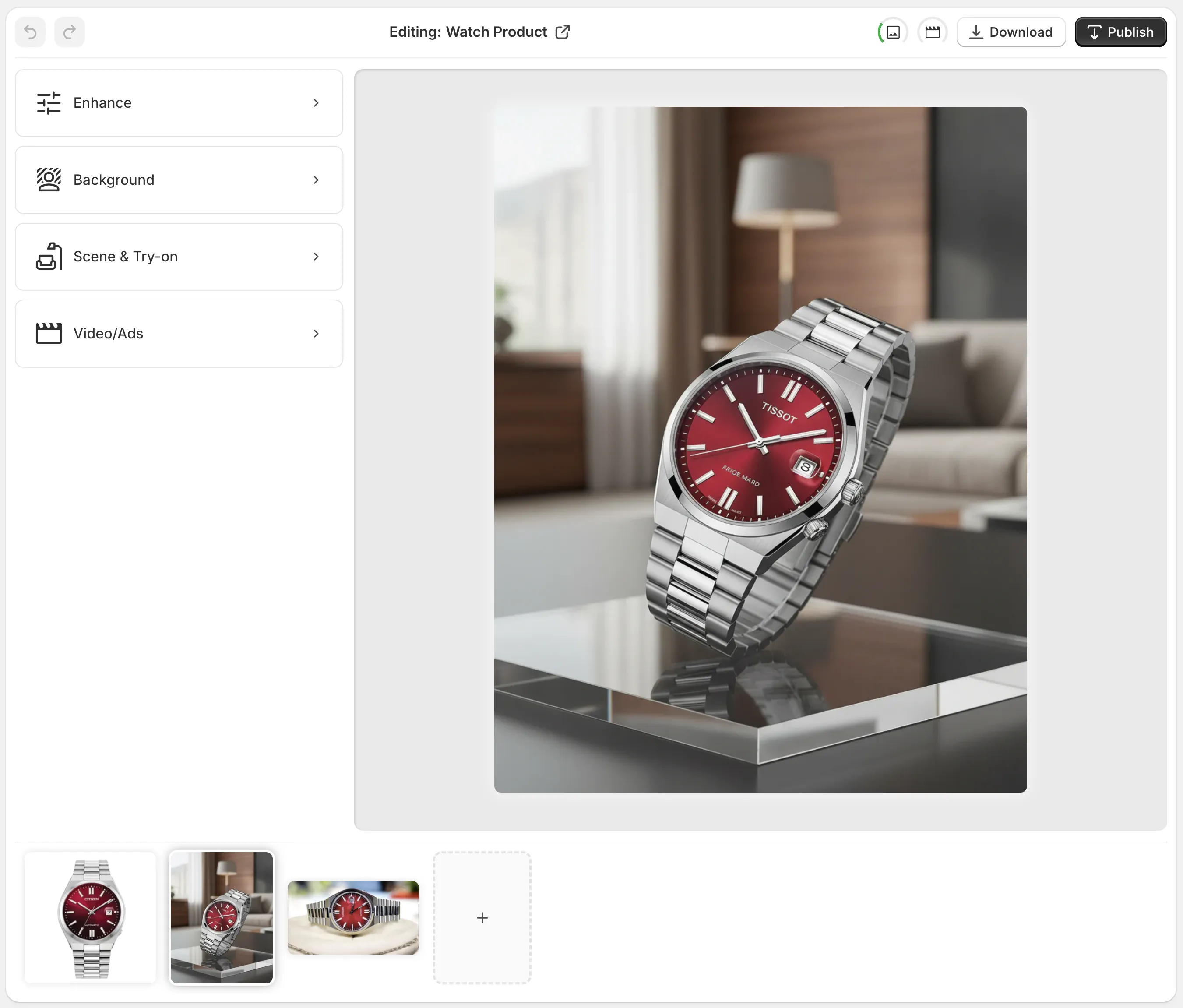
You’ll see:
- Top bar: undo/redo, download, publish to product
- Left side: AI tools (Isolate Product, Object Placement, Try-On, Enhance…)
- Center/right: Canvas with your photo
3.3 Use “Isolate Product” / Background Remover
- Click the Isolate Product (or Background Remover) tool.
- The AI analyzes your mobile photo and removes distractions—keeping just the product.
- If needed, refine edges using built-in adjustments.
Now you have a clean product cutout, perfect for:
- White background catalog images
- Transparent PNGs
- Replacing the background with any scene you want
Step 4: Add Professional Backgrounds (White, Brand Color, or Lifestyle)
Removing the background is just step one. The real conversion boost comes from what you replace it with.
With Supra AI Photo Studio, you’re not limited to flat white backgrounds. You can:
A. Create Classic White or Light Grey Backgrounds
Perfect for:
- Marketplace listings
- Comparison images
- Main product thumbnails
After isolating the product, simply choose a clean studio background option. This keeps the focus on the item while looking professional.
B. Use Brand-Colored Backgrounds
Want your store to feel instantly recognizable?
- Pick your brand’s primary color as a background.
- Add soft gradients or shadows for depth.
This keeps consistency across categories and makes your Shopify store look designed, not patched together.
C. Turn Mobile Photos Into Lifestyle Scenes
This is where Supra AI Photo Studio goes beyond simple background removal.
Using the Object Placement tool, you can:
- Place your mug on a cozy kitchen counter at sunrise
- Put your skincare bottle in a spa-like bathroom
- Drop your gadget onto a sleek office desk setup
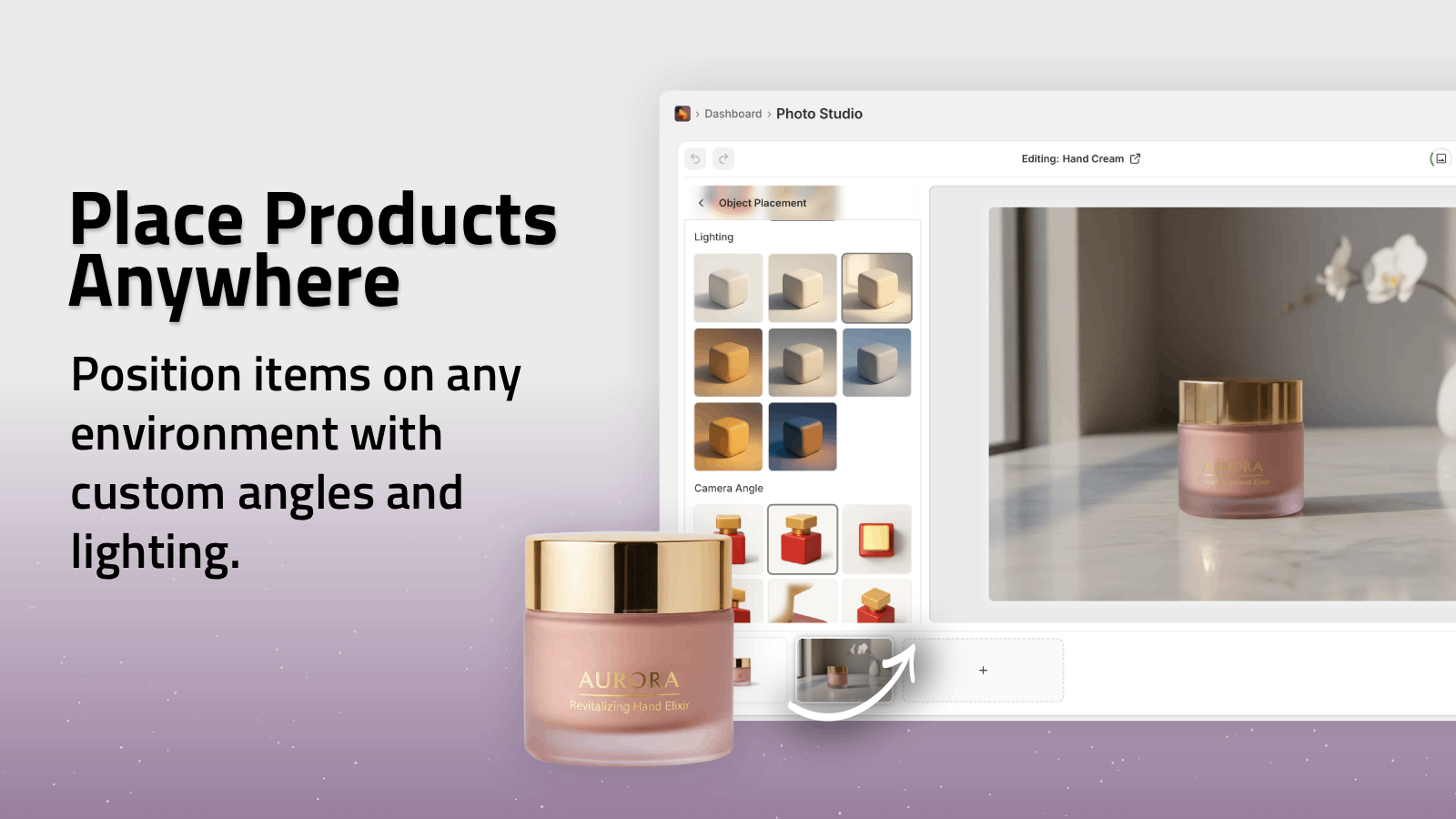
You specify:
- Environment (kitchen, studio, boutique, outdoors, etc.)
- Surface type (wood, marble, fabric…)
- Camera angle & lighting style
The result: high-converting lifestyle product photos, all generated from simple mobile shots.
Pro Tips For Better Background Removal Results
To get the most from any background remover (and especially from AI tools like Supra AI Photo Studio), keep these best practices in mind:
1. Isolate Before You Get Fancy
For most products, use Isolate Product first. A clean cutout improves results when you:
- Place products into scenes
- Create mockups
- Generate UGC-style videos
2. Start With Higher Resolution When Possible
Even from a phone, shoot at the highest resolution available. Then, in Supra AI Photo Studio, use Upscaling to:
- Sharpen edges
- Improve clarity
- Prepare images for zoom and large screens
3. Fix Lighting & Color After Background Removal
Once the background is gone, use Auto Enhance to:
- Correct exposure
- Balance colors
- Reduce noise & blur
This gives you a uniform, high-end look across your product catalog.
4. Create a Repeatable Style
Decide on a visual system:
- Main images: white or light background, front view
- Secondary images: lifestyle scenes
- Social/ads: more dynamic angles, on-model shots, or UGC-style visuals
Supra AI Photo Studio helps keep this consistent across all products.
Going Beyond Photos: UGC & B-Roll From The Same Mobile Shot
Once you’ve cleaned the background, you can reuse that product image to generate:
- UGC-style videos (perfect for TikTok, Reels, and ads)
- Cinematic B-roll product shots
With Supra AI Photo Studio:
- Turn a static photo into influencer-style UGC videos with voices and scenes.
- Generate b-roll videos with product drops, splashes, and cinematic movement while preserving details.
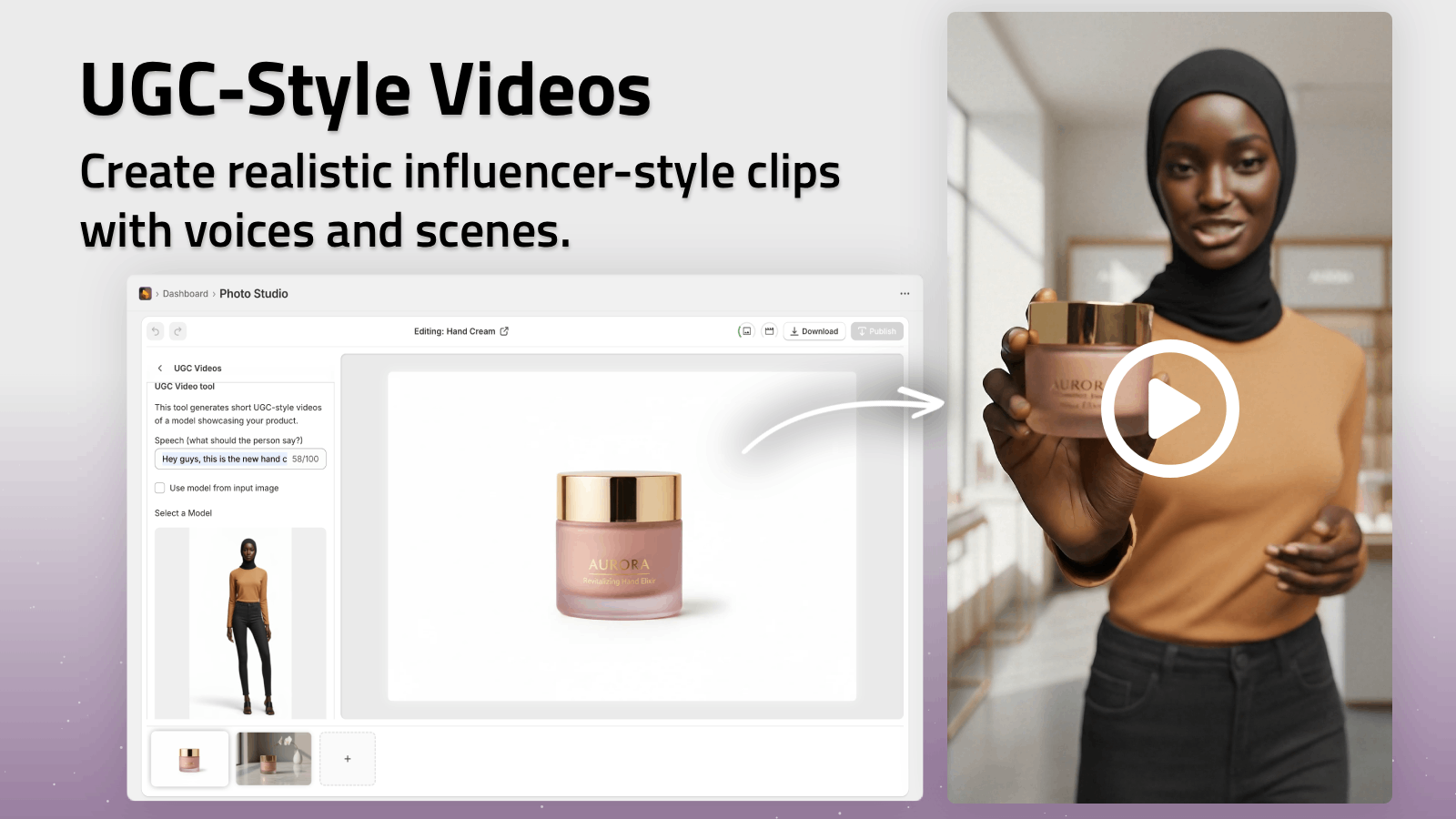
This means a single mobile product shot can power:
- Product page images
- Collection banners
- Social posts
- Ad creatives
Example Workflow: From Phone Snapshot To Store-Ready Image
Here’s a practical flow you can replicate today:
-
Shoot on your phone
Take 3–5 shots of your product on a simple surface near a window. -
Upload to Shopify
Add these images to the relevant product in your Shopify admin. -
Open Supra AI Photo Studio
From the product page, open the app. -
Isolate the product
Use the Isolate Product tool to remove the background. -
Create two versions
- Version A: clean white or light background for the main image
- Version B: lifestyle scene using Object Placement
-
Enhance & publish
- Use Auto Enhance to fix lighting and sharpness
- Publish the final images to the product directly from the top bar
In under 10 minutes, you’ve turned a casual mobile snapshot into polished, on-brand product visuals.
Visual Inspiration: The Power Of Clean Backgrounds
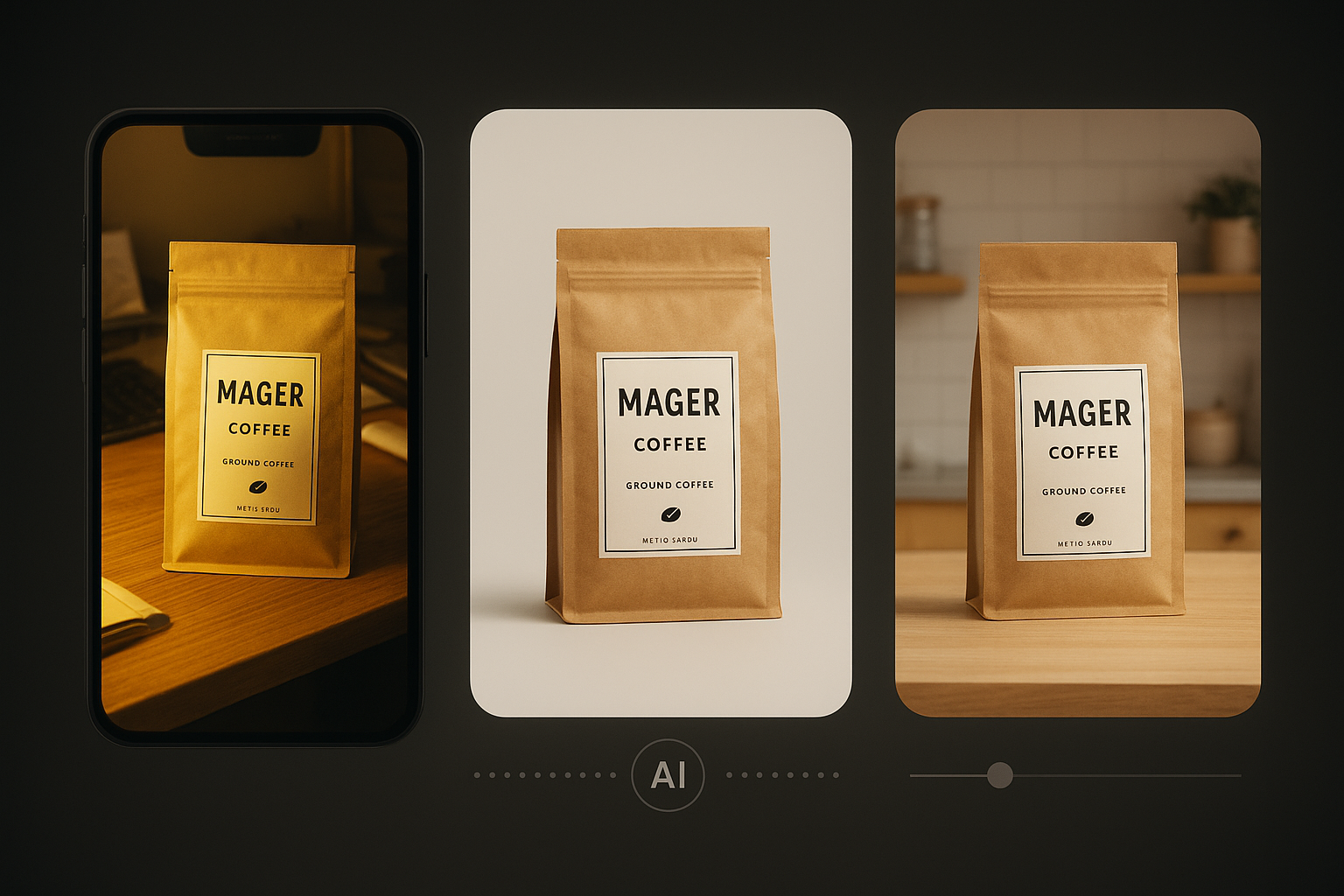
Use this mental image as a benchmark: if your current photos look like the left, aim for the center and right using background removal and scene generation.
Try It On Your Store (Free)
You don’t need a DSLR or a design team to get studio-quality product photos. You just need:
- A smartphone
- Basic shooting discipline
- A Shopify-native AI tool to handle background removal and scene creation
Start by installing Supra AI Photo Studio and testing it on a few of your mobile product photos. With the free plan, you can:
- Remove backgrounds
- Enhance photos
- Experiment with lifestyle scenes and more
When you’re ready, upgrade to scale across your entire catalog and unlock video features.
Your products deserve better than plain, cluttered photos. Clean backgrounds are the first—and easiest—step to a more professional, higher-converting Shopify store.