How To Place Products In Realistic Scenes (Without a Photo Studio)
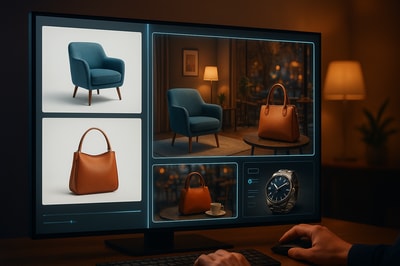
If your product photos still sit on flat white backgrounds, you’re leaving money on the table.
Shoppers don’t just want to see your product — they want to imagine using it. That’s exactly what realistic lifestyle scenes do: they show context, create desire, and quietly boost conversions.
In this guide, you’ll learn how to place products into realistic scenes step by step, and how to do it in minutes using AI — no design skills, no studio, no Photoshop.
Want the shortcut? You can generate studio-quality lifestyle scenes directly inside Shopify using Supra AI Photo Studio.
Why Realistic Product Scenes Matter for Conversions
Before we dive into the "how", it helps to understand the "why".
1. Context sells more than features
A coffee mug on a white background is a mug.
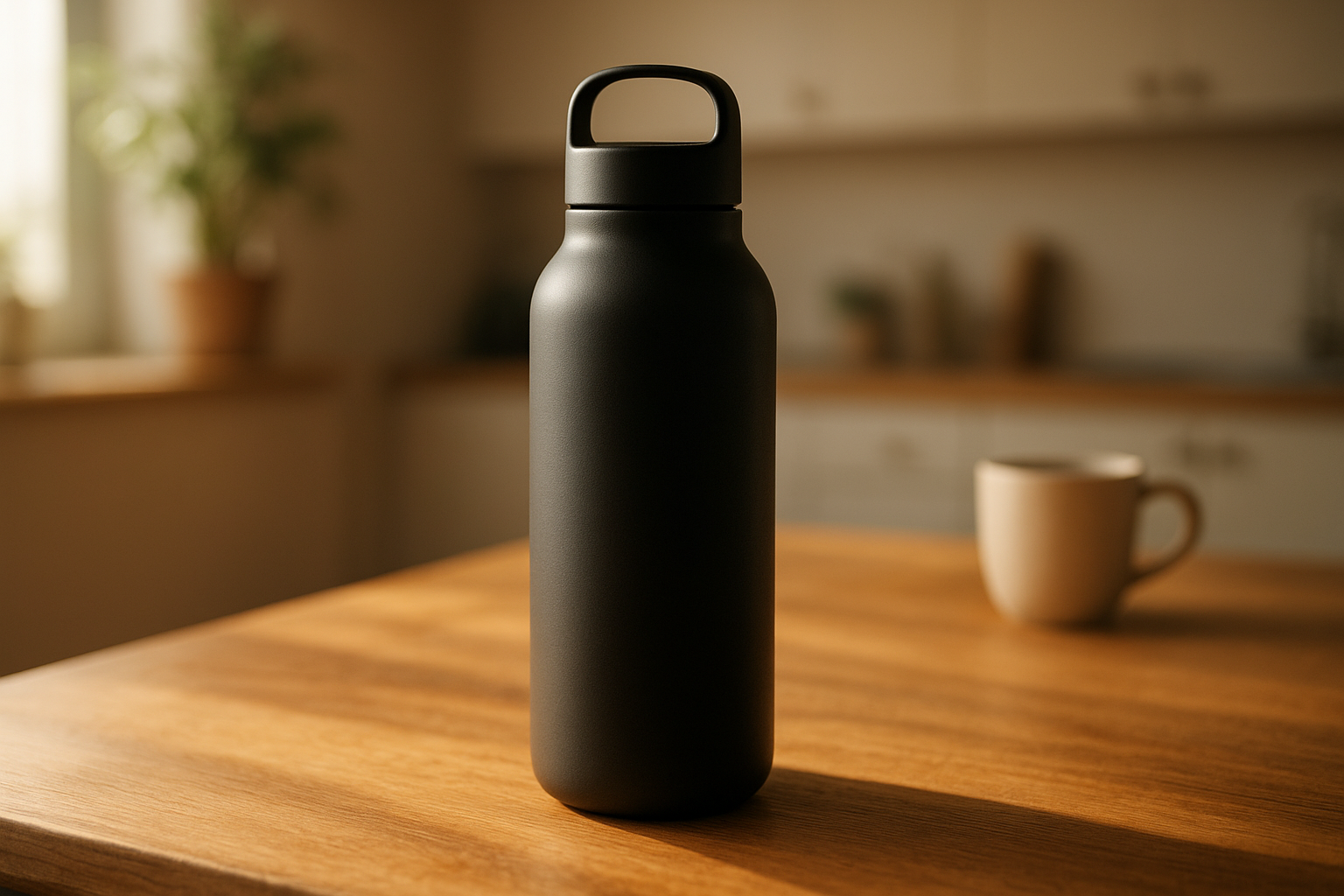
A coffee mug on a wooden table, near a laptop, with morning light? That’s a morning ritual.
Realistic scenes:
- Show size and scale (how big is that bottle on a bathroom counter?)
- Hint at use cases (gym, office, travel, night out)
- Signal brand positioning (luxury, playful, eco, minimalist)
2. Lifestyle visuals increase trust
Polished but realistic images make your brand feel established and professional. They tell customers:
“We care about how this product fits into your life.”
That perceived care often shows up in higher add-to-cart and conversion rates.
3. They’re perfect for ads & social
Lifestyle scenes are made for:
- Facebook & Instagram ads
- TikTok thumbnails
- Pinterest pins
- Email hero banners
With tools like Supra AI Photo Studio, you can reuse the same product photo across dozens of scenes, instead of paying for new shoots each time.
The 3 Keys To Believable Product Scenes
Whether you use traditional editing or AI, realistic scenes always get these three things right:
- Lighting – Direction, intensity, and color temperature should match.
- Perspective – Camera angle and lens feel consistent between product and background.
- Shadows & reflections – Your product must "sit" on the surface, not float.
If those look right, your viewer’s brain accepts the image as real.
Option 1: Doing It Manually (And Why It’s Hard)
Traditional way:
- Shoot your product on white.
- Find a stock background.
- Mask the product, paste, resize, color-correct.
- Manually paint shadows and adjust lighting.
This works, but it’s:
- Slow – 20–40 minutes per image.
- Expensive – Designer, photographer, or retoucher.
- Inconsistent – Hard to keep the same style across your whole catalog.
That’s why more Shopify merchants are now using AI scene placement instead.
Option 2: Place Products In Realistic Scenes With AI (In Minutes)
Supra AI Photo Studio lets you drop your product into hyperrealistic environments directly from your Shopify admin. No design skills, no external tools.
Here’s how to do it step by step.
Step 1: Install Supra AI Photo Studio in Shopify
- Go to the app listing: Supra AI Photo Studio on the Shopify App Store.
- Click Add app and follow the prompts.
- Once installed, open it from your Shopify admin.
You can start on the Free plan (4 AI images + 4 AI videos/month) and upgrade as you scale.
Step 2: Choose a Strong Base Product Image
For the best results, pick images that are:
- Sharp and in focus
- High resolution (no heavy compression)
- Well lit, even if the background is boring
From the app:
- Open Supra AI Photo Studio.
- Either pick a product from your store or upload a new image.
Tip: If your image is blurry or noisy, run Auto Enhance first to fix sharpness, lighting, and colors.
Step 3: Isolate the Product (Clean Cutout)
Before placing the product into a new scene, you want a clean cutout.
In Supra AI Photo Studio:
- Use Isolate Product / Background remover.
- Let the AI remove distractions and background.
- Check edges (handles, straps, hair for apparel photos) and refine if needed.
This helps the AI understand exactly what should be placed into the new environment.
Step 4: Use Object Placement To Drop Products Into Scenes
This is where the magic happens.
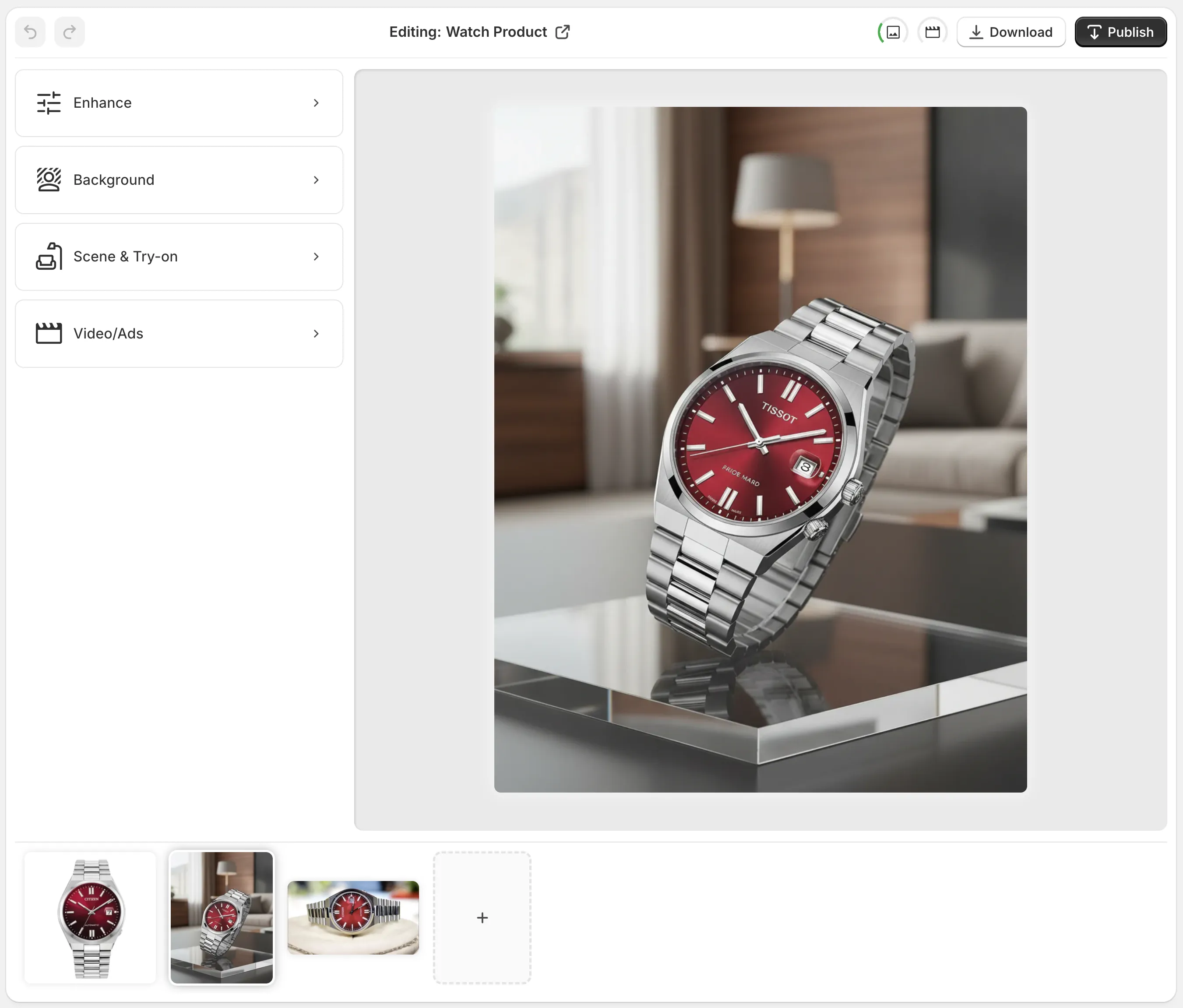
With the Object Placement tool in Supra AI Photo Studio:
- Select your isolated product.
- Choose the type of environment:
- Kitchen, office, bathroom, living room
- Outdoor terrace, beach, hiking trail
- Luxury studio, boutique, minimal set
- Configure details:
- Surface type – wood, marble, concrete, fabric, glass
- Camera angle – top-down, eye-level, 45°, close-up, macro
- Lighting style – soft daylight, moody, dramatic studio, sunset glow
- (Optional) Add extra instructions to the AI, like:
- “On a marble bathroom counter with a blurred mirror in the background.”
- “On a wooden desk next to a laptop and notebook in a cozy office.”
The AI generates a fully coherent scene where your product looks like it was shot there originally — including shadows, reflections, and matching light.
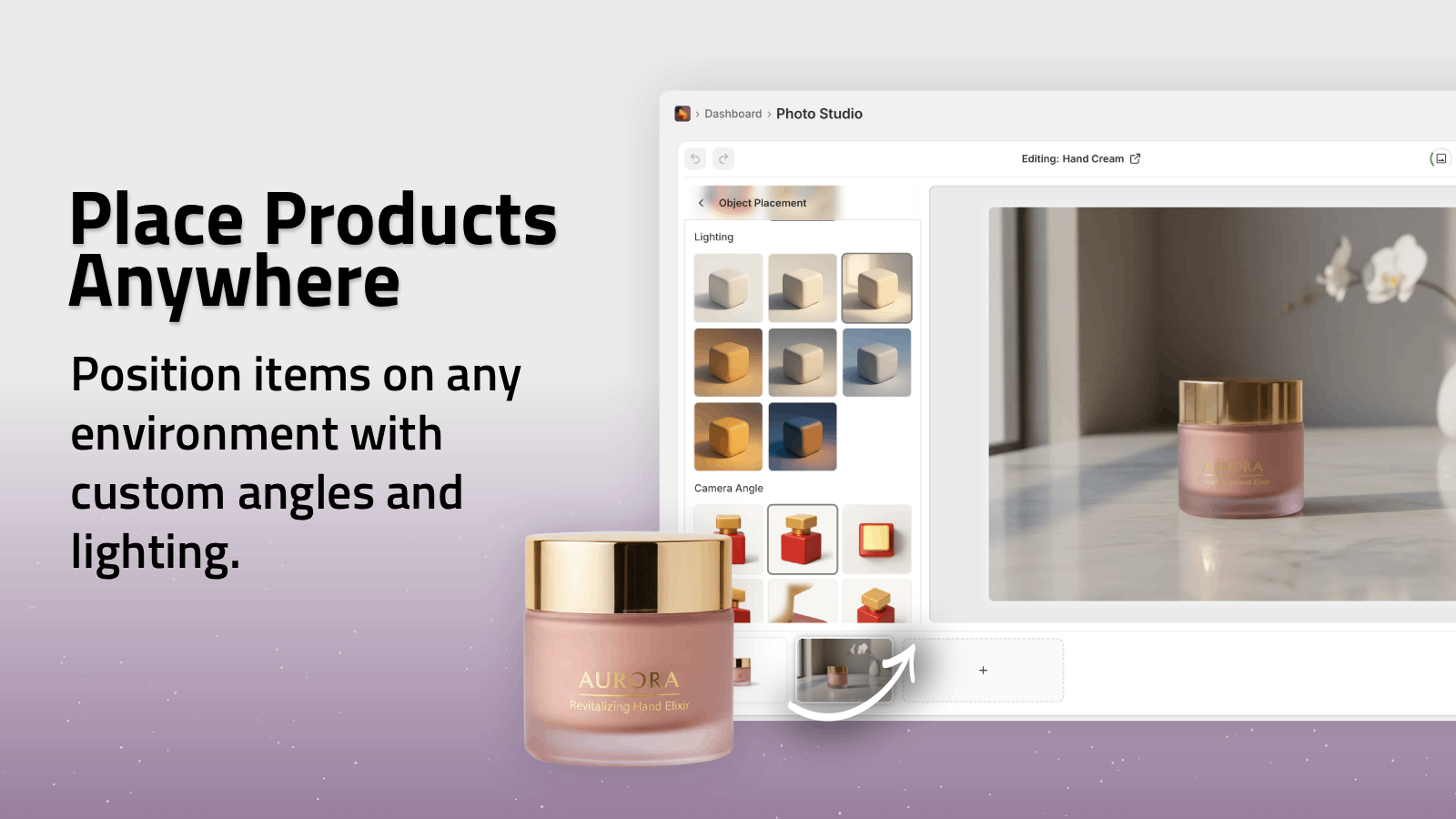
You can generate multiple variations in seconds and pick the most convincing one.
How To Make Scenes Look Truly Real (Pro Tips)
1. Match setting to your ideal customer
Let the scene tell a story about who uses your product.
- Fitness watch → gym, running track, trail.
- Luxury candle → marble tray, linen, warm evening light.
- Tech gadget → clean desk, dual monitors, modern apartment.
In Supra AI Photo Studio, you choose environments that match that story with one click.
2. Vary angles and crops
Don’t rely on a single angle for every product.
Try:
- Hero shot – eye-level, centered, lots of context around
- Detail shot – close-up, focusing on texture, stitching, ingredients
- In-use shot – product partially cropped, implied hands or body nearby
This works especially well when combined with AI Try-On for fashion.
Bonus: Put Apparel On Realistic Models With AI Try-On
If you sell clothing, jewelry, or accessories, model photography is usually the biggest cost.
Supra AI Photo Studio solves this with AI Try-On:
- Put your apparel on AI models that look real.
- Change pose, skin tone, body type to reflect your audience.
- Maintain true color and fit of the garment.
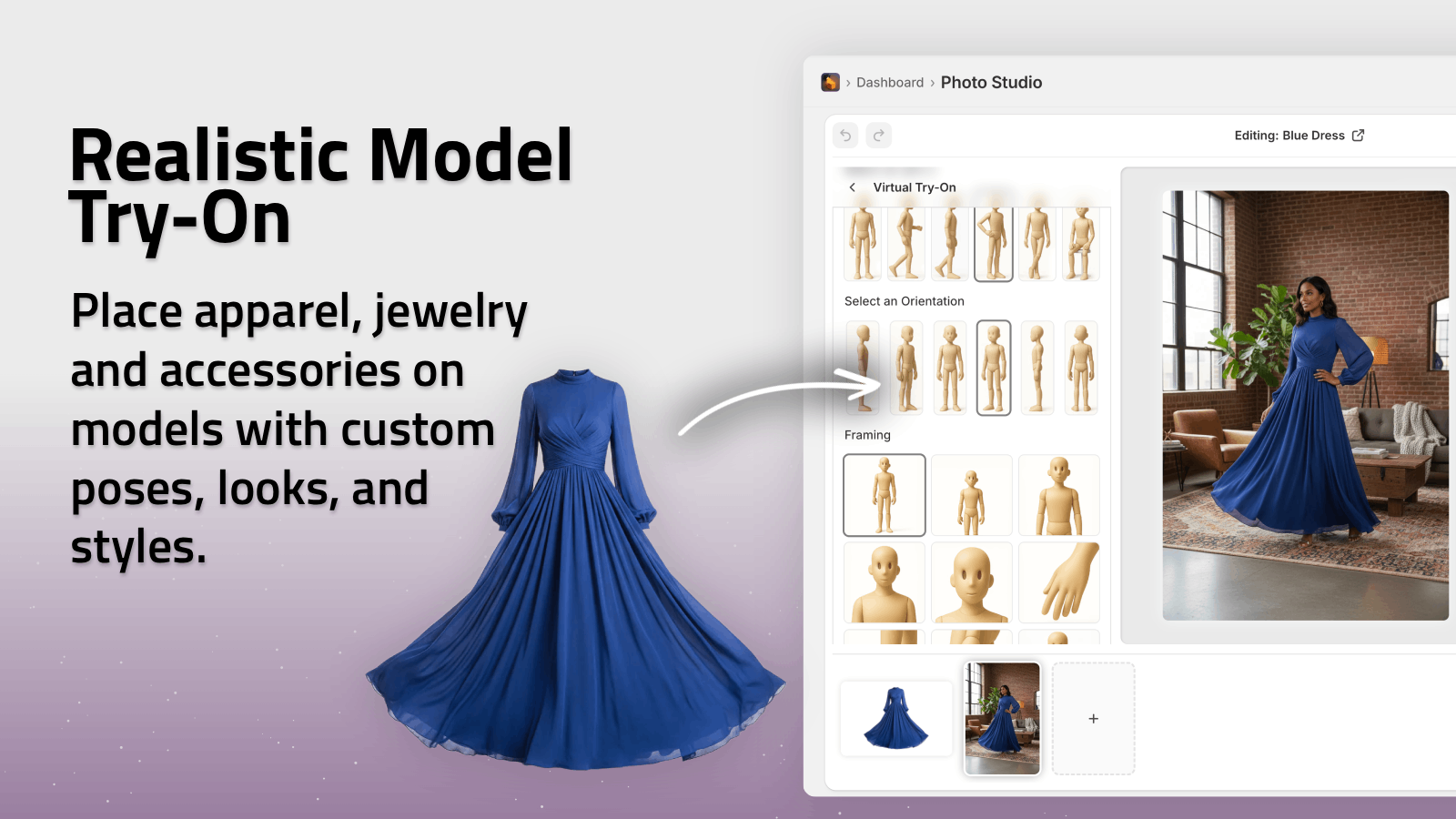
You can mix on-model images and object placement lifestyle shots to build a fully rounded product page:
- Model front + back view
- Close-up detail on texture
- Lifestyle scene (e.g., dress at an outdoor cafe)
All built from the same base product images.
Turn Those Scenes Into High-Performing Videos
Once your visuals look great, you can go further and turn them into scroll-stopping videos – directly from the same app.
With Supra AI Photo Studio, you can generate:
- B-roll product videos – Cinematic drops, spins, splashes (dust, liquid, smoke effects) while preserving your product details.
- UGC-style videos – Influencer-style clips based on your product images, with selectable voice, vibe, and setting.
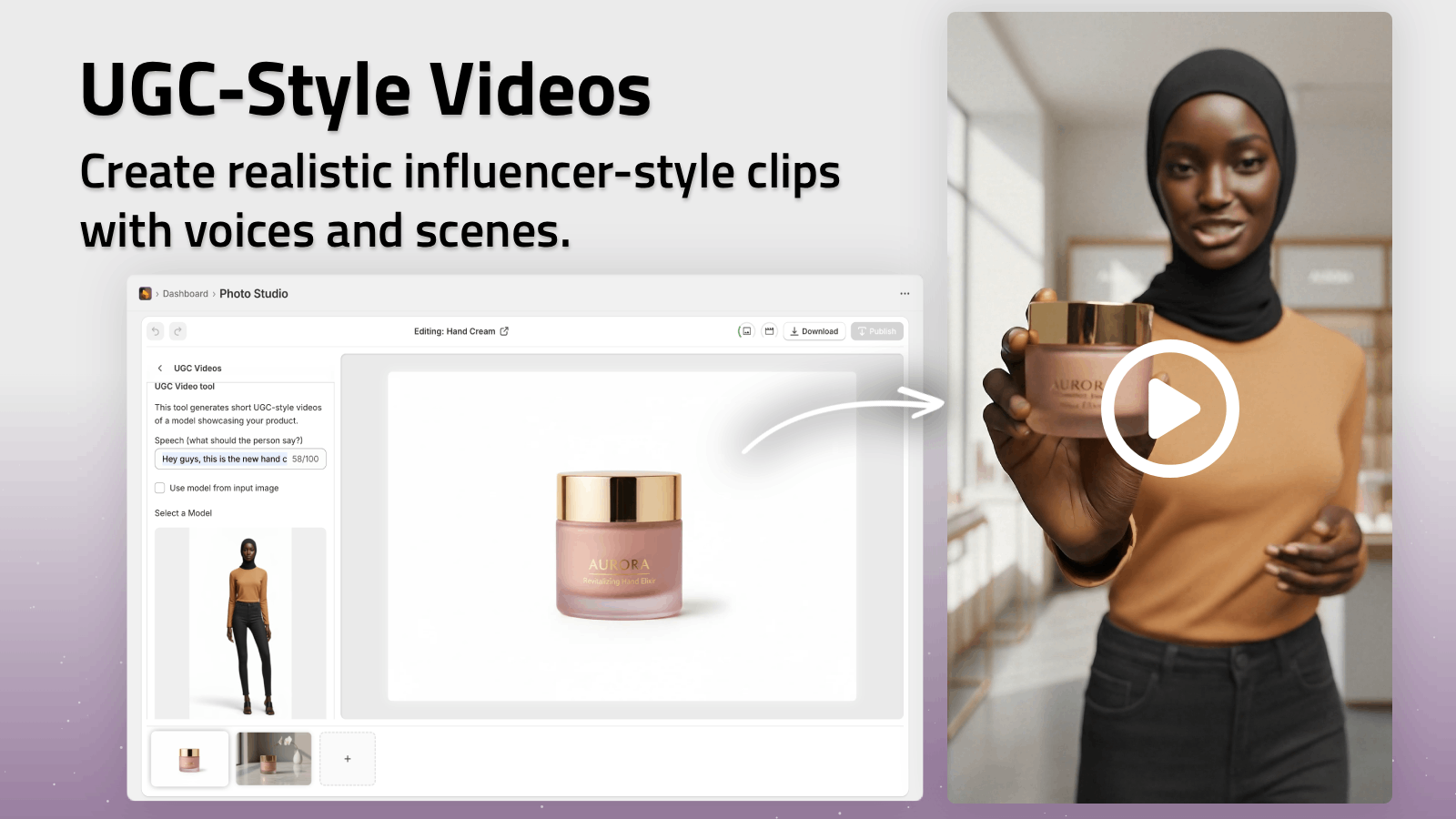
Use these for:
- TikTok & Reels
- Meta ads
- Product detail pages with autoplay video
Best Practices For Consistent, High-Converting Scenes
To make your whole catalog look like it came from one professional studio:
-
Define a visual style
- Warm vs. cool tones
- Minimal vs. detailed backgrounds
- Clean studio vs. lifestyle-heavy
-
Reuse similar environments across product categories
- Same desk style for all tech items
- Same bathroom aesthetic for skincare
-
Standardize angles & crops
- E.g., every product has: hero, 45° angle, detail macro, context scene.
-
Optimize for page speed
- Use Supra’s built-in upscaling and enhancement, then export at the size Shopify needs.
-
Test what converts best
- A/B test white background vs. lifestyle hero images.
- Try different environments (kitchen vs. dining table) for the same product.
From Plain Photos To Realistic Scenes — In Minutes
You don’t need a studio, a photographer, or a retoucher to place your products in realistic scenes anymore.
With Supra AI Photo Studio, you can:
- Remove and replace backgrounds automatically.
- Place products into any environment with correct lighting and shadows.
- Put apparel on photorealistic AI models.
- Generate UGC and b-roll videos for ads and social.
All from inside your Shopify admin, starting with a free plan.
If you’re serious about:
- Boosting conversions
- Making your brand look premium
- Scaling content for ads, socials, and PDPs
…it starts with realistic visuals.
👉 Install Supra AI Photo Studio on Shopify and turn your plain product photos into high-conversion lifestyle scenes today.