Create Cinematic B-Roll From Product Photos (No Camera Needed)
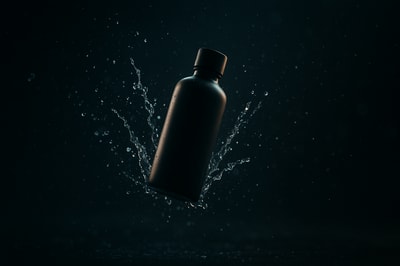
Why Cinematic B-Roll Is a Game Changer for Your Store
Cinematic product b-roll used to be something only big brands could afford: slow-motion pours, dramatic spins, floating dust, satisfying close-ups. Today, that style of video is what performs best on TikTok, Reels, YouTube Shorts, and high-converting product pages.
The good news: you no longer need a camera, studio, or video editor to get it.
With tools like Supra AI Photo Studio, you can generate cinematic b-roll from a single product photo — directly inside your Shopify admin.
In this guide, you’ll learn:
- What cinematic b-roll is and why it converts
- How to turn static photos into cinematic clips
- Practical ideas for different product types
- How to integrate b-roll into your product pages and ads
What Is Cinematic B-Roll (And Why It Sells)?
B-roll is the supporting footage that shows your product in motion: close-ups, textures, small movements, context shots. It’s what makes your brand feel premium and tangible instead of flat and static.
Cinematic b-roll adds a film-style look:
- Slow motion and smooth motion paths
- Dramatic lighting and contrast
- Macro close-ups and shallow depth of field
- Particles, splashes, smoke, dust, or liquid effects
On ecommerce sites and social feeds, this kind of micro-storytelling:
- Increases time on page (visitors stay to watch)
- Improves perceived product quality
- Boosts click-through on ads vs static photos
- Makes even simple products feel designed and intentional
The Traditional Way vs AI B-Roll
Traditionally, to get cinematic b-roll you’d need:
- Camera, lenses, tripod, lights
- Props (liquids, smoke, backgrounds)
- Editor comfortable with slow motion, color grading, motion design
That’s days of work and hundreds or thousands in budget.
With Supra AI Photo Studio, you can now:
- Upload or select a single product image from Shopify
- Generate cinematic b-roll clips in minutes
- Keep product details perfectly preserved in every animation
Meet Supra AI’s B-Roll Generator (Inside Shopify)
Supra AI Photo Studio is a Shopify app built specifically for product visuals:
- AI product b-roll videos – top-down shots, drops, spins, slow motion
- Cinematic effects – liquid, smoke, dust, particle splashes
- Detail preservation – your logo, colors, shape stay accurate
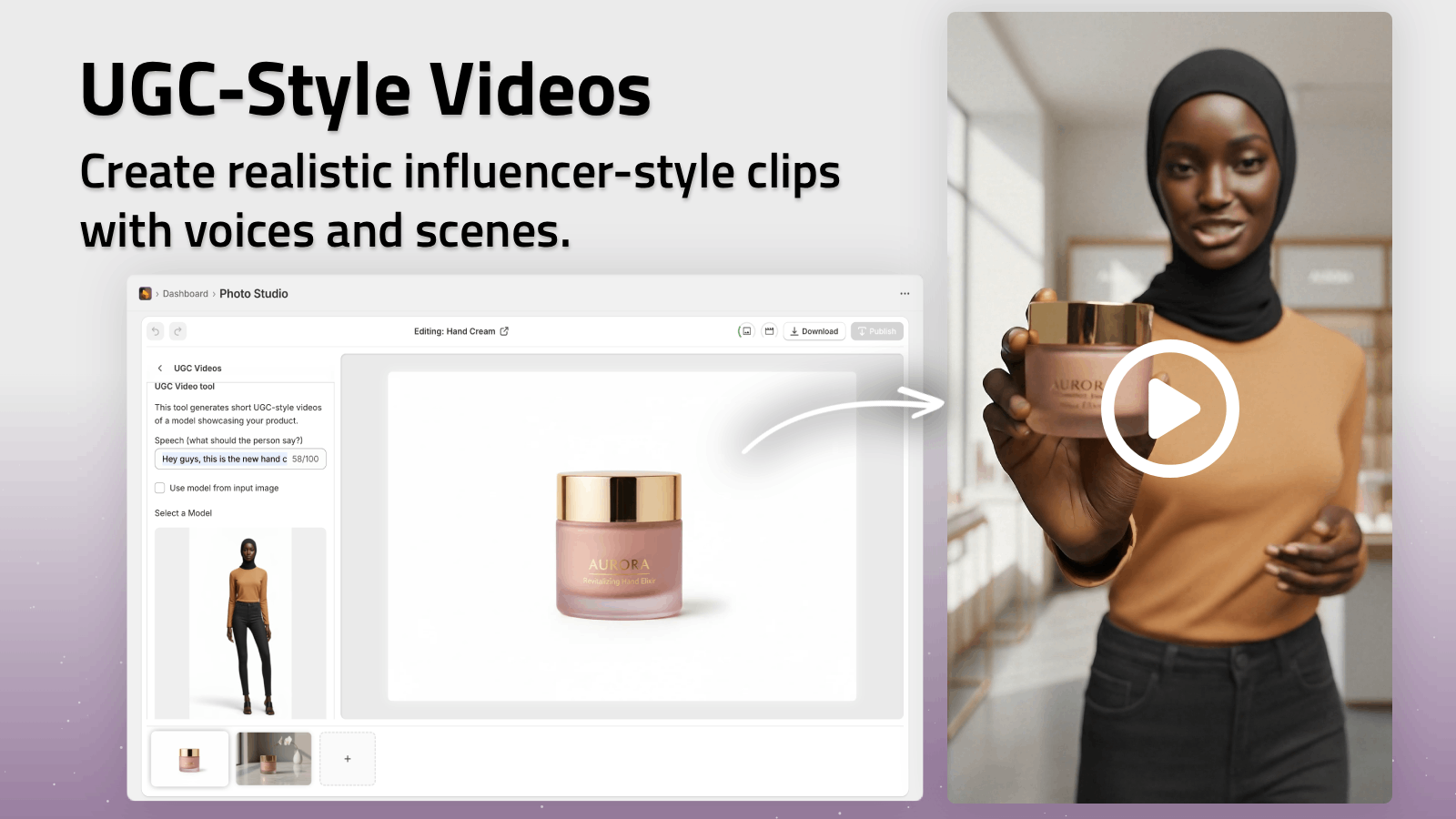
- UGC-style videos – influencer-like talking or showcasing clips
- Image tools – background removal, upscaling, try-on, object placement
You can install it here:
👉 Supra AI Photo Studio on the Shopify App Store
Or watch the short demo video to see the b-roll in action:
👉 Supra AI Photo Studio Demo Trailer
How to Create Cinematic B-Roll From Product Photos (Step-by-Step)
1. Install the App and Open a Product
- Go to the Supra AI Photo Studio app page.
- Click Add app and connect it to your Shopify store.
- From your Shopify admin, open Apps → Supra AI Photo Studio.
- Choose a product from your catalog or upload a new product image.
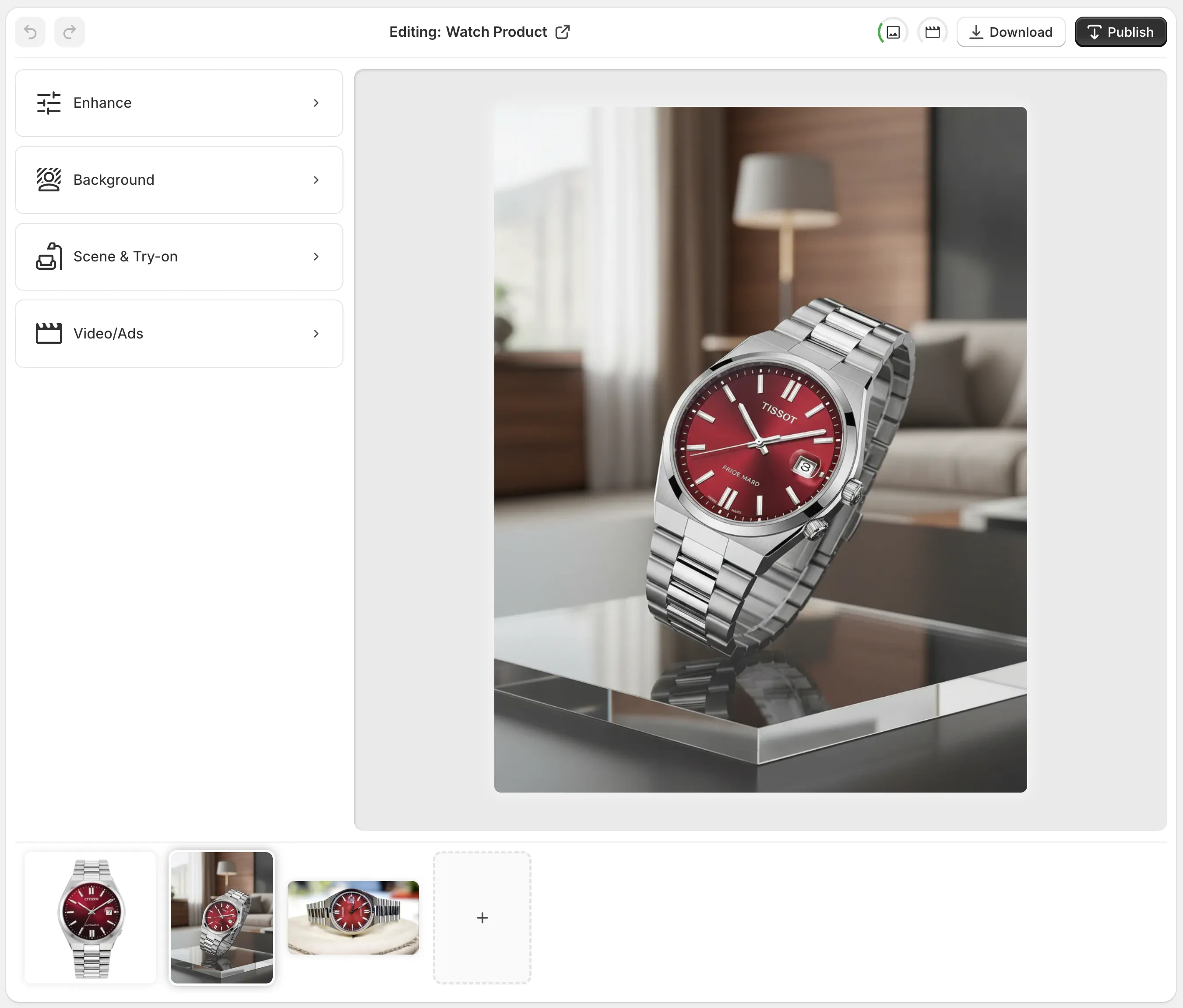
You’ll see the main editor, with your product images at the bottom and tools on the left.
2. Prep Your Product Photo for Best Results
While Supra’s AI can work with almost any clean product image, small tweaks improve the final b-roll:
- Use the “Isolate Product” / background remover to remove distractions.
- Upscale if the image is small or slightly blurry.
- Use Auto Enhance to fix lighting and color so your product looks true-to-life.
This gives the b-roll engine a crisp, isolated product to animate.
Tip: A simple, front-on or 3/4 angle often works best for cinematic shots.
3. Open the B-Roll / Video Tool
In the tools panel on the left, select the B-Roll / AI Video option.
From here you can:
- Pick from preset cinematic styles (e.g. top-down drop, spin, impact, slow-motion pan)
- Choose effects like dust particles, liquid splash, smoke, or impact bursts
- Set duration and aspect ratio (9:16 for Reels/TikTok, 1:1 or 4:5 for feeds, 16:9 for product pages)
The app then generates a short, looping clip based on your static product image.
4. Customize the Cinematic Style
To match your brand and product, tweak a few key settings:
- Camera angle: top-down, front, or 3/4 perspective
- Motion type: drop, float, rotate, slide-in, impact
- Lighting: moody and dramatic vs bright and clean
- Background style: studio gradient, textured surface, abstract color, or dark void
For example:
- Beauty products – soft lighting, slow floating motion, subtle liquid or dust
- Tech & gadgets – sharper contrast, dark background, dynamic spin or impact
- Kitchenware – neutral backgrounds, natural light, gentle rotations
The goal is to create a loop that feels satisfying to watch but doesn’t distract from the product.
5. Generate, Review, and Refine
Click Generate and let Supra AI create the video.
Then:
- Preview it in the canvas
- Regenerate if you want a different look or motion
- Try a few styles (e.g. one minimal loop and one with a bold splash effect)
Once you’re happy, you can download the clip or publish it directly to your product’s media gallery inside Shopify.
Creative B-Roll Ideas by Product Type
For Beauty & Skincare
- Bottle or jar slowly spinning while liquid swirls around it in slow motion
- Product floating with soft light beams and dust particles
- Textured close-up clip emphasizing shimmer, gloss, or embossed labels
For Fashion & Accessories
- Shoe or bag doing a smooth 360° rotation on a soft gradient background
- Watch or bracelet dropping in slow motion with metallic highlights
- Sunglasses rotating under a shifting light bar for a premium, editorial feel
For Home & Decor
- Candle, vase, or lamp gently rotating over a textured stone surface
- Minimalist object with soft smoke or dust drifting in the background
- Tableware set in a top-down shot with a subtle impact bounce
For Tech & Gadgets
- Phone or earbuds spinning in a dark, high-contrast studio
- Keyboard or mouse with glowing accent lights sweeping across
- Impact b-roll where the product lands and particles burst outward
Every one of these can be generated from the same base product photo using Supra AI’s b-roll engine.
Where to Use Cinematic B-Roll for Maximum ROI
1. On Your Product Pages
Embed short loops near the top of your product page alongside images.
- Use 5–10 second autoplaying, muted loops
- Highlight a key detail: texture, material, mechanism
Result: higher engagement and more time spent on your page.
2. In Facebook, Instagram & TikTok Ads
Turn your AI-generated b-roll into:
- Hook clips at the start of a UGC or voiceover ad
- Background loops behind text overlays (benefits, social proof, discount)
Supra AI also offers UGC-style video generation, letting you blend influencer-style content with your cinematic b-roll.
3. Social Media Content & Reels
Post your best b-roll as:
- Product teases
- Launch announcements
- Satisfying “oddly satisfying” loops with simple captions
Pair with text like: “Wait for the spin” or “Watch this on repeat” to encourage rewatches.
Why Use Supra AI Instead of Stock or Manual Edits?
- No camera or studio: start from the product shots you already have.
- Brand consistency: every clip uses your exact product, colors, and shape.
- Speed: generate multiple variations in minutes instead of days of production.
- Cost: way cheaper than renting gear or hiring a videographer.
And because it’s a Shopify app, everything stays in your existing workflow.
👉 Try it for free: Supra AI Photo Studio – Shopify App
Free plan includes AI image generations so you can test the editor, with paid plans adding more images and video generations to scale your catalog.
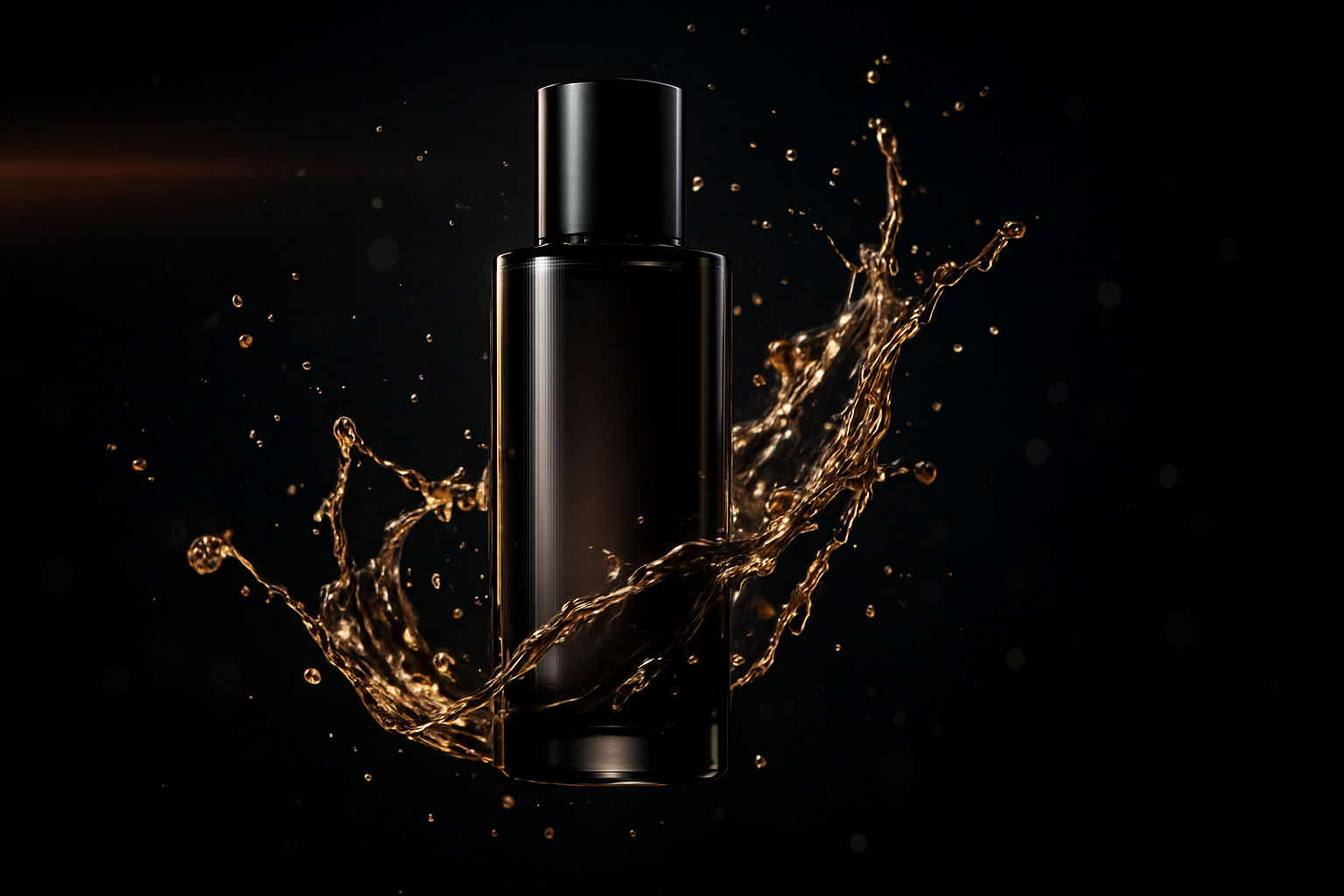
Example AI Image Concept for Your B-Roll Strategy
Use visuals like the one below in presentations or strategy docs to align your team on the type of cinematic content you want to create:
Turn Your Static Catalog Into a Motion-First Experience
Video is now the default language of ecommerce. Stores that only rely on static product photos are already falling behind.
By using AI-generated cinematic b-roll from tools like Supra AI Photo Studio, you can:
- Upgrade your existing product library
- Make your brand look premium without a studio budget
- Create high-performing ad and social assets in hours, not weeks
Install the app, pick one hero product, and generate 2–3 test b-roll clips. In most niches, the lift in engagement and conversion is immediate — and you’ll have a repeatable process for every new product you launch.